

Welcome back!
So, last two blogs we were talking about security and PowerShell, and that if in the wrong hands PowerShell can even do harm to your system/environment and not only automate is.
Well today we’re putting the security topic aside for now and we’ll be talking about something else. Something everybody in the world is aware of and works with somehow. (even my parents > 70 years are using it…) It’s called…. *** drum noice *** AI!!
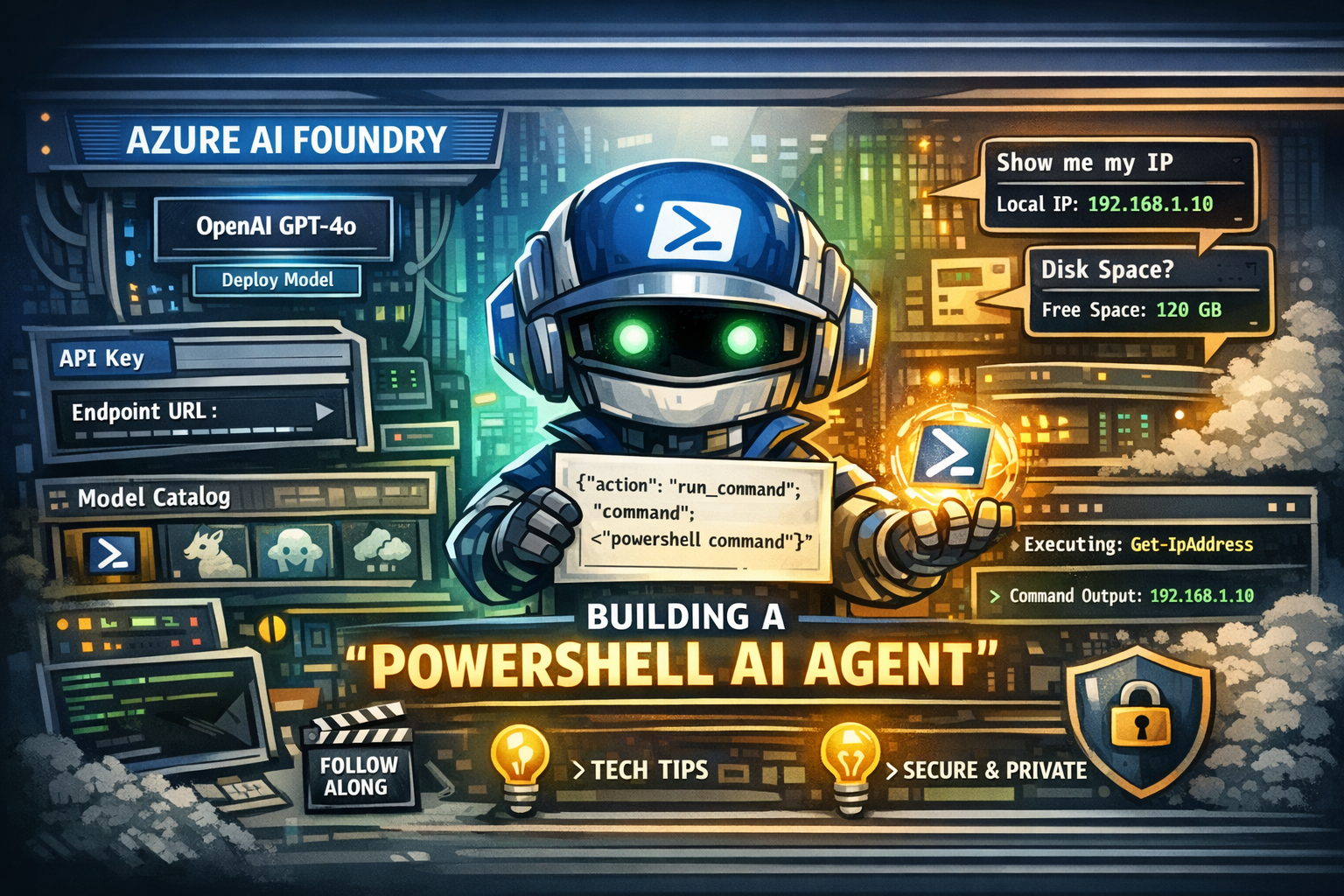
We’ll be diving into Azure, OpenAI and create our very own “PowerShell AI Agent”
Throughout this post, look for the 🎬 icon for follow-along steps and 💡 notes for that deep-dive technical context.
Are you ready to become an AI-engineer?! Let’s go! 😉
OpenAI explained
Think of Azure AI Foundry as the “Unified Command Center.” While we are specifically going to use Azure OpenAI as our “brain,” Microsoft has moved the controls into this new “Foundry” cockpit. It’s where we build, test, and deploy our models without needing a PhD in Data Science.
💡 The “Big Three” Features
Even though we are sticking with OpenAI, we’ll be using these three areas of the Foundry to get the job done:
- The Model Catalog (The Library): Imagine a massive library where you can “hire” different brains. You can pick GPT-4o from OpenAI, Llama 3 from Meta, or Mistral. For our PowerShell agent, we usually pick a model that is a “Code Expert.”
- The Playground (The Sandbox): This is where the fun happens! You can chat with the AI directly in the portal to see how it handles PowerShell commands. You can set a System Prompt like: “You are a world-class PowerShell scripter. Always use Try-Catch blocks and avoid Write-Host!”
- Prompt Management (The Memory): Foundry allows you to save and version your prompts. So, if you update your “PowerShell Assistant” logic, you can track those changes just like you do with code in Git.
💡 Technical Deep-Dive: Why “Foundry”?
Why are we doing this in Azure? Simple: Enterprise Grade Control. By using Azure OpenAI through the Foundry, we get a Unified API. This means if we start with GPT-3.5 today and want to upgrade to GPT-4o tomorrow, we just update the deployment in the portal. Our PowerShell code stays exactly the same, no major refactoring needed!
Security Note: This is the big one. Because we’re in the Azure environment, your data stays inside your tenant. Your proprietary PowerShell scripts and server names are NOT used to train the public ChatGPT. It’s your own private, “Secure AI Bubble.”
Setup OpenAI Service
Let’s start doing some fun stuff! Let’s deploy an OpenAI which will be hosting all of our AI models and services which we’ll be using for our project.
🎬 Deploy a OpenAI
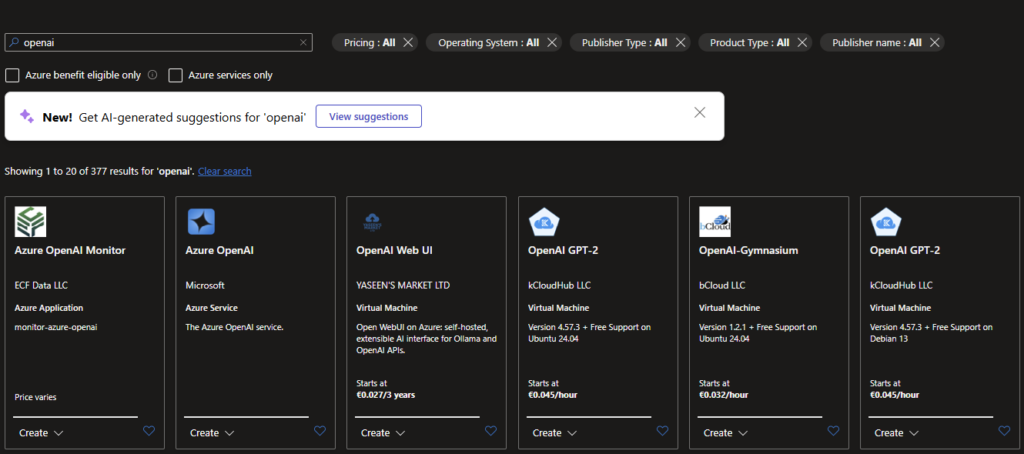
- When the resource is deployed go to the foundry portal

- When you are at the foundry you should see something like below
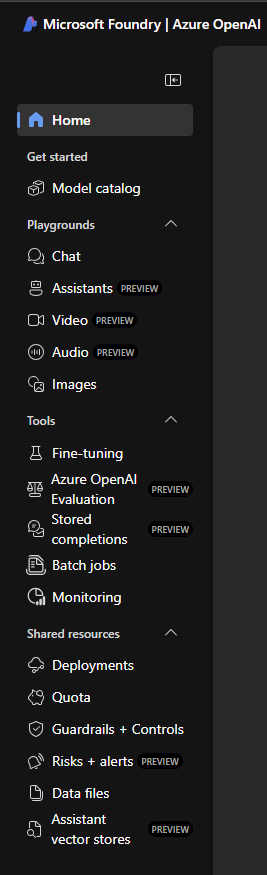
Our first deployment
Think of the Model Catalog as a massive library filled with “sleeping” geniuses (models like GPT-4o, Llama, etc.). A Deployment is the act of waking one up, giving it a desk, a name, and its own dedicated “phone number” (Endpoint) so your PowerShell script can actually call it.
💡 What exactly is a Deployment?
In Azure AI Foundry, a deployment is your personal instance of an AI model.
- The Model: e.g., gpt-4o (The “software” or the brain type).
- The Deployment: Your unique, active version of it, named something like PS-Agent-Brain.
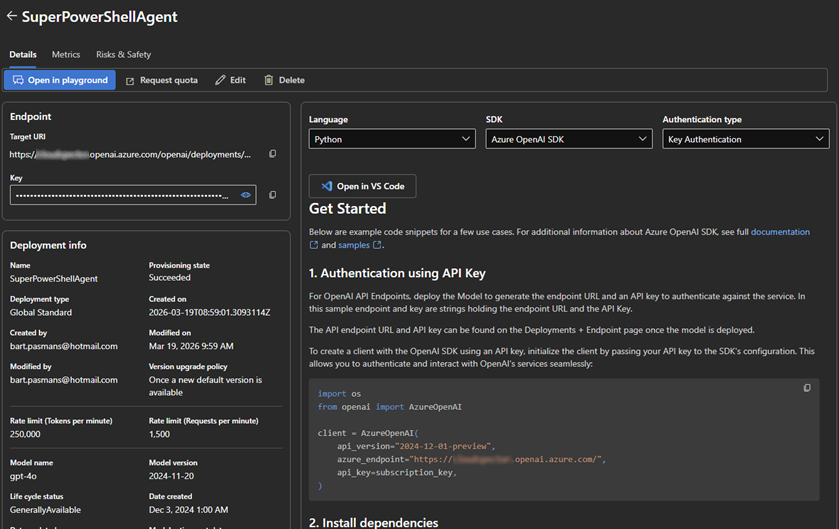
Once you hit “Deploy,” Azure allocates the hardware power behind the scenes. You get a URL and an API Key. Without these two, your PowerShell agent is just a lonely script with no one to talk to!
🎬Lets create a model deployment
- Go to deployments and deploy a model (base model for now)
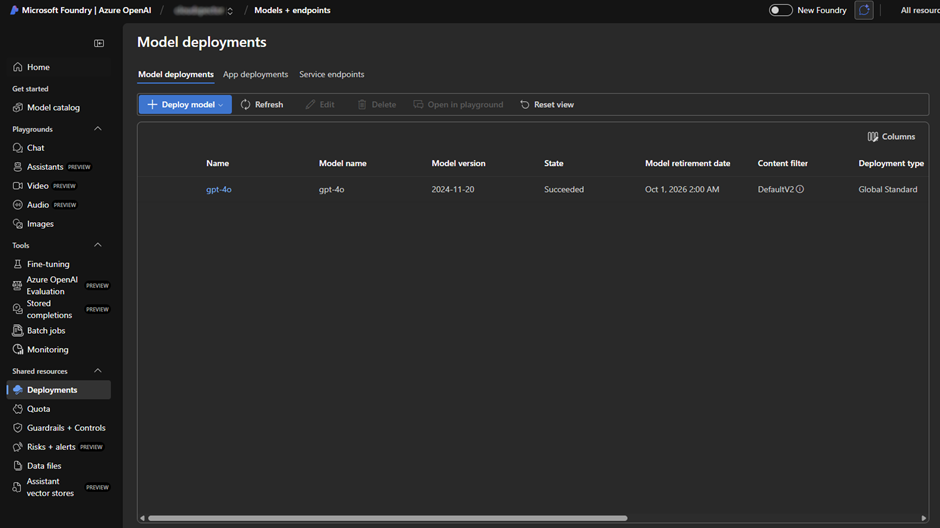
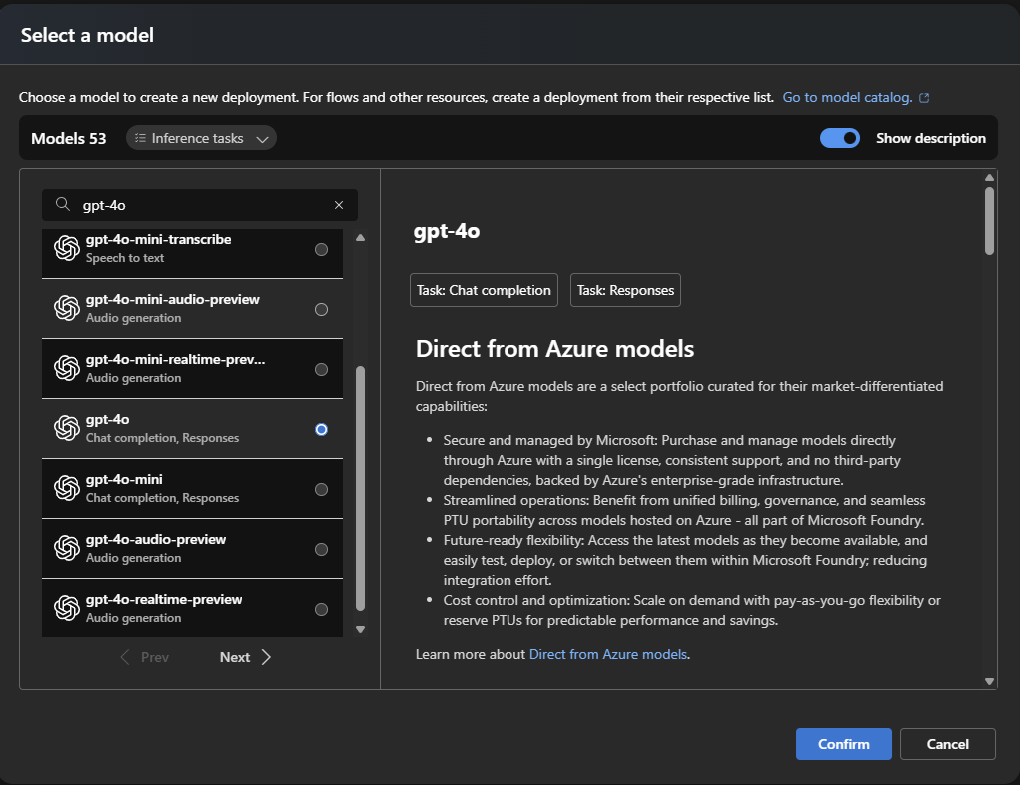
- Deploy the model (for now we’ll be using GPT-4o)
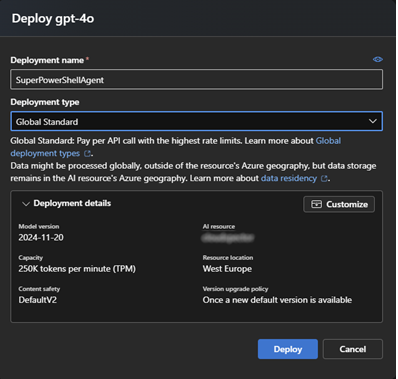
- Provide the details for the deployment like below
When everything is deployed you will see the deployment, from here you can access all information required for creating our very own first PowerShell agent!
Creating our agent
Our code will consist of specific elements, elements like:
- Configuration (Endpoint, API, Deployment etc)
- Prompt (what type of agent are we dealing with, how should the agent deal with whatever we are going to sent)
- Call to agent (sent our request and get the response)
- Execute response (we get a response, that needs to be executed)
⚠️We will be letting our agent execute PowerShell, If you have read my previous blogs about security I hopefully don’t have to explain the potential dangers in this. Always be careful!
🎬 Follow the steps below to create our agent (create a PowerShell file for storing everything)
- Define a top element with the configuration of the agent: (these details can be found in the foundry)
# ===== CONFIG =====
$endpoint = "https://{YOUR RESOURCE}.openai.azure.com/"
$deployment = "SuperPowerShellAgent"
$apiKey = "{API KEY}"
$apiVersion = "2024-02-15-preview"
•	We need to define how the agent should respond and work to us so we need a block like below

# ===== HEADERS =====
$headers = @{
    "api-key" = $apiKey
    "Content-Type" = "application/json"
}

# ===== SYSTEM PROMPT =====
$systemPrompt = @"
You are a PowerShell automation agent.

Always respond in JSON format like:
{
  "action": "run_command",
  "command": "<powershell command>"
}

Only generate safe and relevant commands which dont interfer with system security or file/data integrity
"@⚠️ Make sure to update the endpoint, deployment and apikey so they reflect your environment
See how we tell what the agent should do in the system prompt? And to tell him some safety guidelines. You can extend this so it reflects your exact requirements
- And we need a block to execute and show the result
# ===== FUNCTION: CALL AZURE OPENAI =====
function Invoke-AzureOpenAI($messages) {
    $body = @{
        messages = $messages
        temperature = 0.2
    } | ConvertTo-Json -Depth 10

    $url = "$endpoint/openai/deployments/$deployment/chat/completions?api-version=$apiVersion"

    $response = Invoke-RestMethod -Uri $url -Headers $headers -Method Post -Body $body
    return $response.choices[0].message.content
}

# ===== FUNCTION: EXECUTE COMMAND =====
function Execute-Command($command) {
    try {
        Write-Host ">> Executing: $command" -ForegroundColor Yellow
        $output = Invoke-Expression $command | Out-String
        return $output
    } catch {
        return "ERROR: $_"
    }
}

# ===== MAIN LOOP =====
$messages = @(
    @{ role = "system"; content = $systemPrompt }
)

while ($true) {
    $userInput = Read-Host "How can I help you?"

    if ($userInput -eq "exit") { break }

    $messages += @{ role = "user"; content = $userInput }

    # 1. Ask our model for the powershell code
    $response = Invoke-AzureOpenAI $messages

    Write-Host "Model raw response:" -ForegroundColor Cyan
    Write-Host $response

    # 2. Parse JSON (FIXED)
    $cleanResponse = $response | Out-String
    $cleanResponse = $cleanResponse -replace '```json', '' -replace '```', ''
    $cleanResponse = $cleanResponse.Trim()
    try {
        $parsed = $cleanResponse | ConvertFrom-Json
    } catch {
        Write-Host "Invalid JSON response"
        continue
    }

    # 3. Execution here
    if ($parsed.action -eq "run_command") {
        $result = Execute-Command $parsed.command

        Write-Host "Output:" -ForegroundColor Green
        Write-Host $result

        # 4. Feedback model
        $messages += @{
            role = "assistant"
            content = "Command output: $result"
        }
    }
}This block contains the logic on how to call Azure OpenAI and to make sure the response can be used as code to run.
Testing
Now!!! It’s time to test our agent. Save everything in a PowerShell script and let’s run it!
- You should be greeted by our agent like below

Ask a question! For instance ‘show me my local IP’
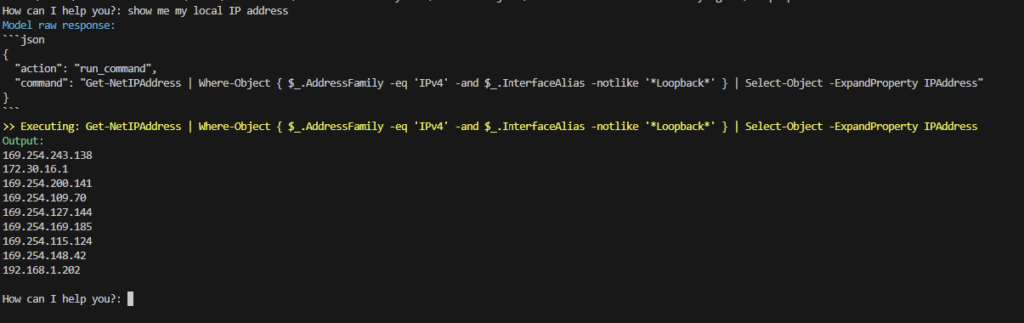
Cool huh!! 😊
Or how much disk space is available
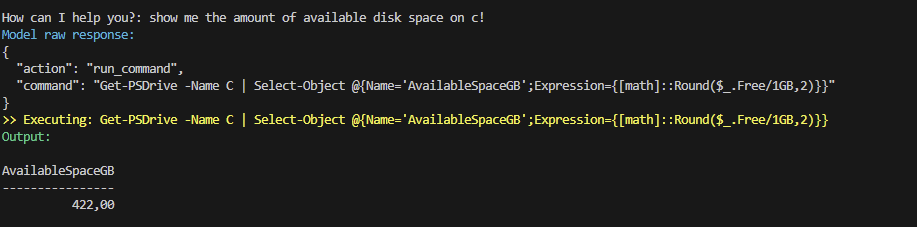
You now have your very own personal PowerShell assistant!! 😉
Summary
📝 The Recap: From Zero to AI-Engineer
We’ve covered a lot of ground today! Here is the “too long; didn’t read” version of how we built our PowerShell AI Agent:
- The Brain Surgery: We moved into Azure AI Foundry, the unified command center where we manage our AI models. It’s like a secure, private garage for our data.
- Waking the Giant: We used the Model Catalog to pick a “brain” (GPT-4o) and created a Deployment. This gave us our unique Endpoint and API Key, the secret sauce that lets our script talk to the AI.
- The Code Magic: We built a PowerShell script that doesn’t just “chat,” but actually executes commands. By forcing the AI to respond in JSON, we turned raw text into actionable code.
- The Security Bubble: Best of all, we did it the enterprise way. Our scripts and server info stay inside our Azure Tenant, safe from being used to train public models.
💡 Key Takeaways
- Foundry is the Future: Even if you only use OpenAI, Foundry is your dashboard for management and safety.
- System Prompts are King: By telling the AI to be a “PowerShell Automation Agent,” we ensured it stays on task and follows best practices.
- With Great Power… Comes great responsibility! Remember, we are using Invoke-Expression. Always keep an eye on what your agent is about to run! 🛡️
#FULL SCRIPT BELOW
# ===== CONFIG =====
$endpoint = "https://cloudspector.openai.azure.com/"
$deployment = "SuperPowerShellAgent"
$apiKey = "5asKAcrf9dvnqWYtsSV2trpimORQYSmd16BcQ32RYD7m0R1SLSgKJQQJ99CBAC5RqLJXJ3w3AAABACOGMSr7"
$apiVersion = "2024-02-15-preview"
# ===== HEADERS =====
$headers = @{
"api-key" = $apiKey
"Content-Type" = "application/json"
}
# ===== SYSTEM PROMPT =====
$systemPrompt = @"
You are a PowerShell automation agent.
Always respond in JSON format like:
{
"action": "run_command",
"command": "<powershell command>"
}
Only generate safe and relevant commands which dont interfer with system security or file/data integrity
"@
# ===== FUNCTION: CALL AZURE OPENAI =====
function Invoke-AzureOpenAI($messages) {
    $body = @{
        messages = $messages
        temperature = 0.2
    } | ConvertTo-Json -Depth 10

    $url = "$endpoint/openai/deployments/$deployment/chat/completions?api-version=$apiVersion"

    $response = Invoke-RestMethod -Uri $url -Headers $headers -Method Post -Body $body
    return $response.choices[0].message.content
}

# ===== FUNCTION: EXECUTE COMMAND =====
function Execute-Command($command) {
    try {
        Write-Host ">> Executing: $command" -ForegroundColor Yellow
        $output = Invoke-Expression $command | Out-String
        return $output
    } catch {
        return "ERROR: $_"
    }
}

# ===== MAIN LOOP =====
$messages = @(
    @{ role = "system"; content = $systemPrompt }
)

while ($true) {
    $userInput = Read-Host "How can I help you?"

    if ($userInput -eq "exit") { break }

    $messages += @{ role = "user"; content = $userInput }

    # 1. Ask our model for the powershell code
    $response = Invoke-AzureOpenAI $messages

    Write-Host "Model raw response:" -ForegroundColor Cyan
    Write-Host $response

    # 2. Parse JSON (FIXED)
    $cleanResponse = $response | Out-String
    $cleanResponse = $cleanResponse -replace '```json', '' -replace '```', ''
    $cleanResponse = $cleanResponse.Trim()
    try {
        $parsed = $cleanResponse | ConvertFrom-Json
    } catch {
        Write-Host "Invalid JSON response"
        continue
    }

    # 3. Execution here
    if ($parsed.action -eq "run_command") {
        $result = Execute-Command $parsed.command

        Write-Host "Output:" -ForegroundColor Green
        Write-Host $result

        # 4. Feedback model
        $messages += @{
            role = "assistant"
            content = "Command output: $result"
        }
    }
}