


Welcome back folks! Took me more time this run but it’s finally here! The newest PowerShell AI blog where we’ll be talking about RAG!
Every PowerShell developer knows the struggle: you have a set of “Golden Rules” or coding standards buried somewhere in a forgotten Markdown file, a Wiki, or a PDF. We tell ourselves we’ll follow them, but in the heat of a project, naming conventions slip, and error handling becomes an afterthought. Manual peer reviews are slow, and standard AI models like ChatGPT often hallucinate or suggest generic styles that don’t match your specific organization’s requirements.
In this post, we are going to change that. We are moving beyond simple AI and into the world of Enterprise RAG (Retrieval-Augmented Generation). We are building a “Digital Architect”, a PowerShell-based assistant that automatically audits your code against your own custom standards in real-time.
The Objective
Our goal is to create a seamless workflow where a developer can run a simple command to validate their script. The AI won’t just guess; it will “read” your documentation and provide feedback based strictly on your rules, even citing the source.
Throughout this post, look for the 🎬 icon for follow-along steps and 💡 for “why this works” context.
Let’s go!
Prerequisites
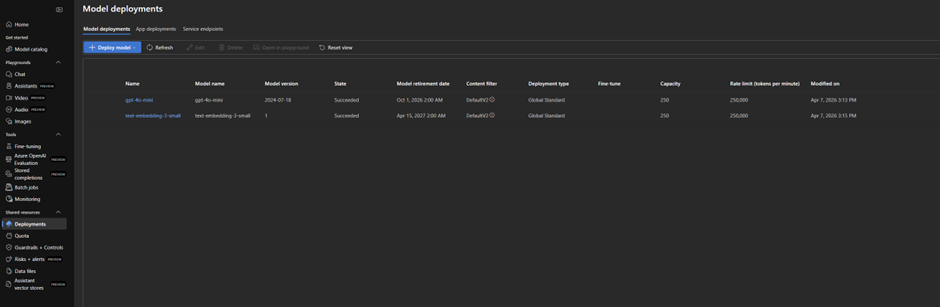
Before we start make sure you have these resources

⚠️ Tip: Place them in US, I had some issues with resources in Europe.
In the blob we’ll place a container ‘guidelines’ and within there a .md file with our coding guidelines. For the ease of mind you can find some below. Don’t forget to add to the storage account 😉
# PowerShell Coding Guidelines – Basics

## 1. Naming
- **Functions:** Use the `Verb-Noun` format (e.g., `Get-User`, `Set-Config`).
- **Variables:** Use consistent `camelCase` or `PascalCase` (e.g., `$userName`, `$ConfigPath`).
- **Constants:** Use `ALL_CAPS` or `PascalCase` with a clear prefix (e.g., `$MAX_RETRIES`).
- **Files:** Name files after the main function or module (e.g., `Get-User.ps1`).

## 2. Indentation and Layout
- Use **4 spaces** per level, no tabs.
- Limit lines to **120 characters**.
- Add a blank line between functions and logical blocks.
- Open `{` on the same line as the statement, close `}` on a new line.

```powershell
function Get-User {
    param($Name)
    Write-Host "User: $Name"
}Don’t worry, the configuration steps I’ll show you in a bit!
AI Search Import our data
Up until this point, we have our “Knowledge Base” (the Markdown files) sitting quietly in a Storage Account, and our “Brain” (Azure OpenAI) waiting for instructions. But there is a missing link: How does the AI know where to look, and how can it find the right rule in milliseconds?
In this section, we are going to perform the most critical step of our RAG architecture: The Data Import and Vectorization. We aren’t just going to “upload” files; we are going to index them. This process involves “cracking” the documents, breaking them into digestible chunks, and, most importantly, translating them into a mathematical language that the AI understands. By the end of this chapter, your static coding standards will be transformed into a high-performance, searchable index that powers our automated Architect.
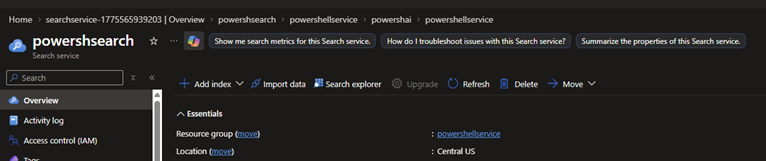
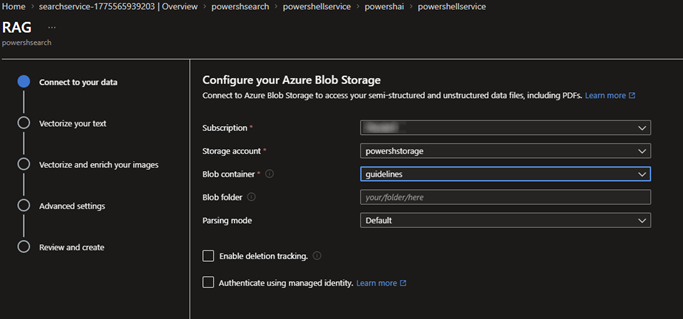
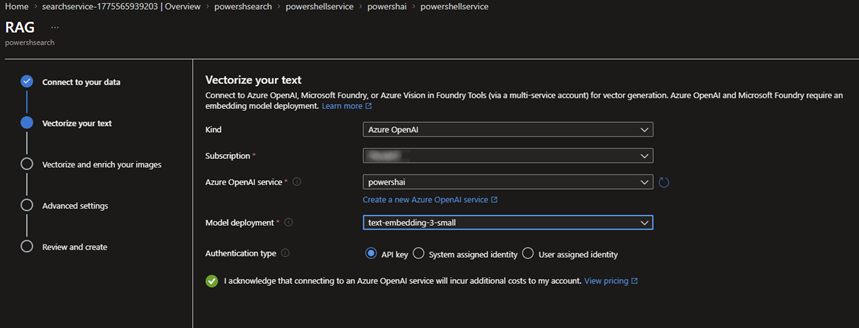
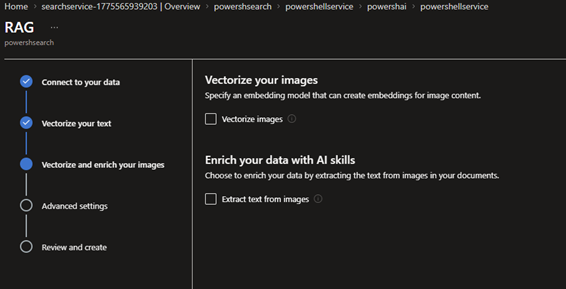
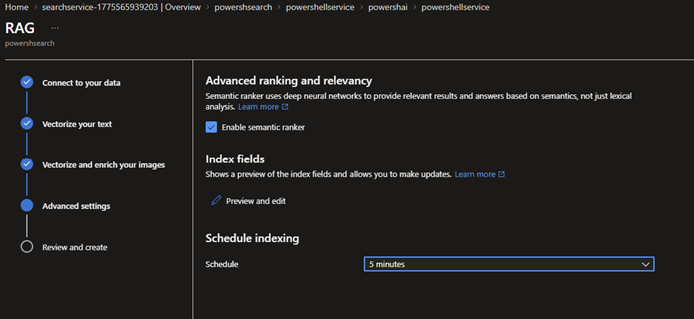
🎬 Go to the AI search and follow the steps below.
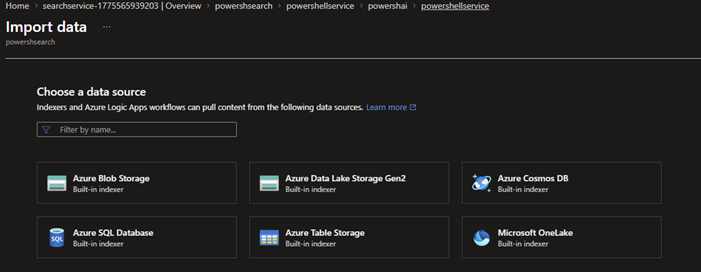
- Import data;
- We’ll be getting the data from our storage account where we stored the MD file
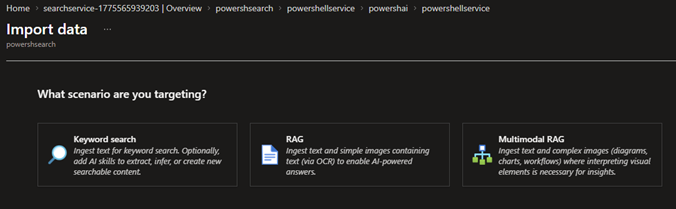
- The type of data which we’ll be importing is for RAG
- Fill in the details
- We’ll be using 5 minutes so we gather new results fast
- When done you should be seeing the screen below
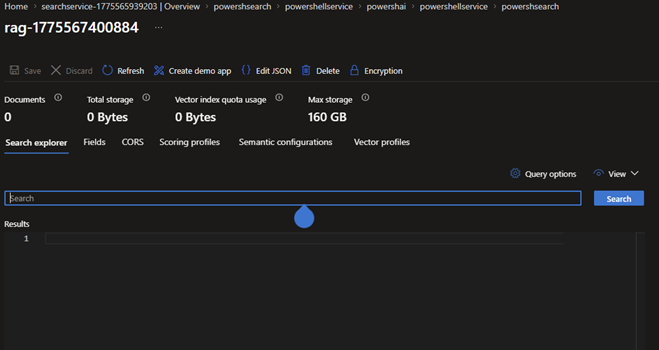
⚠️ You can prompt it when done with some ‘guidelines’ it will show you what it indexed
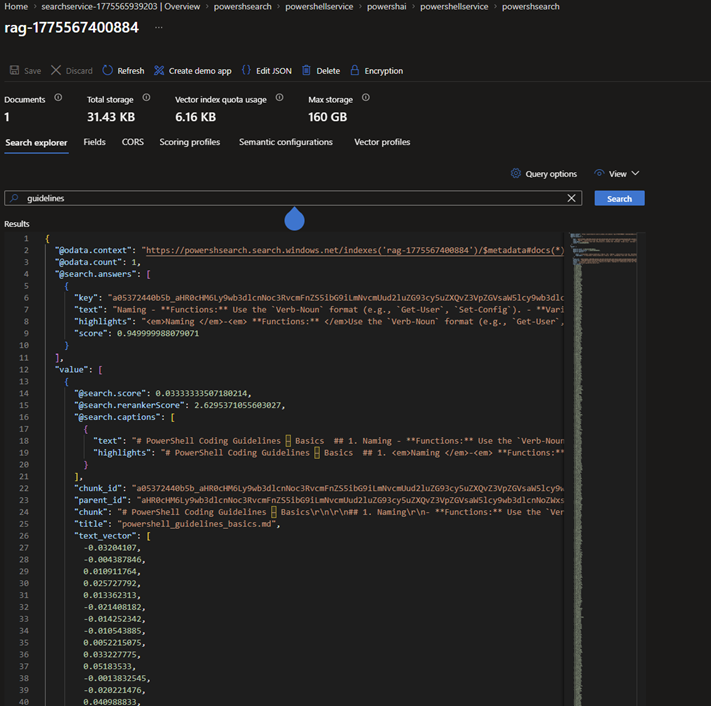
With the indexer finished and the data imported, the heavy lifting is done. Your coding standards are no longer just “text on a screen”, they have been transformed into a multidimensional knowledge base. We have successfully bridged the gap between raw storage and AI-powered retrieval.
Now that our “Digital Librarian” is ready and waiting, it’s time for the moment of truth: heading into the Azure OpenAI Playground to see if our AI can actually start talking back to us using our own data.
Playground
This is the moment of truth. We’ve built the library (AI Search) and we’ve selected our brain (GPT-4o), but do they actually speak the same language? Before we dive into the automation scripts, we need to validate our setup in the Azure AI Studio Playground.
The Playground is more than just a chat interface; it’s our testing laboratory. It’s here that we connect the dots using the “Add your data” feature. This allows us to observe the RAG (Retrieval-Augmented Generation) process in action. We’ll be looking for that “magic” citation tag, the proof that the AI isn’t just giving us generic advice, but is actively looking up our PowerShell guidelines to formulate its response.
🎬 Open the playground in the Azure OpenAI service
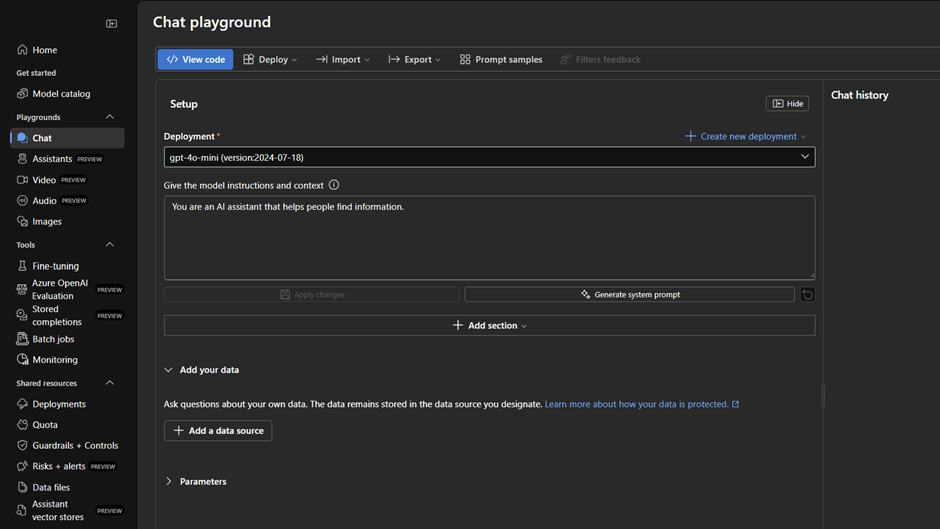
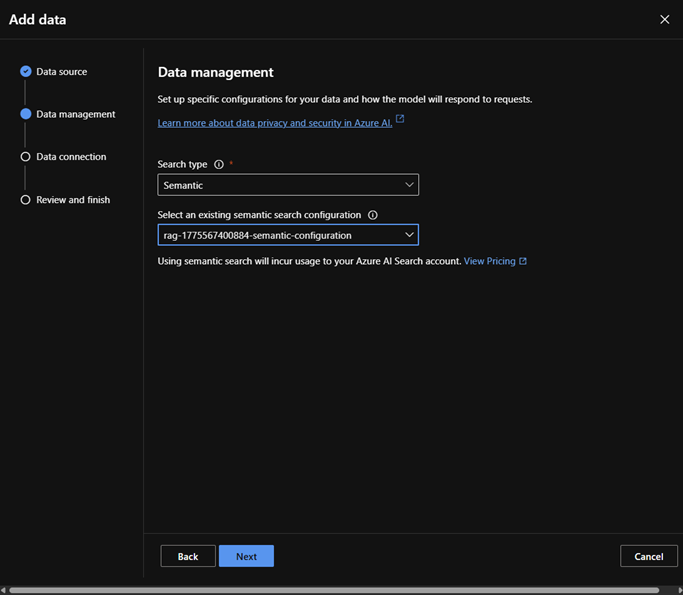
- Click ‘Add a data source’ and select the AI Search service
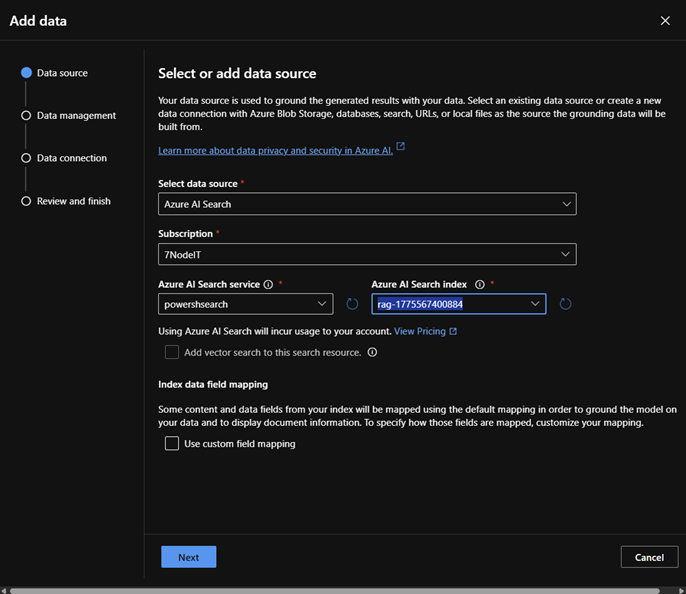
- Take over the settings as shown below and follow remaining screens with default options (use API key for now)
- Now drop a prompt
“Show me which guidelines you are using to review this code

$endpoint = "https://YOUR_RESOURCE.openai.azure.com/openai/deployments/gpt-4o/chat/completions?api-version=2024-02-15-preview"
$apiKey   = "YOUR_OPENAI_API_KEY"

$dataSource = @{
    type = "azure_search"
    parameters = @{
        endpoint = "https://YOUR_SEARCH_SERVICE.search.windows.net"
        index_name = "YOUR_INDEX_NAME"
        authentication = @{ type = "api_key"; key = "YOUR_SEARCH_ADMIN_KEY" }
    }
}

$scriptToCheck = Get-Content -Path "C:\Scripts\New-Script.ps1" -Raw

$body = @{
    data_sources = @($dataSource)
    messages = @(
        @{ role = "system"; content = "You are a PowerShell validator. Use the provided rules to validate this script." },
        @{ role = "user"; content = "Validate this script:`n`n $scriptToCheck" }
    )
} | ConvertTo-Json -Depth 10

Write-Host "Validating via RAG..." -ForegroundColor Cyan
$response = Invoke-RestMethod -Method Post -Uri $endpoint -Headers @{"api-key"=$apiKey; "Content-Type"="application/json"} -Body $body

$response.choices[0].message.content”
You should get a response from our AI:
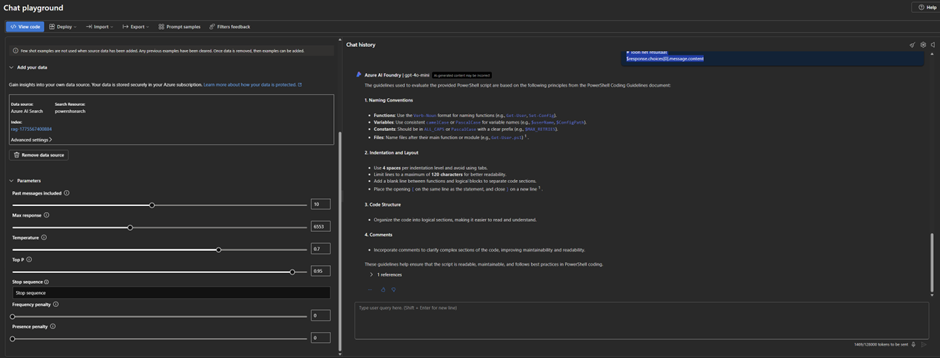
See? These are our guidelines! And the script is immediately evaluated
Seeing the AI successfully cite our custom documentation for the first time is a game-changer. By testing in the Playground, we’ve confirmed that our RAG pipeline is airtight: the search index is accessible, the mappings are correct, and the GPT-4o model is effectively using our guidelines to audit code.
But as cool as the web interface is, we aren’t here to copy-paste scripts into a browser all day. We want speed, scale, and automation. Now that we’ve proven the “brain” works, it’s time to pull it out of the portal and into our own environment. Let’s get our hands dirty with some PowerShell code and call this API directly.
“PowerShelling” the AI
Ofcourse this would not be a PowerShell AI blog if there wasn’t a part for PowerShell.
We have a library, we have a brain, and we’ve seen them work together in the cloud. But to truly integrate this into a DevOps workflow or a developer’s daily routine, we need to bring that power to the local console. We don’t want to click buttons; we want to run code.
In this final chapter, we are going to build the PowerShell AI RAG Assistant. This script is the bridge that connects your local .ps1 files to the Azure OpenAI ecosystem. We will go beyond a standard API call by sending a complex JSON payload that tells the AI: “Don’t just answer this; use this specific Search Index as your source of truth.” By the end of this section, you’ll have a tool that can ingest any local script, send it to the cloud for a deep-dive audit, and return a list of improvements, all within seconds and all based on your custom enterprise standards.
🎬 Adjust the script below so it fits your variables and save it as ‘analyzer.ps1’
# 1. Configuration (Retrieve these from the Azure Portal)
$AzureOpenAIEndpoint = "https://powershai.openai.azure.com/openai/deployments/xxxxxxxxxxxxx/chat/completions?api-version=2024-02-15-preview"
$AzureOpenAIKey      = "xxxxxxxxxxxxxxxxxxxxxxxxxxxxxxxxx"

$SearchEndpoint      = "https://xxxxxxxxxxxxxxxxxxxx.search.windows.net"
$SearchIndexName     = "xxxxxxxxxxxxxxxxx"
$SearchAdminKey      = "xxxxxxxxxxxxxxxxxxxxxxx"

# 2. The script you want to analyze
$ScriptPath = "xxxxxxxxxxxxxxxxxxxxxxxxxxxxxxxx\analyzethisscript.ps1"
$ScriptContent = Get-Content -Path $ScriptPath -Raw

# 3. The JSON Body with RAG instructions
$Body = @{
    data_sources = @(
        @{
            type = "azure_search"
            parameters = @{
                endpoint = $SearchEndpoint
                index_name = $SearchIndexName
                authentication = @{
                    type = "api_key"
                    key = $SearchAdminKey
                }
                # Ensure fields match your specific index schema
                fields_mapping = @{
                    content_fields = @("chunk")
                    title_field    = "metadata_storage_name"
                }
                in_scope = $true
                top_n_documents = 3
            }
        }
    )
    messages = @(
        @{
            role = "system"
            content = "You are a PowerShell expert. Validate the user's script based on the guidelines found in the data source. Be critical regarding naming conventions, Best Practices, and error handling."
        },
        @{
            role = "user"
            content = "Analyze this script and tell me what needs to be improved according to the rules: `n`n $ScriptContent"
        }
    )
    temperature = 0
} | ConvertTo-Json -Depth 10

# 4. The Azure API Call
$Headers = @{
    "api-key"      = $AzureOpenAIKey
    "Content-Type" = "application/json"
}

Write-Host "Performing RAG analysis on $ScriptPath..." -ForegroundColor Cyan

try {
    $Response = Invoke-RestMethod -Method Post -Uri $AzureOpenAIEndpoint -Headers $Headers -Body $Body

    # Display the AI's feedback
    Write-Host "`n--- AI FEEDBACK ---" -ForegroundColor Green
    $Response.choices[0].message.content
}
catch {
    Write-Host "An error occurred:" -ForegroundColor Red
    $_.Exception.Message
    if ($_.ErrorDetails.Message) {
        $_.ErrorDetails.Message | ConvertFrom-Json | Format-List -Force
    }
}Also make a script called ‘analyzethisscript.ps1’ as you saw in the code above thats the script which we’ll be checking. Give it some content like below;
$endpoint = "https://YOUR_RESOURCE.openai.azure.com/openai/deployments/gpt-4o/chat/completions?api-version=2024-02-15-preview"
$apiKey   = "YOUR_OPENAI_API_KEY"

$dataSource = @{
    type = "azure_search"
    parameters = @{
        endpoint = "https://YOUR_SEARCH_SERVICE.search.windows.net"
        index_name = "YOUR_INDEX_NAME"
        authentication = @{ type = "api_key"; key = "YOUR_SEARCH_ADMIN_KEY" }
    }
}

$scriptToCheck = Get-Content -Path "C:\Scripts\New-Script.ps1" -Raw

$body = @{
    data_sources = @($dataSource)
    messages = @(
        @{ role = "system"; content = "You are a PowerShell validator. Use the provided rules to validate this script." },
        @{ role = "user"; content = "Validate this script:`n`n $scriptToCheck" }
    )
} | ConvertTo-Json -Depth 10

Write-Host "Validating via RAG..." -ForegroundColor Cyan
$response = Invoke-RestMethod -Method Post -Uri $endpoint -Headers @{"api-key"=$apiKey; "Content-Type"="application/json"} -Body $body

$response.choices[0].message.contentNow run the analyzer!
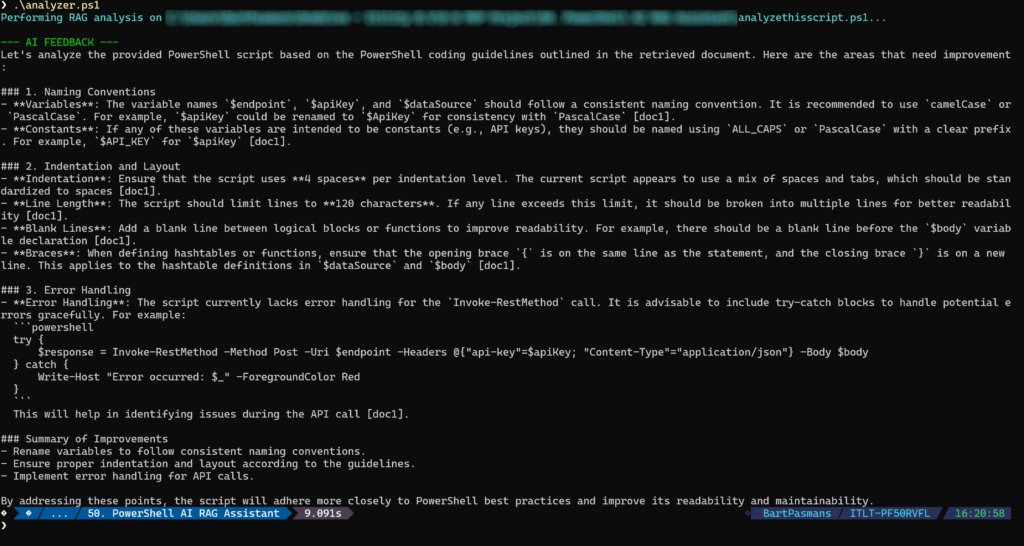
🎇 Tadaaa! We PowerShell-ed our AI! 😆 Cool huh?!
What started as a collection of static Markdown files has evolved into a living, breathing AI Code Architect. By leveraging the RAG pattern with Azure OpenAI and AI Search, we’ve bridged the gap between “having a standard” and “enforcing a standard.”
The real power of this solution isn’t just in the AI’s ability to chat, it’s in its ability to provide contextual, accurate, and cited feedback based on your specific rules. This setup reduces the burden of peer reviews, accelerates the onboarding of new developers, and ensures that your PowerShell environment remains clean, consistent, and professional.
Summary
Static coding standards (PDFs, Wikis, Markdown) are often ignored, and manual code reviews are slow. Standard AI can help, but it doesn’t know your specific company rules and often “hallucinates” generic best practices.
The Solution: We built a Digital Architect using Enterprise RAG (Retrieval-Augmented Generation). This tool connects your custom PowerShell guidelines directly to the “brain” of GPT-4o, creating an automated validator that cites your own documentation as the source of truth.
The Tech Stack:
- Azure Blob Storage: Host for our “Golden Rules” (Markdown files).
- Azure AI Search: Our intelligent librarian that vectorizes and indexes the data for instant retrieval.
- Azure OpenAI (GPT-4o): The reasoning engine that audits the code.
- PowerShell REST API: The bridge that brings this entire cloud pipeline to your local terminal.
Key Takeaways:
- Semantic Search: By vectorizing our data, the AI understands the intent of our rules, not just keywords.
- Validation in the Cloud: We first verified our RAG pipeline in the Azure OpenAI Playground to ensure citations were accurate.
- Local Automation: We developed a custom script (
analyzer.ps1) that allows any developer to audit a local script against enterprise standards in seconds.
Final Verdict: RAG transforms your documentation from “text on a screen” into a living, breathing enforcement policy. It reduces the burden of peer reviews and ensures your environment stays clean, consistent, and professional.