

Welcome!
In today’s blog, (I’m taking it a bit easier this time 😉) In my previous blogs I liked to go deep into the topic, have a lot of screenshots and steps. But, as I was lacking time this week I had to go for something easier.
This time we’re diving into a feature that separates the script-kiddies from the true Automation Architects. We’ve all been there: you’ve spent an hour building a complex object with nested properties, and now you need to send that data to another script, a different user session, or store it for later.
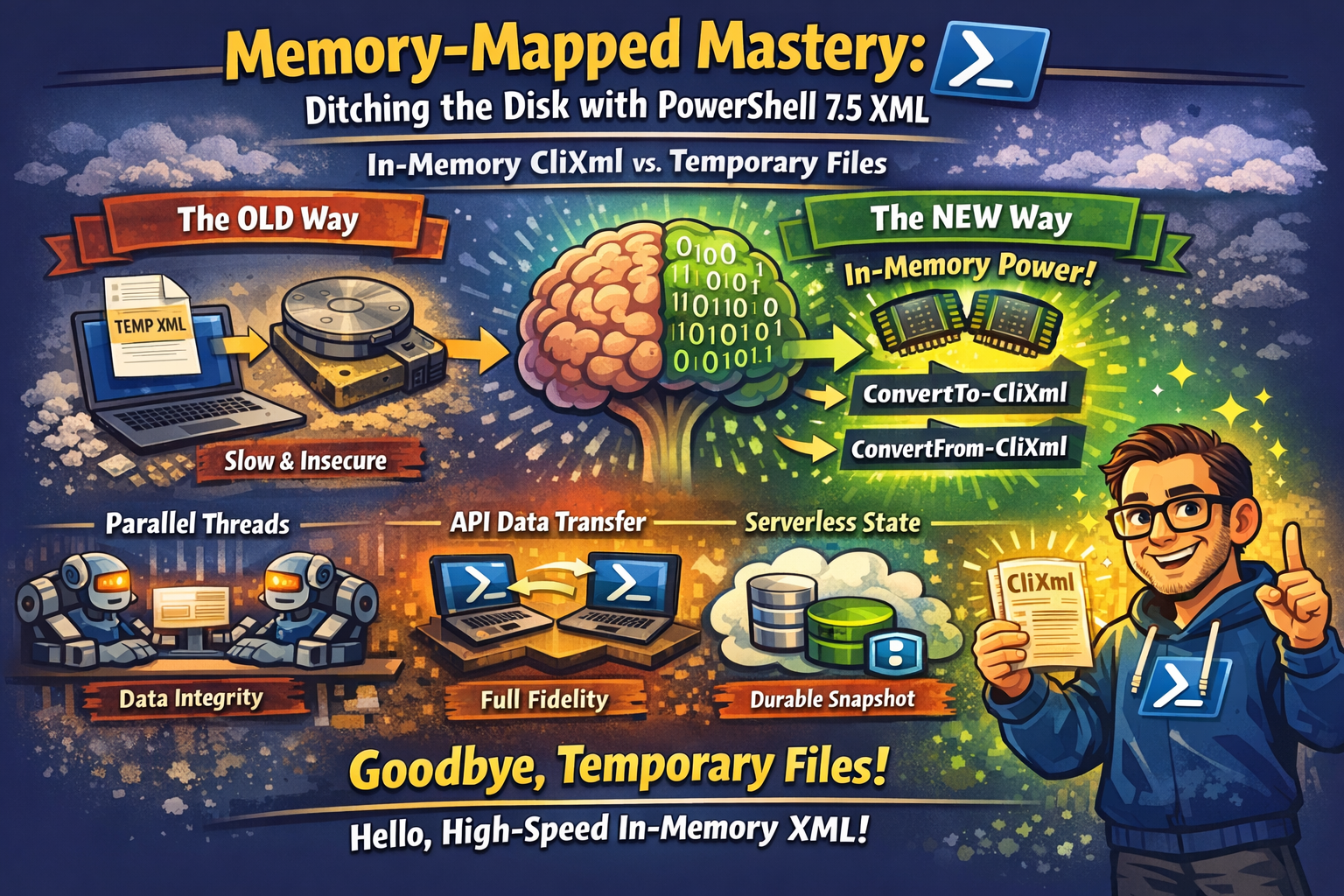
In the old days, you had two choices: lose all your rich object metadata by converting to a flat CSV/JSON, or clutter your hard drive with temporary .xml files.
But PowerShell 7.5 changed the game. With the new in-memory XML cmdlets, we can now serialize objects with 100% fidelity without ever touching the disk. Throughout this post, look for the 🎬 icon for follow-along steps and 💡 notes for that deep-dive technical context.
Ready to make your data-handling 10x faster? Let’s go!
Today’s Hero: In-Memory CliXml
Today’s heroes are the brand-new cmdlets: ConvertTo-CliXml and ConvertFrom-CliXml.
Wait, haven’t we had XML in PowerShell forever? Yes, but we had Export-CliXml. The “Export” part meant you were forced to provide a file path. If you wanted that data in a variable or a database, you had to write it to disk and read it back. No more.
Why this is the “Innovation” you need:
- Deep Serialization: Unlike JSON, which “flattens” objects, CliXml preserves the exact PowerShell type. If it was a DateTime object before, it stays a DateTime object.
- Speed: RAM is thousands of times faster than SSDs. By keeping serialization in memory, your bulk-data scripts will fly.
- Security: No temporary files mean no sensitive data left behind in C:\Temp for others to find.
The “Death” of the Temporary File
Let’s look at a classic problem. You have a complex object (like a process list with nested properties) and you want to store it in a variable as a “snapshot” that survives even if the original process closes.
🎬 Follow the steps below to see the difference:
- Run the code below
$OriginalData = Get-Process -Id $PID | Select-Object Name, StartTime, CPU, @{n='Owner';e={$env:USERNAME}}

# The OLD way (requires a file)
$OriginalData | Export-CliXml -Path "C:\Temp\temp.xml"
$RestoredData = Import-CliXml -Path "C:\Temp\temp.xml"

# The NEW PowerShell way (In-Memory!)
$SerializedData = $OriginalData | ConvertTo-CliXml
# This is now a pure string in your RAM!
$RestoredData = $SerializedData | ConvertFrom-CliXml💡 Note: Type Fidelity. If you check $RestoredData.StartTime.GetType(), you’ll see it’s still a System.DateTime. If you had used ConvertTo-Json, it would have turned into a boring System.String. That is the power of CliXml, it immediately puts variables in the correct type!

Streaming Data between Sessions
The real innovation happens when you need to send data over a network or between different PowerShell instances (like via a REST API or an Azure Function).
🎬 Try this “Simulation” of a remote data transfer:
Imagine you are sending data to a SQL database or a Web API. Instead of sending a messy string, you send a CliXml blob.
# "The Sender" (Serialize your data)
$ComplexObject = @{
    Timestamp = Get-Date
    Version   = $PSVersionTable.PSVersion
    Services  = Get-Service | Select-Object -First 3
}
$XmlBlob = $ComplexObject | ConvertTo-CliXml

# "The Receiver" (Reconstruct it perfectly)
# Imagine $XmlBlob came from a Database or an API call
$ReceivedObject = $XmlBlob | ConvertFrom-CliXml

Write-Host "Restored Service: $($ReceivedObject.Services[0].DisplayName)" -ForegroundColor Cyan
💡 Technical Deep-Dive: ConvertTo-CliXml produces a string in a specific format called CLIXML. It includes the “Type Fidelity” information. This means when you import it, PowerShell knows exactly how to rebuild the object, including its methods and property types.

Why should you care? (The Use Case)
If you’re wondering when you would actually use this over a simple variable, here are three high-level scenarios where In-Memory XML is a good choice!
1. The “Parallel Thread” Data Integrity Problem
When using ForEach-Object -Parallel, passing complex objects into the script block using the $using: scope can sometimes result in “truncated” objects. This is because PowerShell tries to optimize the memory used by the background threads.
The Innovation: By converting your object to a CliXml string before the parallel loop, you create a “frozen” blueprint. Inside the thread, you reconstruct it. This guarantees that every single thread is working with a perfect 1:1 copy of the original data, including nested properties that often get lost in translation.
2. High-Speed API Side-Loading
Imagine you are building a custom REST API using PowerShell (perhaps with a listener like we discussed before). If you want to send a full Get-Service object to a web client, JSON will strip away the “Types.”
The Innovation: You can send the ConvertTo-CliXml output as the body of your HTTP response. On the receiving end, another PowerShell instance can ingest that string and immediately regain full control over the object’s methods and properties. It’s like Teleportation for Data.
3. “Durable” State in Serverless Functions
If you run PowerShell in Azure Functions or AWS Lambda, your script is “stateless.” Once it finishes, everything in memory is gone.
The Innovation: You can take a snapshot of your script’s current state (all your variables and objects), run ConvertTo-CliXml, and save that single string into a Table Storage or a Database. When the function triggers again, it reads that string, runs ConvertFrom-CliXml, and boom! Your script continues exactly where it left off, with all its complex data structures fully intact.
Summary
This blog marks the end of the “Temporary File Era.” By mastering ConvertTo-CliXml and ConvertFrom-CliXml, you’ve upgraded your toolkit with a professional-grade serialization method that is built for the modern, cloud-native world.
We’ve moved from messy disk-based scripts to Clean, High-Fidelity In-Memory Data Streams. Whether you’re building a distributed monitoring system, orcestrating parallel threads, or just want to keep your environment “Zero-Footprint,”.
Key Takeaways to remember:
- Object Fidelity: CliXml is the only way to keep your DateTime, TimeSpan, and custom objects exactly as they are.
- Performance: RAM-based serialization is exponentially faster than any Disk I/O operation.
- Clean Code: Stop writing “Cleanup” scripts to delete temp files. If it’s in the RAM, it dies with the session.
Remember my motto: ‘Don’t lift a finger, unless it’s to automate’, and now, you’re automating with the speed and precision of a true PowerShell Architect.