


Welcome back!
Last time, we brought our scripts out of the “Black Hole” by mastering Visual Velocity. We gave our users peace of mind with Progress Bars. We made the process transparent; now, we’re going to make the results professional.
I’ll be honest: there is nothing that screams “Amateur Hour” louder than an Architect who builds a lethal automation engine, only to have it dump a raw, 40-property “Data Puke” onto the console. When you run a command and have to scroll through five screens of text just to find a Status ID, you haven’t built a tool, you’ve built a chore.
In the standard PowerShell world, we’ve all been taught to rely on Select-Object or Format-Table at the end of a script. But let’s be real: that’s a hack. It breaks the pipeline and strips your objects of their power.
Today, we move from raw data to Engineered Presentation. We are going to master .ps1xml files and the PowerShell Format Engine. We’re going to ensure that your custom objects don’t just carry data, they command the UI.
Ready to stop formatting your output manually and start defining it globally? Let’s go!
Throughout this post, look for the 🎬 icon for follow-along steps and 💡 notes for that deep-dive technical context.
The Blueprint: How the Format Engine Thinks
Before we touch a single line of XML, you need to understand the “Mental Model” of the PowerShell engine. When you hit Enter, PowerShell doesn’t just “print text.” It consults a hidden set of blueprints.
💡 Note: When an object hits the end of the pipeline, PowerShell looks at its PSTypeName. If it finds a match in its loaded .ps1xml definitions, it follows those instructions. If it doesn’t? It guesses, and usually, it guesses wrong.
🎬 Step 1: Branding the “Payload”
To get the engine’s attention, we need to move away from generic PSCustomObjects. We need to give our data a “Serial Number”, a unique TypeName that our XML blueprint can target. Create a script with the content below
# Creating our 'Architect-Grade ;)' object
$ServerReport = [PSCustomObject]@{
    ID       = "SRV-99"
    Hostname = "PROD-DB-01"
    Status   = "Healthy"
    Uptime   = "245 Days"
    Admin    = "B.Pasmans"
    Zone     = "St Anthonis"

}

# The Magic Trick: Injecting a custom TypeName
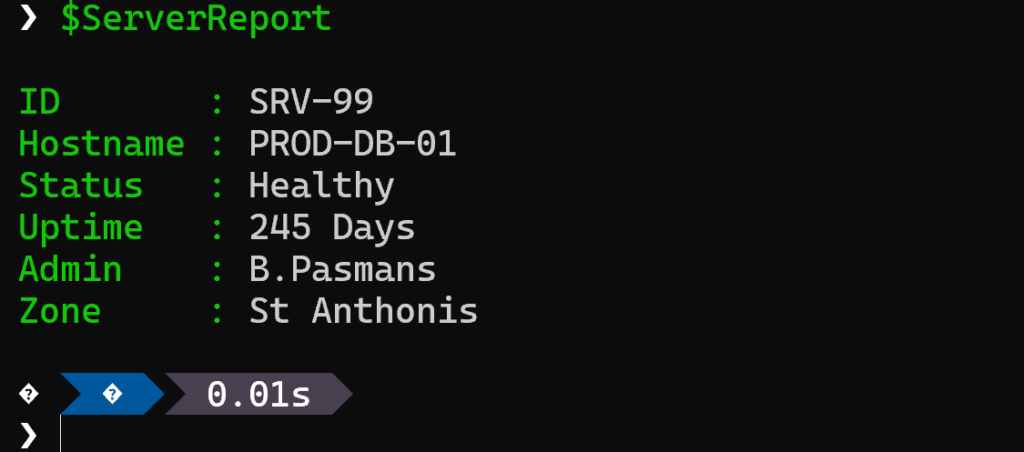
$ServerReport.PSObject.TypeNames.Insert(0, 'Architect.ServerReport')The output of the ServerReport should look like below:
🎬 Step 2: Drafting the .ps1xml Blueprint
Now we create the definition. This is where we tell the console: “When you see an Architect.ServerReport, I only want to see the Hostname, Status, and Zone. Keep the rest under the hood.”
Create a file named Company.Format.ps1xml and give it the content like below
<?xml version="1.0" encoding="utf-8" ?>
<Configuration>
  <ViewDefinitions>
    <View>
      <Name>Architect.ServerReport.View</Name>
      <ViewSelectedBy>
        <TypeName>Architect.ServerReport</TypeName>
      </ViewSelectedBy>
      <TableControl>
        <TableRowEntries>
          <TableRowEntry>
            <TableColumnItems>
              <TableColumnItem><PropertyName>Hostname</PropertyName></TableColumnItem>
              <TableColumnItem><PropertyName>Status</PropertyName></TableColumnItem>
              <TableColumnItem><PropertyName>Zone</PropertyName></TableColumnItem>
            </TableColumnItems>
          </TableRowEntry>
        </TableRowEntries>
      </TableControl>
    </View>
  </ViewDefinitions>
</Configuration>
🎬 Step 3: Deploying the Blueprint
Having a .ps1xml file on your disk is like having a set of architectural drawings locked in a drawer, they don’t build the building. We need to “register” these views into the current PowerShell session.
Make sure you are in the same directory as where you stored the script
Update-FormatData -AppendPath ".\Company.Format.ps1xml"Now, try calling your $ServerReport variable.
Suddenly, the “Data Puke” vanishes. Instead of six properties cluttering your terminal, you get a razor-sharp, 3-column table. But here is the kicker: The data hasn’t changed. If you pipe that output to Export-Csv, the ID, Uptime, and Admin properties are still there. You’ve decoupled Data Integrity from Visual Presentation.
💡 Note: If you’re building a module, don’t run Update-FormatData manually. Instead, reference your .ps1xml file in the FormatsToProcess section of your Module Manifest (.psd1). This ensures your “Dashboard” loads automatically for every user.
The Master Stroke: Adding Custom Type Data
If the .ps1xml file is the “HUD” (Heads-Up Display), then Type Data is the “Logic Board” behind it. Sometimes, the raw data isn’t enough, you need a property that doesn’t exist yet, but should.
Let’s say you want a property called HealthStatus that turns the raw Status string into a visual indicator. We can inject this logic directly into the Type System.
🎬 Step 4: The ScriptProperty Injection
We’re going to use Update-TypeData to “teach” our Architect.ServerReport a new trick:
Update-TypeData -TypeName 'Architect.ServerReport' -MemberName 'Indicator' -MemberType ScriptProperty -Value {
    if ($this.Status -eq "Healthy") { "✅ OK" } else { "❌ FAIL" }
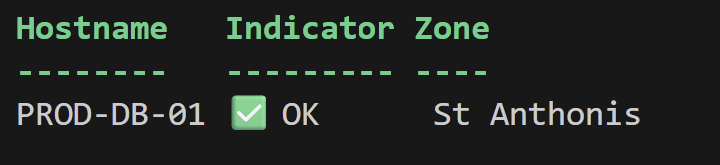
}Now, go back to your XML and swap <PropertyName>Status</PropertyName> for <PropertyName>Indicator</PropertyName>. You’ve just created a dynamic, calculated UI element that lives inside the object itself.
🎬 Reload the data by running the command below
Update-FormatData -AppendPath ".\Company.Format.ps1xml"🎬 Call your variable again you will now see the output below
Cool huh! 😊
The Architect’s Blueprint: A Summary
We’ve moved far beyond simple scripting today. By mastering the PowerShell Format Engine, you’ve upgraded from a “data dumper” to a System Designer. Let’s recap the structural changes we’ve made to your workflow:
- Identity Matters: We stopped using generic PSCustomObjects and started injecting unique TypeNames. This is the serial number that allows the engine to recognize your data.
- Decoupling Logic from Display: We moved the visual presentation into .ps1xml files. This ensures your objects remain “pure” for the pipeline while looking sharp in the console.
- The Intelligence Layer: With Update-TypeData, we injected ScriptProperties directly into the object’s DNA. Your data now “thinks” for itself, calculating statuses (like our ✅ OK indicator) on the fly.
- Pipeline Integrity: The ultimate win? You never have to kill an object with Format-Table inside a function again. Your tools stay compatible, composable, and clean.
💡 Final Architect’s Note: True automation isn’t just about making things work; it’s about making them manageable. When your output is engineered, your troubleshooting becomes surgical. You’re no longer hunting for data in a haystack; you’re monitoring a dashboard you built from the ground up.