

Welcome back! If you joined me in Part 1 & 2, you already know we’re on a mission to prove that PowerShell can do a whole lot more than run scripts on a Windows machine. It can be containerized, deployed, scaled, and orchestrated, right inside Azure Kubernetes Service (AKS).
If you by any means missed the first two parts you can find them here:
In this third part, we’re taking things a big step further. We’re going to make our PowerShell microservices accessible from the outside world. That means setting up an Ingress Controller to manage incoming traffic, configure routing to our services, and secure the connections so users, or other services can reach them safely.
Still the same disclaimer as before:
👉 This blog is not about debating architecture, cost models, or whether PowerShell microservices are a “good idea.”
Throughout this post, you’ll again see the 🎬 icon highlighting steps you should actively follow along with, as well as 💡 notes that provide helpful context and tips so you don’t get lost on the way.
By the end of this post, you’ll have a complete AKS setup where your PowerShell service is not only running inside the cluster but also reachable via HTTP/S requests. Along the way, we’ll cover deploying NGINX as an Ingress Controller, configuring routing rules with Kubernetes Ingress resources, and testing that everything works.
Ready to open the gates of our AKS city? Let’s dive in! 🚀
Ingress explained
Picture your AKS cluster as a growing city.
Inside this city are many buildings, each busy doing its own job. One serves the website users see. Another processes payments. A third answers API requests. These buildings are your Kubernetes services and pods, quietly working behind the scenes.
But the city has a problem. It is surrounded by walls.
People outside the city want to visit, but they have no idea where anything is. They don’t know which building handles the homepage, which one speaks API, or which door is safe to knock on. If every building punched a hole in the wall and exposed itself to the outside world, the city would quickly turn messy and unsafe.
So the city does something sensible. It builds one main gate! 😉
At this gate stands the Ingress Controller.
Every visitor enters the city through this single entrance. The Ingress Controller watches them arrive, listens to what they are asking for, and decides where to send them next. Someone asking for the homepage is guided toward the frontend building. Someone looking for /api is quietly redirected to the API service deeper inside the city.
The visitors don’t shout directions. They arrive with clues written on their tickets: a domain name, a path, maybe both. The Ingress Controller reads these clues and consults a map pinned inside the gatehouse. This map is the Kubernetes Ingress resource. It tells the gatekeeper which request goes to which service.
What makes this gatekeeper special is that it doesn’t just point directions. It also checks identities. It insists that traffic comes in securely over HTTPS. It can slow things down when crowds get too large. It can even turn suspicious visitors away before they ever reach a building.
Without an Ingress Controller, every building would have to defend itself. Each service would need its own public address, its own security rules, its own way of handling traffic from the outside world. The city would be harder to manage, more expensive to run, and far easier to break.
AKS deliberately focuses on managing what happens inside the city. It runs your workloads, keeps them healthy, and scales them when needed. But it leaves the question of entry wide open. The Ingress Controller is the missing piece that connects the outside world to your carefully organized interior.
In simple terms, if Kubernetes is the city and your services are the buildings, the Ingress Controller is the calm, intelligent gatekeeper. It lets visitors in, understands where they want to go, enforces the rules of the city, and keeps everything running smoothly without exposing chaos to the outside world.
That’s why, in most real AKS setups, the Ingress Controller isn’t just helpful. It’s essential.
In a diagram overview it would look like below
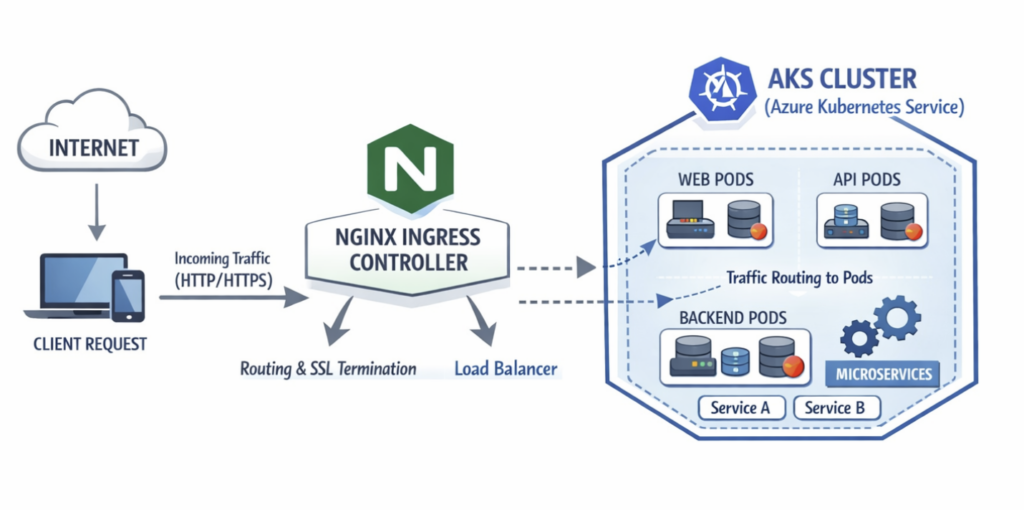
Now let’s go and deploy the NGINX ingress controller to our AKS cluster!
Prepare
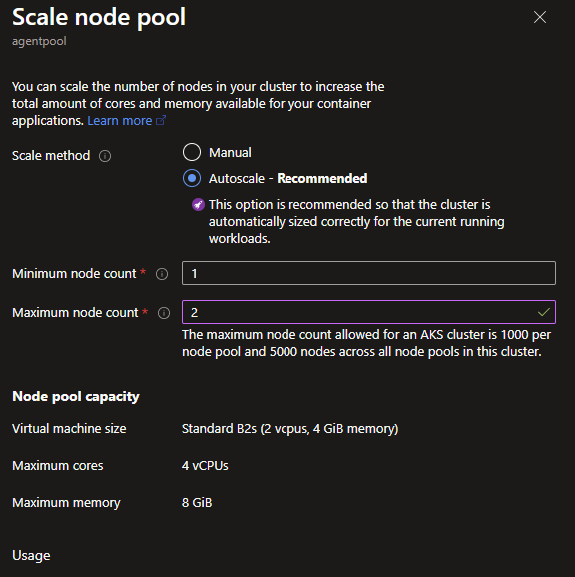
Make sure the agentpool has multiple workers available (if you followed my deployment from the previous blog posts). Otherwise the cluster might not have enough resources available to service all required services/controllers.
🎬 Scale up the AKS cluster by following the steps below
- Go to node pools and select your node pool
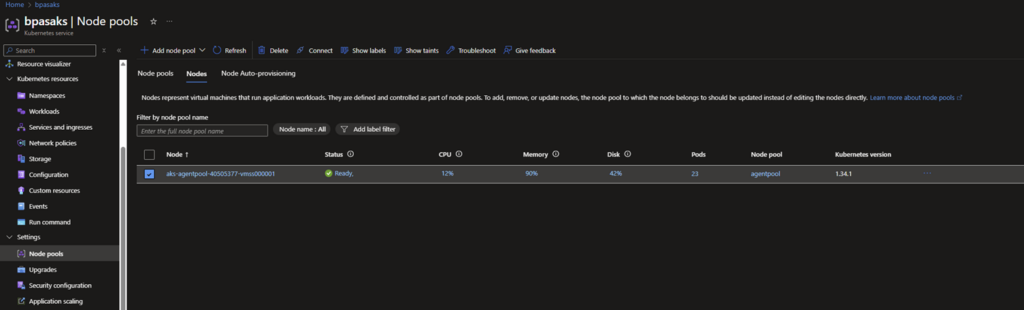
- Modify scale node pool to something like below (for blog purpose I stick with 2 maximum)
Install an ingress controller
So far, our city has a gate, a gatekeeper, and a clear understanding of how visitors should find their way inside. But right now, that gate exists only in theory. To actually let traffic flow into our AKS cluster, we need to build it for real.
This is the moment where the story turns practical. In this section, we’ll deploy a real Ingress Controller into our cluster, giving it a public entry point and the ability to route traffic to our PowerShell microservices. Once this is in place, our AKS city will finally be open for visitors, safely and in an organized way.
Let’s start by making sure our cluster is ready for its new gatekeeper.
🎬Follow the steps below to add NGINX to your helm:
- Run the command below
helm repo add ingress-nginx https://kubernetes.github.io/ingress-nginxYou should see that the adding succeeded

- Now update the repo by running the command below
helm repo updateYou should see the result

- Now run the command below to install NGINX
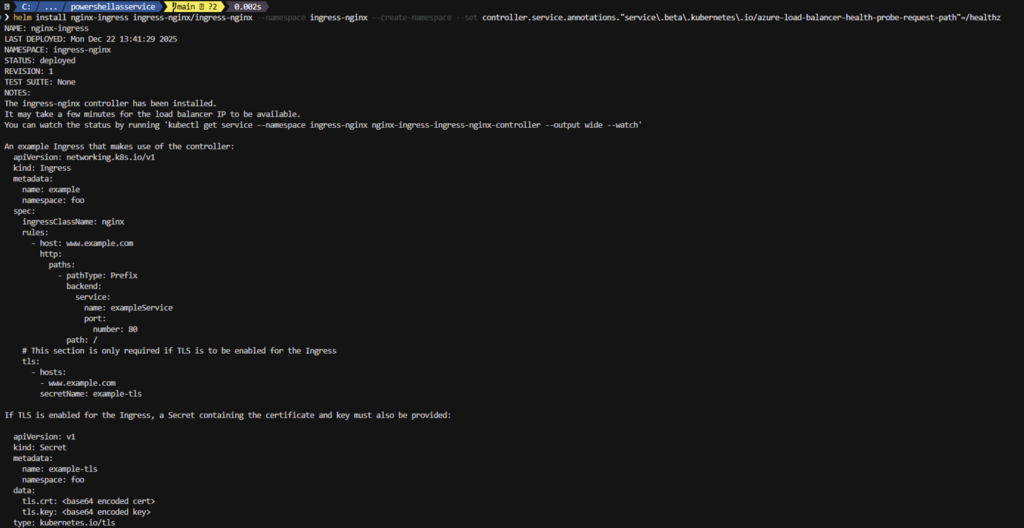
helm install nginx-ingress ingress-nginx/ingress-nginx --namespace ingress-nginx --create-namespace --set controller.service.annotations."service\.beta\.kubernetes\.io/azure-load-balancer-health-probe-request-path"=/healthzYou should see the result
- Now validate by running the command below
kubectl get pods -n ingress-nginx -wYou should see the result

💡 Use CTRL+C to stop watching the pods
Breaking it down
| Part | What it does |
| helm install nginx-ingress | Creates a Helm release named “nginx-ingress” |
| ingress-nginx/ingress-nginx | Uses the chart from the repo we just added |
| –namespace ingress-nginx | Installs it in a namespace called “ingress-nginx” (keeps it organized) |
| –create-namespace | Creates the namespace if it doesn’t exist |
| –set controller.service… | Azure-specific: Tells the Load Balancer to use /healthz for health checks |
🎬 Now check if NGINX is running as expected
- Run the command below
kubectl get service -AYou should see that NGINX is running

See the External IP? Remember this one or write it down 😉 we’re going to need it!
Configure ingress
Our gate is now standing, and the gatekeeper is on duty. But at the moment, it has no instructions. Visitors can arrive at the entrance, yet the gatekeeper doesn’t know where to send them.
This is where configuration comes in. In this section, we’ll hand the Ingress Controller its map: clear rules that describe which requests belong to our PowerShell service and how they should reach it.
By defining an Ingress resource and wiring it into our Helm chart, we instruct the gatekeeper on how to read incoming requests and direct them to the correct location within the cluster. Once this is done, traffic won’t just enter our AKS city, it will actually reach our service.
🎬 Follow the steps below to configure ingress
- Replace the files you had from previous blog with the content below
Ingress.yaml
{{- if .Values.ingress.enabled -}}
apiVersion: networking.k8s.io/v1
kind: Ingress
metadata:
  name: {{ include "demo-service.fullname" . }}
  labels:
    {{- include "demo-service.labels" . | nindent 4 }}
  {{- with .Values.ingress.annotations }}
  annotations:
    {{- toYaml . | nindent 4 }}
  {{- end }}
spec:
  ingressClassName: {{ .Values.ingress.className }}
  {{- if .Values.ingress.tls }}
  tls:
    {{- range .Values.ingress.tls }}
    - hosts:
        {{- range .hosts }}
        - {{ . | quote }}
        {{- end }}
      secretName: {{ .secretName }}
    {{- end }}
  {{- end }}
  rules:
    {{- range .Values.ingress.hosts }}
    - host: {{ .host | quote }}
      http:
        paths:
          {{- range .paths }}
          - path: {{ .path }}
            pathType: {{ .pathType }}
            backend:
              service:
                name: {{ include "demo-service.fullname" $ }}
                port:
                  number: {{ $.Values.service.port }}
          {{- end }}
    {{- end }}
{{- end }}values.yaml
replicaCount: 2

image:
  repository: acrbpas.azurecr.io/powershellservice
  pullPolicy: IfNotPresent
  tag: "latest"

imagePullSecrets: []
nameOverride: ""
fullnameOverride: ""

service:
  type: ClusterIP
  port: 80
  targetPort: 8080

ingress:
  enabled: true
  className: "nginx"
  annotations:
    nginx.ingress.kubernetes.io/force-ssl-redirect: "true"
    # cert-manager.io/cluster-issuer: letsencrypt-prod
  hosts:
    - host: demo.108.141.189.166.nip.io
      paths:
        - path: /
          pathType: Prefix
  tls:
    - hosts:
        - demo.108.141.189.166.nip.io

resources:
  limits:
    cpu: 500m
    memory: 512Mi
  requests:
    cpu: 250m
    memory: 256Mi

autoscaling:
  enabled: false
  minReplicas: 2
  maxReplicas: 10
  targetCPUUtilizationPercentage: 80
  # targetMemoryUtilizationPercentage: 80

nodeSelector: {}

tolerations: []

affinity: {}

# Liveness and readiness probes
livenessProbe:
  httpGet:
    path: /health
    port: 8080
  initialDelaySeconds: 30
  periodSeconds: 10
  timeoutSeconds: 5
  failureThreshold: 3

readinessProbe:
  httpGet:
    path: /health
    port: 8080
  initialDelaySeconds: 10
  periodSeconds: 5
  timeoutSeconds: 3
  failureThreshold: 3
- Now update with HELM running the command below
helm upgrade powershellasaservice ./helm/demo-serviceYou should see the result:

Lets test
The gate is built, the gatekeeper has its instructions, and our PowerShell service is waiting inside the city. Now comes the moment of truth.
It’s time to see if a real visitor can walk up to the gate, get past security, and be guided to the right building without getting lost. In this section, we’ll send an actual request from the outside world and watch it travel through the Ingress Controller into our AKS cluster. If everything is wired correctly, our PowerShell microservice should answer back.
Let’s give it a knock and see who responds.
🎬 Run the command below:
curl -k https://demo.108.141.189.166.nip.io/api/demo💡 Don’t forget, you need to put the IP address here which you gathered before!
You should see the result below;

Cool right?! we now have ingress to our AKS cluster!
Summary
We didn’t summon traffic through magic, we didn’t instantly become Kubernetes routing wizards, and we definitely didn’t convince the internet to bow to our containerized PowerShell…
But we did take a real step into making our PowerShell microservice reachable from the outside world, and that’s something most people never expect to see.
Here’s what you walk away with:
🎯 You deployed an Ingress Controller:
Your AKS cluster now has a smart gatekeeper standing at the entrance. NGINX watches incoming traffic, checks the destination, and routes requests to the right service, all without exposing the whole city to chaos.
🔗 You configured routing rules:
You taught the gatekeeper where requests should go. Your domain names and paths now have clear directions, so /api/demo reaches your PowerShell microservice without a hitch. Secure, predictable, and ready for real traffic.
🪖 You connected the outside world to AKS:
No more manual port-forwarding or guessing which service is where. The cluster can now handle requests from anywhere, sending them directly to your pods while keeping everything safe and organized.
🔍 You validated the whole pipeline end-to-end:
✔️ Ingress Controller? Running.
✔️ Service routing? Correct.
✔️ HTTPS traffic? Served.
✔️ Curl test? Success.
PowerShell answered from inside AKS, and you saw the request flow exactly as intended.
🎉 And the big picture:
This wasn’t theory anymore, this was execution. You’ve gone from having a running microservice to making it reachable and secure, and that’s a huge leap in the PowerShell + Kubernetes journey.
Because next time?
🔥 We’ll scale multiple services behind one Ingress
🔥 Explore more advanced routing and TLS patterns
🔥 Start building a modular, real-world microservice architecture
Strap in… the adventure is far from over. 😉