

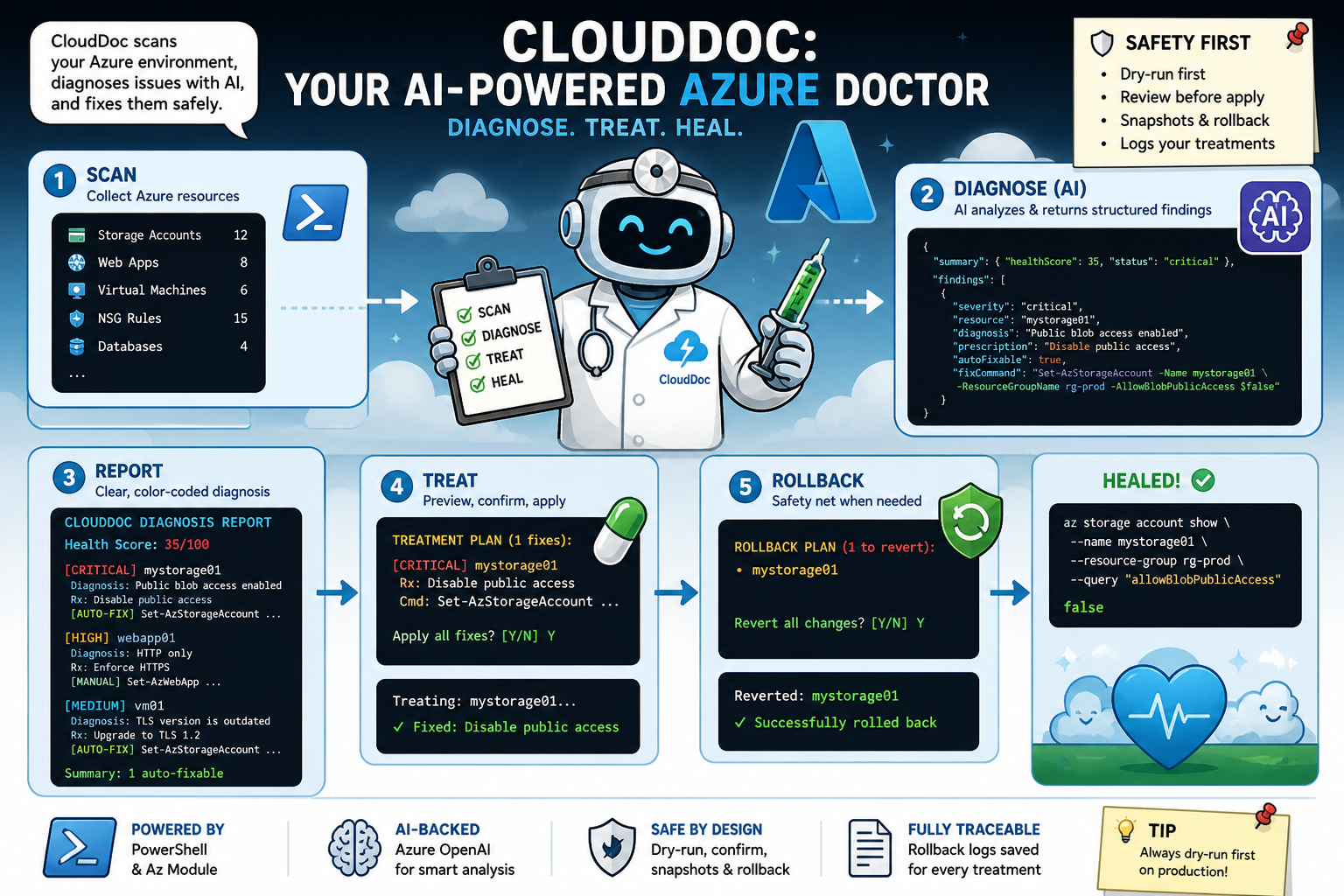
In our last episode, CloudDoc learned how to scan and diagnose an Azure environment. It collected resources, fed them to an AI model with a strict schema, and came back with structured findings, severity levels, categories, prescriptions, and even the PowerShell commands to fix them.
But there was a catch. Our doctor could tell you what was wrong, hand you the prescription, and then… wave goodbye. You were on your own.
That changes today. 💊
Today CloudDoc gets its hands dirty. It’s going to read those findings, show you a proper diagnosis report, and, if you give the green light actually fix the issues. With a safety net, of course. Because even the best doctors carry malpractice insurance. 😉
🎬 Action steps are marked with this icon.
📒 Technical deep-dives are marked with this icon.
⚠️ This post assumes you’ve completed post #54. You should have CloudDocSchema.ps1, Analysis.ps1, and Diagnose.ps1 ready.
Let’s scrub in! 🧤
Oh, and in the case you’ve might missed my previous blog… (hopefully you are a trustworthy follower.. but you never know.. I’ll link it down here)
What We’re Starting With
From post the previous post we should have the files below. If you haven’t please check out the previous blog as we’re building on top of that.
| File | What it does |
| CloudDocSchema.ps1 | Diagnosis schema – severity, category, fixCommand, autoFixable |
| Analysis.ps1 | Get-AzureSnapshot – scans subscription and resource group |
| Diagnose.ps1 | Invoke-Diagnosis – sends snapshot to Azure OpenAI |
Phase 1: The Diagnosis Report
Raw JSON in the console is not a report. Let’s make CloudDoc present its findings properly, color-coded by severity, with auto-fix indicators.
🎬 Create a new file called Show-Diagnosis.ps1:
function Show-Diagnosis {
    param($Diagnosis)

    $colors = @{
        critical = "Red"; high = "Yellow"
        medium = "Cyan"; low = "DarkGray"
    }

    Write-Host "CLOUDDOC DIAGNOSIS REPORT" -ForegroundColor Cyan

    $statusColor = switch ($Diagnosis.summary.status) {
        "healthy"  { "Green" }
        "at-risk"  { "Yellow" }
        "critical" { "Red" }
    }

    Write-Host "Health Score: $($Diagnosis.summary.healthScore)/100"
        -ForegroundColor $statusColor

    foreach ($finding in $Diagnosis.findings) {
        $color = $colors[$finding.severity]
        $icon = if ($finding.autoFixable) { "[AUTO-FIX]" }
               else { "[MANUAL]" }

        Write-Host "[$($finding.severity.ToUpper())] $($finding.resource)"
            -ForegroundColor $color
        Write-Host "  Diagnosis: $($finding.diagnosis)"
        Write-Host "  Rx: $($finding.prescription)"
        Write-Host "  $icon $($finding.fixCommand)"
    }

    $autoCount = ($Diagnosis.findings |
        Where-Object { $_.autoFixable }).Count
    Write-Host "Summary: $autoCount auto-fixable"
}📒 $colors[$finding.severity] just works because the enum from the schema guarantees exact values. No string parsing needed. Structured output pays dividends in your UI code.
Phase 2: The Treatment
CloudDoc is going to execute fix commands. But responsibly: filter, preview, snapshot, confirm, execute, report.
🎬 Create a new file called Invoke-Treatment.ps1:
function Get-ResourceState {
    param([string]$ResourceName, [string]$ResourceType,
          [string]$ResourceGroupName)

    switch -Wildcard ($ResourceType) {
        "Microsoft.Storage/storageAccounts" {
            return Get-AzStorageAccount -Name $ResourceName
                -ResourceGroupName $ResourceGroupName
                -ErrorAction SilentlyContinue
        }
        "Microsoft.Web/sites" {
            return Get-AzWebApp -Name $ResourceName
                -ResourceGroupName $ResourceGroupName
                -ErrorAction SilentlyContinue
        }
        default {
            return Get-AzResource -Name $ResourceName
                -ResourceGroupName $ResourceGroupName
                -ErrorAction SilentlyContinue
        }
    }
}📒 Get-ResourceState is our insurance policy. Before changing anything, we capture the current state for rollback.
function Invoke-Treatment {
    param($Diagnosis, [string]$ResourceGroupName,
          [switch]$DryRun)

    $autoFixes = @($Diagnosis.findings |
        Where-Object { $_.autoFixable -eq $true })

    if ($autoFixes.Count -eq 0) {
        Write-Host "No auto-fixable issues."
        return @()
    }

    Write-Host "TREATMENT PLAN ($($autoFixes.Count) fixes):"
        -ForegroundColor Yellow
    foreach ($fix in $autoFixes) {
        Write-Host "  [$($fix.severity.ToUpper())] $($fix.resource)"
        Write-Host "    Rx: $($fix.prescription)"
        Write-Host "    Cmd: $($fix.fixCommand)"
    }

    if ($DryRun) {
        Write-Host "DRY RUN complete. No changes made."
            -ForegroundColor Cyan
        return @()
    }

    $confirm = Read-Host "Apply all fixes? [Y/N]"
    if ($confirm -ne "Y") { return @() }

    $rollbackLog = @()
    foreach ($fix in $autoFixes) {
        Write-Host "Treating: $($fix.resource)..."
            -ForegroundColor Yellow
        $snapshot = Get-ResourceState -ResourceName $fix.resource
            -ResourceType $fix.resourceType
            -ResourceGroupName $ResourceGroupName
        try {
            Invoke-Expression $fix.fixCommand
            Write-Host "  Fixed: $($fix.prescription)"
                -ForegroundColor Green
            $rollbackLog += [PSCustomObject]@{
                Resource = $fix.resource
                ResourceType = $fix.resourceType
                Snapshot = $snapshot
                Status = "Applied"
                Timestamp = Get-Date -Format "yyyy-MM-dd HH:mm:ss"
            }
        }
        catch {
            Write-Host "  FAILED: $_" -ForegroundColor Red
            $rollbackLog += [PSCustomObject]@{
                Resource = $fix.resource
                Status = "Failed: $_"
            }
        }
    }
    return $rollbackLog
}📒 The -DryRun switch shows exactly what would happen without touching anything. Always dry-run first on production!
Phase 3: The Rollback
Sometimes a fix doesn’t go as planned. CloudDoc keeps receipts — every fix gets a snapshot.
🎬 Add this function to Invoke-Treatment.ps1:
function Invoke-Rollback {
    param([Parameter(Mandatory)][array]$RollbackLog,
          [string]$ResourceGroupName)

    $applied = @($RollbackLog |
        Where-Object Status -eq "Applied")
    if ($applied.Count -eq 0) {
        Write-Host "Nothing to rollback."
        return
    }

    Write-Host "ROLLBACK PLAN ($($applied.Count) to revert):"
        -ForegroundColor Red
    foreach ($entry in $applied) {
        Write-Host "  $($entry.Resource)" -ForegroundColor Yellow
    }

    $confirm = Read-Host "Revert all changes? [Y/N]"
    if ($confirm -ne "Y") { return }

    foreach ($entry in $applied) {
        if ($null -eq $entry.Snapshot) {
            Write-Host "SKIP: No snapshot" -ForegroundColor Red
            continue
        }
        try {
            switch -Wildcard ($entry.ResourceType) {
                "Microsoft.Storage/storageAccounts" {
                    Set-AzStorageAccount -Name $entry.Resource `
                        -ResourceGroupName $ResourceGroupName `
                        -AllowBlobPublicAccess \
                            $entry.Snapshot.AllowBlobPublicAccess `
                        -MinimumTlsVersion \
                            $entry.Snapshot.MinimumTlsVersion
                }
                default {
                    Write-Host "SKIP: No auto-rollback for type"
                    continue
                }
            }
            Write-Host "Reverted: $($entry.Resource)"
                -ForegroundColor Green
        }
        catch {
            Write-Host "ROLLBACK FAILED: $_" -ForegroundColor Red
        }
    }
}📒 The rollback replays the original property values from the snapshot. For storage accounts: AllowBlobPublicAccess, MinimumTlsVersion, EnableHttpsTrafficOnly.
⚠️ Rollback is not a time machine. It only reverts what CloudDoc changed.
The Full Agent: Invoke-CloudDoc
One command that ties #54 and #55 together: scan, diagnose, show, treat, save rollback log.
🎬 Create Invoke-CloudDoc.ps1:
. "$PSScriptRoot\CloudDocSchema.ps1"
. "$PSScriptRoot\Analysis.ps1"
. "$PSScriptRoot\Diagnose.ps1"
. "$PSScriptRoot\Show-Diagnosis.ps1"
. "$PSScriptRoot\Invoke-Treatment.ps1"

function Invoke-CloudDoc {
    param(
        [Parameter(Mandatory)][string]$SubscriptionId,
        [Parameter(Mandatory)][string]$ResourceGroupName,
        [switch]$DryRun, [switch]$AutoFix
    )

    Write-Host "CloudDoc is scanning..." -ForegroundColor Cyan

    $snapshot = Get-AzureSnapshot \
        -SubscriptionId $SubscriptionId \
        -ResourceGroupName $ResourceGroupName
    $diagnosis = Invoke-Diagnosis \
        -Snapshot $snapshot -Schema $diagnosisSchema

    Show-Diagnosis -Diagnosis $diagnosis

    if ($DryRun) {
        Invoke-Treatment -Diagnosis $diagnosis \
            -ResourceGroupName $ResourceGroupName -DryRun
        return $diagnosis
    }

    $rollbackLog = $null
    if ($AutoFix) {
        $rollbackLog = Invoke-Treatment -Diagnosis $diagnosis \
            -ResourceGroupName $ResourceGroupName
    } else {
        $treat = Read-Host "Treat issues? [Y/N]"
        if ($treat -eq "Y") {
            $rollbackLog = Invoke-Treatment \
                -Diagnosis $diagnosis \
                -ResourceGroupName $ResourceGroupName
        }
    }

    if ($rollbackLog -and $rollbackLog.Count -gt 0) {
        $path = "CloudDoc_Rollback_$(Get-Date \
            -Format 'yyyyMMdd_HHmmss').json"
        $rollbackLog | ConvertTo-Json -Depth 10 | Out-File $path
        Write-Host "Rollback log: $path" -ForegroundColor DarkGray
        $script:LastRollbackLog = $rollbackLog
    }
    return $diagnosis
}📒 All dot-source paths are local. Everything CloudDoc needs is in one folder.
Running CloudDoc End-to-End
🎬 Follow these steps for the full workflow:
Step 1: Always dry-run first (adjust variables to your liking)
. .\Invoke-CloudDoc.ps1

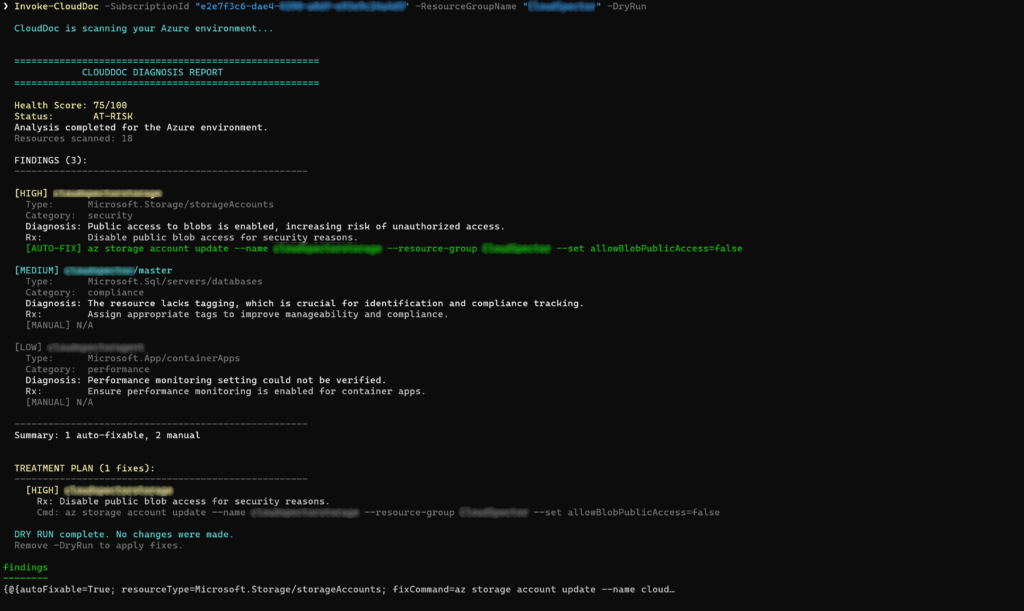
Invoke-CloudDoc -SubscriptionId "xxxx" -ResourceGroupName "rg-prod" -DryRunYou should be presented with the outcome of CloudDoc like in my example below: (unfortunately the doctor doesn’t seem to be very happy!)
Step 2: Apply fixes interactively
Invoke-CloudDoc -SubscriptionId "xxxx" -ResourceGroupName "rg-prod"In my situation there is one finding (but needs manual fixing as the risk is considered ‘too-high’) But you can modify the CloudDoc so it will still do it for you

⚠️ If you want you can modify the file ‘diagnose.ps1’ to deal with it so it can fix it for you
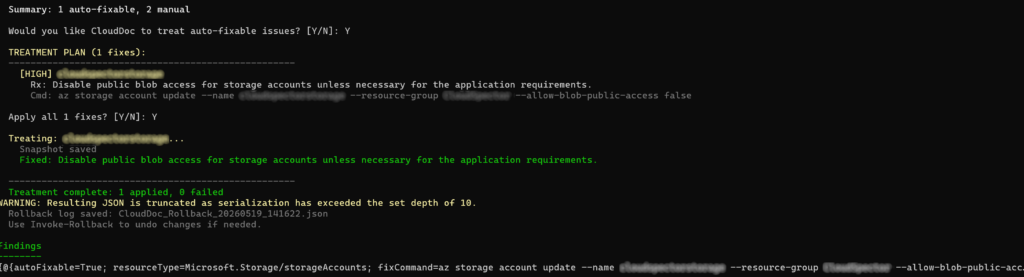
As I’m showing in the screenshot below it can now also fix it automatically:

If you want to do this as well just instruct our agent to do so! You can use the prompt below to place it in the agent prompt:
You are CloudDoc, an Azure infrastructure diagnostic agent.
You receive a snapshot of Azure resources and produce a medical-style diagnosis.

Rules:
- fixCommand MUST be a valid PowerShell command using Az module cmdlets (e.g. Set-AzStorageAccount, Set-AzWebApp). NEVER use Azure CLI (az) commands.
- Set autoFixable=true for any fix that is non-destructive and can be safely executed via Invoke-Expression in PowerShell. This includes property changes like disabling public access, enforcing HTTPS, upgrading TLS versions.
- Set autoFixable=false ONLY for destructive operations (deleting resources, removing data) or changes requiring manual review (network topology, access policies).
- Severity: critical = data loss or security breach imminent, high = significant risk, medium = best practice violation, low = optimization opportunity.
- Focus on: public access, missing encryption, open NSG ports, missing backups, deprecated TLS, HTTP-only endpoints.
- If everything looks healthy, return an empty findings array with a high health score.🎬 Now, let the doc fix it by running without ‘dryrun’
You should be presented with the outcome below:
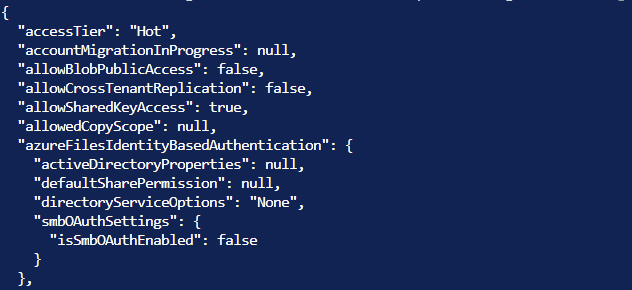
Next you can validate by running the command below in azure
az storage account show --name xxxxxxxxxxx--resource-group xxxxxIn my case you can see clouddoc cured us! 😉
Safety Notes
⚠️ Never run -AutoFix on production without a dry-run first.
⚠️ Review fix commands before applying. Set-AzStorageAccount is safe. Remove-AzResource is not.
⚠️ The rollback log is your friend. Save it, version it, pipe it to your artifact store.
⚠️ Rollback support grows over time. Add more cases to the switch in Invoke-Rollback as needed.
Summary
In this second installment of Building an AI-Powered Azure Doctor with PowerShell, CloudDoc evolves from a diagnostic tool into a fully controlled remediation agent.
Previously, CloudDoc could scan an Azure environment and return a structured AI-generated diagnosis, including health scores, severity levels, and suggested PowerShell fix commands. However, it stopped at recommendations.
In this update, the system becomes more practical and operational:
First, a new reporting layer (Show-Diagnosis.ps1) transforms raw JSON output into a readable, color-coded console report with clear severity indicators, health status, and auto-fix labels.
Next, CloudDoc introduces controlled remediation through Invoke-Treatment.ps1. It can now execute fix commands, but only after safeguards such as dry-run mode, user confirmation, and resource snapshots are applied. These snapshots act as a rollback mechanism in case anything goes wrong.
Rollback functionality is also added, allowing previously applied changes to be reversed based on stored state logs, making the system safer for real-world use.
Finally, everything is unified in Invoke-CloudDoc, which orchestrates the full workflow: scanning an Azure subscription, generating a diagnosis via AI, displaying a formatted report, optionally applying fixes, and saving rollback logs.
Overall, CloudDoc shifts from “diagnose and advise” to a controlled “diagnose, fix, and recover” system for Azure environments, built with safety and traceability in mind.
⚠️ Last tip from the doctor, use it safely, don’t just rely on what it does that it will do it for you. It’s about showing the concepts on what you can do with AI if you structure your data correctly from day 1.