

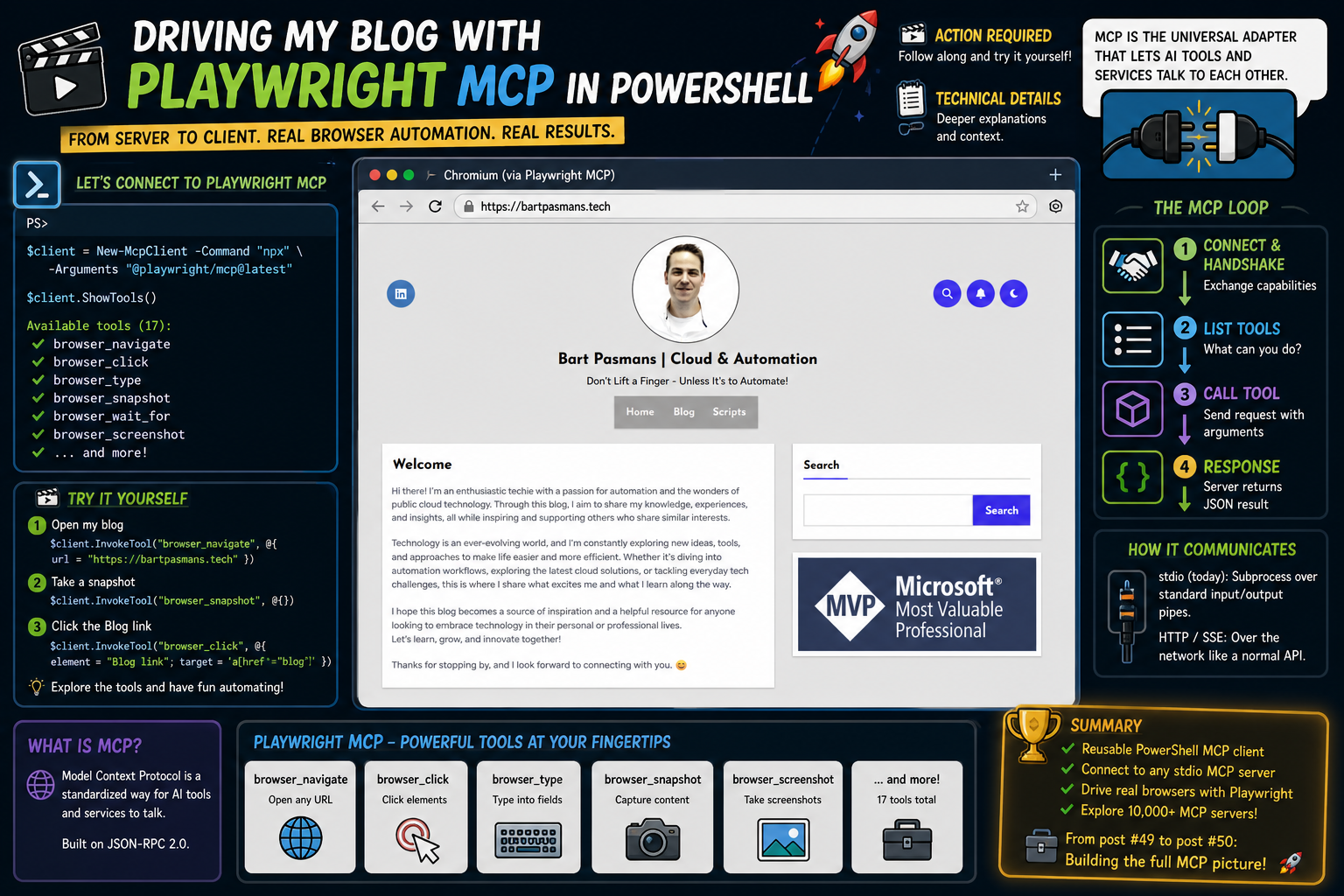
In post #49, we built an MCP server in PowerShell using Pode. Nice start, but the real magic of the Model Context Protocol lives on the client side. That’s where you connect to existing MCP servers and call their tools straight from your terminal.
There are now over 10,000 public MCP servers out there. Every IDE, every AI tool, every platform is building them. The question is no longer “what is MCP?” but “how do I actually use all these servers in my scripts?”
That’s exactly what we’re going to build today. To make it real, we’ll connect to the Playwright MCP server from Microsoft.
The result is PowerShell that drives a real browser. Opening pages, taking screenshots, clicking elements, filling out forms. All powered through MCP.
During this post, you’ll see this icon 🎬 which indicates that action is required so you get the full benefit out of this post.
And I’ve introduced the 📒 which indicates that the subsequent part explains the technical details in the context of this post.
Ready for some AI awesomeness? Let’s go! 🚀
First things first, what is MCP?
MCP, or Model Context Protocol, is basically a shared language that lets AI tools and external services talk to each other without friction. You can think of it as a universal adapter. Instead of every AI system needing a custom integration for every tool, MCP standardises the whole thing so everything just… fits.
So whether a server was built by Microsoft, an open source contributor, or some random dev experimenting on a Sunday night, it doesn’t matter. If it speaks MCP, any MCP client can talk to it.
Under the hood, MCP is built on JSON-RPC 2.0, which is just a structured way of sending requests and responses back and forth. But what makes it practical is not the format itself, it’s how simple the interaction model stays.
There are two ways this communication usually happens.
One is stdio, where the MCP server runs locally as a subprocess. The client starts it up, and they chat through standard input and output streams. It feels almost like two programs sharing a private pipe.
The other is HTTP or SSE, where the server runs as a web service and everything happens over the network like a normal API.
Today we stick with stdio. It’s the most immediate and the most common setup for local tooling, and it’s exactly how the Playwright MCP server works.
Once you start looking at MCP in practice, the whole thing boils down to a very clean rhythm. Nothing mystical, just a predictable loop that repeats.
- First, the client connects and both sides introduce themselves. They exchange what they are capable of, like a quick handshake where they say “here is what I can do”.
- Then the client asks a simple question: what tools are available?
- The server responds with a list. These tools are just functions, but exposed in a standard way so any client can understand them.
- After that, the client picks one and calls it. It sends a request with the required arguments, almost like filling in a form and hitting submit.
- Finally, the server does the work and sends the result back as structured JSON.
That’s the entire loop. Connect, discover, call, respond.
No magic tricks hiding underneath, just a clean contract that makes it possible for AI systems to actually do things instead of just talking about them.
Why Playwright MCP?
Before we plug it into MCP, it helps to understand what Playwright actually is.
Playwright is a browser automation framework. In simple terms, it lets you control a real web browser through code. Not a fake simulation, but an actual Chromium, Firefox, or WebKit instance doing exactly what a user would do: opening pages, clicking buttons, filling out forms, scrolling, waiting for content to load, and taking screenshots.
Originally, it was built for end to end testing. Developers use it to automatically test websites the same way a human would interact with them. But it quickly grew beyond testing, because once you can fully control a browser, you can automate almost anything on the web.
That’s where it becomes interesting in an MCP context.
Why Playwright MCP?
You could choose any MCP server for a demo, but Playwright is a standout for three reasons:
- Visual: you immediately see the result. A real browser opens, moves around, clicks things, and you can literally watch the automation happen live
- Practical: it’s useful beyond demos. You can do scraping, monitoring, automated testing, or even repetitive form filling directly from PowerShell
- Microsoft-backed: the Playwright MCP server implementation is official, actively maintained, and built on top of the same tooling used in production environments
So instead of abstract protocol theory, you get something tangible. A terminal that can actually drive a browser like a human would.
And once that connection is in place, PowerShell stops being just a shell and starts behaving more like a remote control for the web.
Installing PlayWright MCP
Before anything else, you’ll need Node.js installed (version 18 or higher). That’s the runtime that makes this whole setup possible.
Once that’s in place, installation is refreshingly simple. No heavy setup scripts, no complex configuration. Just a single command:
npx @playwright/mcp@latest --help🎬 Run the command above and you should be presented with the result below
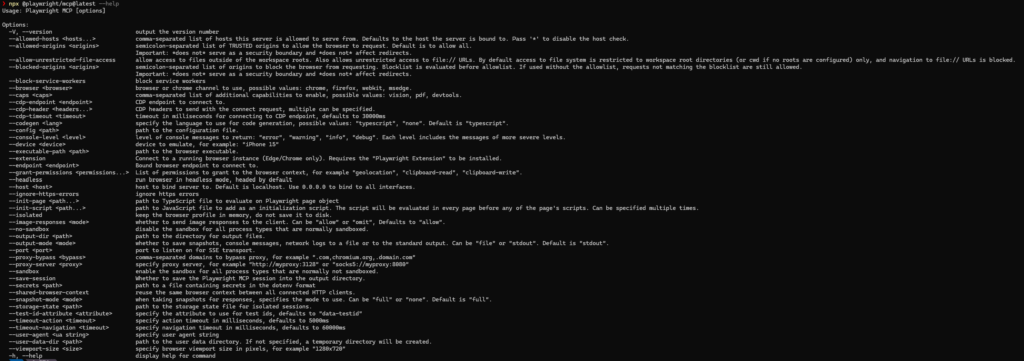
⚠️ We are using –help otherwise the thread will be locked in as the playwright grabs it
The re-usable MCP client
Now things get interesting, because we’re not just writing a script anymore. We’re building a reusable MCP client in PowerShell.
At the core of it is a class that you can keep using again and again, no matter which MCP server you connect to. Today that’s the Playwright MCP server, tomorrow it could be something completely different. That flexibility is exactly the point.
Why this matters
Once you start working seriously with MCP, you don’t want to manually construct JSON-RPC requests every time or copy-paste random scripts around. That gets messy fast, and it breaks just as fast.
Instead, you’re building a pattern, not a one-off solution:
• a consistent way to send requests
• a reliable handshake with any MCP server
• a standard way to call tools and handle responses
In other words, you’re turning MCP into something you can actually reuse like a proper building block in your scripts.
⚠️ I created the MCP client for you which you can copy here:
class McpClient {
    [System.Diagnostics.Process] $Process
    [int] $RequestId = 0
    [hashtable] $ServerInfo = @{}
    [array] $Tools = @()
    hidden [bool] $IsConnected = $false

    McpClient([string]$Command, [string]$Arguments) {
        $psi = [System.Diagnostics.ProcessStartInfo]::new()

        if ($env:OS -eq "Windows_NT") {
            $psi.FileName = "cmd.exe"
            $psi.Arguments = "/c $Command $Arguments"
        }
        else {
            $psi.FileName = $Command
            $psi.Arguments = $Arguments
        }

        $psi.UseShellExecute = $false
        $psi.RedirectStandardInput = $true
        $psi.RedirectStandardOutput = $true
        $psi.RedirectStandardError = $true
        $psi.CreateNoWindow = $true

        $this.Process = [System.Diagnostics.Process]::Start($psi)
        Start-Sleep -Milliseconds 2000
    }

    [psobject] SendRequest([string]$Method, [hashtable]$Params) {
        $this.RequestId++

        $message = @{
            jsonrpc = "2.0"
            id      = $this.RequestId
            method  = $Method
        }

        if ($Params -and $Params.Count -gt 0) {
            $message.params = $Params
        }

        $json = $message | ConvertTo-Json -Depth 20 -Compress
        $this.Process.StandardInput.WriteLine($json)
        $this.Process.StandardInput.Flush()

        while ($true) {
            $line = $this.Process.StandardOutput.ReadLine()

            if ($null -eq $line) {
                throw "MCP: Server closed the connection"
            }

            if ([string]::IsNullOrWhiteSpace($line)) { continue }

            if (-not $line.TrimStart().StartsWith('{')) { continue }

            $parsed = $null
            try {
                $parsed = $line | ConvertFrom-Json
            }
            catch {
                continue
            }

            if ($null -eq $parsed.id) { continue }

            if ($parsed.id -eq $this.RequestId) {
                if ($parsed.error) {
                    throw "MCP Error [$($parsed.error.code)]: $($parsed.error.message)"
                }
                return $parsed.result
            }
        }

        throw "MCP: No response received"
    }

    [void] SendNotification([string]$Method) {
        $notification = @{
            jsonrpc = "2.0"
            method  = $Method
        } | ConvertTo-Json -Compress

        $this.Process.StandardInput.WriteLine($notification)
        $this.Process.StandardInput.Flush()
    }

    [void] Initialize() {
        $result = $this.SendRequest("initialize", @{
            protocolVersion = "2024-11-05"
            capabilities    = @{}
            clientInfo      = @{
                name    = "PowerShell MCP Client"
                version = "1.0.0"
            }
        })

        $this.ServerInfo = @{
            Name    = $result.serverInfo.name
            Version = $result.serverInfo.version
        }

        $this.SendNotification("notifications/initialized")

        $toolsResult = $this.SendRequest("tools/list", $null)
        $this.Tools = @($toolsResult.tools)

        $this.IsConnected = $true
    }

    [psobject] InvokeTool([string]$Name, [hashtable]$Arguments) {
        if (-not $this.IsConnected) {
            throw "MCP Client not initialized. Call Initialize() first."
        }

        $result = $this.SendRequest("tools/call", @{
            name      = $Name
            arguments = $Arguments
        })

        return $result
    }

    [psobject] GetTool([string]$Name) {
        return $this.Tools | Where-Object { $_.name -eq $Name }
    }

    [void] ShowTools() {
        Write-Host "`nAvailable tools ($($this.Tools.Count)):" -ForegroundColor Yellow
        foreach ($tool in $this.Tools) {
            Write-Host "  $($tool.name)" -ForegroundColor Cyan -NoNewline
            Write-Host " -- $($tool.description)" -ForegroundColor Gray
        }
        Write-Host ""
    }

    [void] Close() {
        try {
            $this.Process.StandardInput.Close()
            if (-not $this.Process.HasExited) {
                $this.Process.Kill()
            }
        }
        finally {
            $this.Process.Dispose()
            $this.IsConnected = $false
        }
    }
}

function New-McpClient {
    param(
        [Parameter(Mandatory)]
        [string] $Command,

        [Parameter(Mandatory)]
        [string] $Arguments
    )

    $client = [McpClient]::new($Command, $Arguments)
    $client.Initialize()

    Write-Host "Connected to $($client.ServerInfo.Name) v$($client.ServerInfo.Version)" -ForegroundColor Green
    Write-Host "$($client.Tools.Count) tools available" -ForegroundColor DarkGray

    return $client
}

function Invoke-McpTool {
    param(
        [Parameter(Mandatory)]
        [McpClient] $Client,

        [Parameter(Mandatory)]
        [string] $Name,

        [hashtable] $Arguments = @{}
    )

    $result = $Client.InvokeTool($Name, $Arguments)
    foreach ($item in $result.content) {
        if ($item.type -eq "text") {
            Write-Output $item.text
        }
        elseif ($item.type -eq "image") {
            Write-Output "[Screenshot: $($item.mimeType)]"
        }
    }
}
🎬 Follow the steps below to start the re-usable MCP client
- Copy the content in a file like ‘mcpclient.ps1’ and save it somewhere locally
- Run the command below (don’t forget we have to dot source it to make the types discoverable)
. .\McpClient.ps1- Now make a new instance of the MCP client
$client = New-McpClient -Command "npx" -Arguments "@playwright/mcp@latest"
We now have the McpClient type object stored in the client which we can now use.
$client.ShowTools()You should the result below:
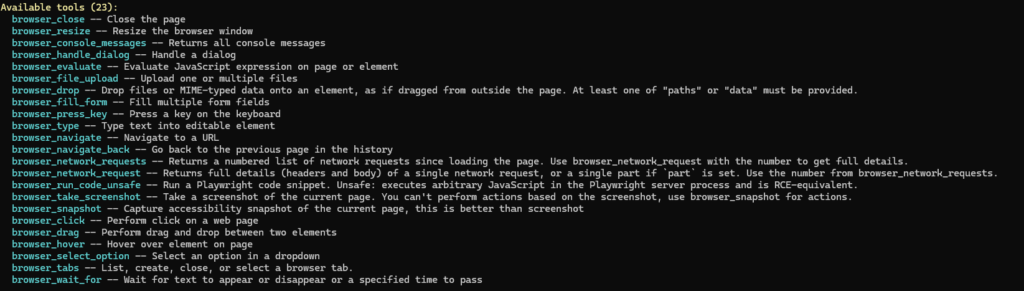
If you made it this far we can continue and we have the client ready 😉
Driving Playwright, the demo
Now it gets fun. We take the MCP client we just built and connect it to Playwright, creating a script that actually does things in the real world.
If you have the session open from the previous section we can continue on that, if not please follow it to make sure you have an initialized version of the MCPClient available.
🎬 Follow the steps below to see how everything comes together
- Run the command below
$client.InvokeTool("browser_navigate", @{ url = "https://bartpasmans.tech"})⚠️ Here we just execute the tool ‘browser_navigate’ to the URL of my blog site. The tools are available in the screenshot above or by running the command showtools.
You should see a browser with my blog site open in a short notice (still confronting to see my own picture 😆)
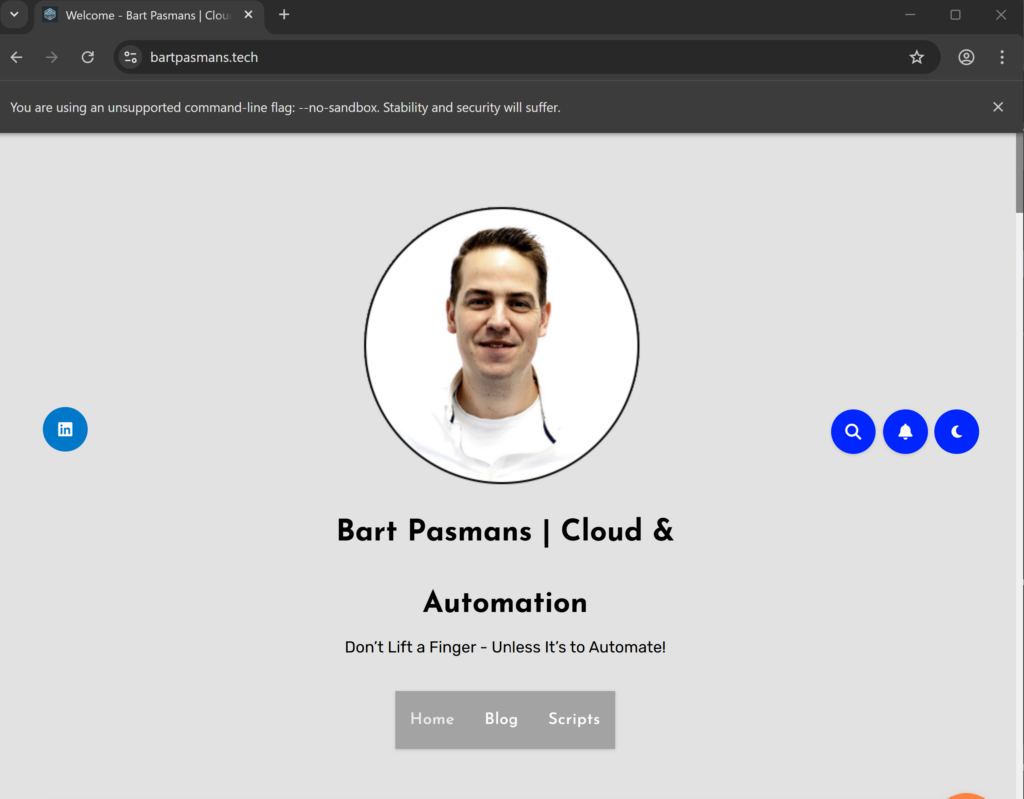
Now you see that the browser is different right? No favorites, no toolbars etc. Everything blank!
We can now ask the client to do other things. Let’s try making a screenshot for instance
- Run the command below
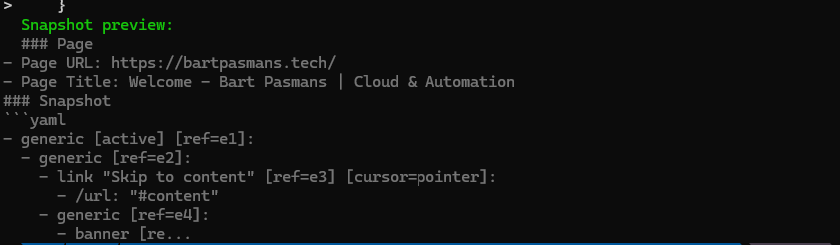
$snapshot = $client.InvokeTool("browser_snapshot", @{})

    $textContent = $snapshot.content | Where-Object { $_.type -eq "text" } | Select-Object -First 1
    if ($textContent) {
        $preview = if ($textContent.text.Length -gt 300) {
            $textContent.text.Substring(0, 300) + "..."
        } else {
            $textContent.text
        }
        Write-Host "  Snapshot preview:" -ForegroundColor Green
        Write-Host "  $preview" -ForegroundColor DarkGray
}Run it, and you should see the result of my site;
Now lets see how we can let our tool click somewhere.
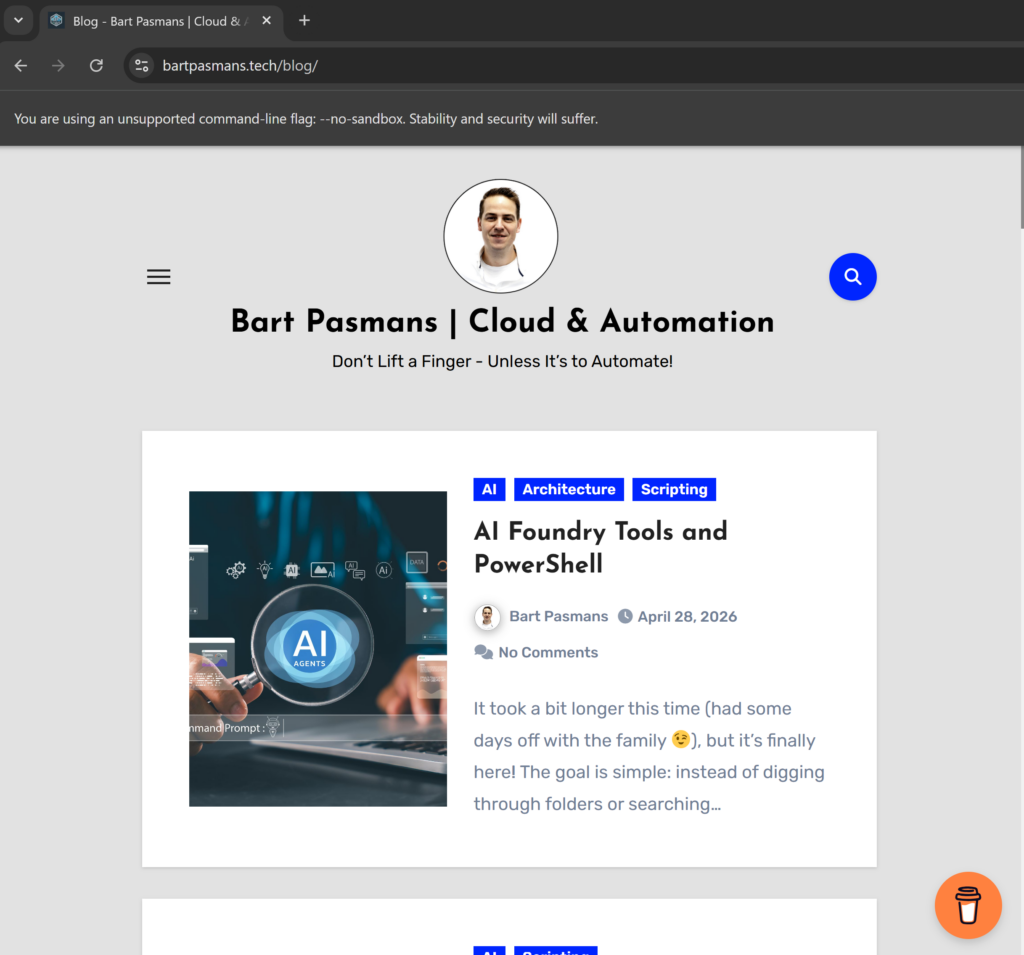
🎬 Run the command below to simulate a click on the webpage
$client.InvokeTool("browser_click", @{ element = "Blog link"; target = 'a[href*="blog"]' })And you should see the browser navigate somewhere else
Cool right?!
Try playing around with the tools, they are really powerful for all sorts of tasks/automation. Oh, and don’t forget to have fun doing so 😉
Summary
We’ve moved from raw JSON-RPC messages to a reusable PowerShell MCP client that can actually drive a browser through Playwright.
And that shift is the real takeaway here. You’re no longer just “sending requests”, you’re working with a proper abstraction layer that makes MCP usable in everyday automation.
What you’ve built:
• A generic MCP client class that works with any stdio-based MCP server
• Direct browser control through the Playwright MCP server
• An interactive MCP shell that lets you explore tools and capabilities on the fly
In post #49, we built the server side. Now we’ve completed the other half: the client.
Together, they form the full picture. PowerShell is no longer just a scripting shell, it becomes both a provider and a consumer of MCP services.
And in a world with 10,000+ MCP servers out there, that’s not a nice-to-have anymore. It’s quickly becoming a core skill if you want to automate, integrate, and actually control modern AI-driven tooling instead of just observing it.
Interesting links:
https://github.com/microsoft/playwright-mcp
https://modelcontextprotocol.io/docs/getting-started/intro
https://mcpcat.io/guides/understanding-json-rpc-protocol-mcp