

Hi, and welcome back! The last time we discussed about AI with the AI clipboard watcher hence I was looking for some new and cool AI stuff to do! When doing my research I knew that AI shell is not longer supported;
and that you can now use GitHub CoPilot CLI etc.
But how cool would it be if we create our own AI assistant in the shell?! As we don’t always want to pay for premium solutions and can quite easily create something of our own which is capable on doing almost the exact same thing, right?
So, it’s time to build our own, in a couple of lines of PowerShell we’ll create our very own AI CLI!
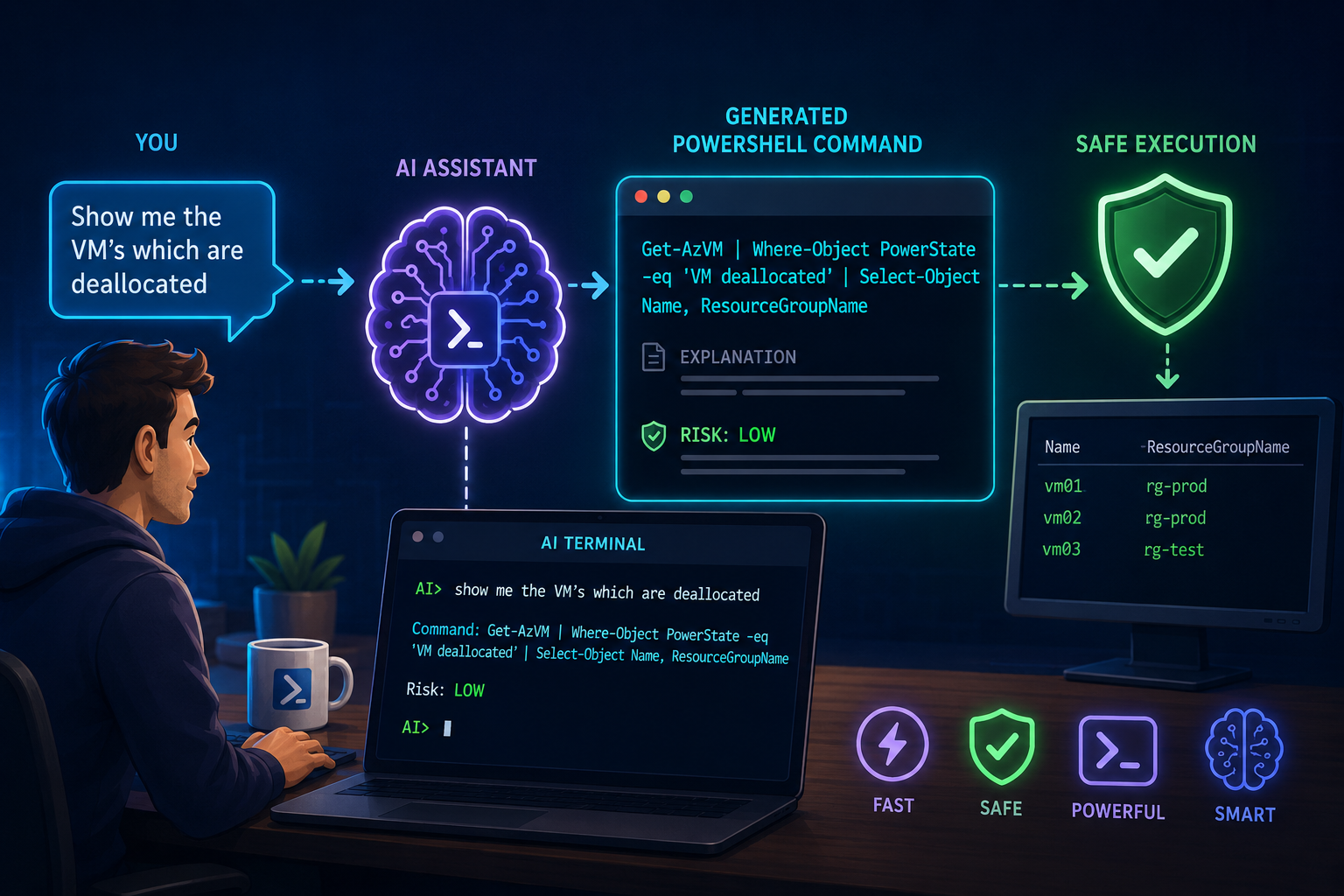
That’s exactly on what we’ll be doing today, describe what you want to do in plain language, “Show me the VM’s which are deallocated” and the AI generates the exact PowerShell command, explains what it does (and how risky it is) and optionally executes it. No dependencies with others beyond your Azure OpenAI endpoint.
Like always throughout this post you will see 🎬 (when there is time for you to take action) and 📒 where I will will provide a technical deep-dive.
What we’re building
Two scripts. The first one takes natural language and returns a structured command object. The second wraps it in an interactive REPL, a terminal session where you just keep typing what you want and AI keeps generating commands.
. .\Invoke-AICommand.ps1

Invoke-AICommand -Prompt "show all resource groups sorted by name"

#   Command:
#   Get-AzResourceGroup | Sort-Object ResourceGroupName | Format-Table ResourceGroupName, Location
#
#   Risk: LOW — Read-only operation, no resources are modified.
The AI doesn’t just generate commands. It classifies the risk. Read-only? Green light. Deletes resources? Red flag. That risk field is what makes this more than a toy, it’s a safety net between you and a lot of red lights in your monitoring!
The Risk system
As mentioned we’ll include a risk system, we don’t want to execute commands which might impact our environment, hence we’ll flag it with a risk level. Below is what we’ll be using for our risk assessment level.
| Level | Meaning | Example |
| low | Read-only, display, or local info | Get-Process, Get-AzVM |
| medium | Modifies local state or creates resources | New-AzResourceGroup |
| high | Deletes resources or changes permissions | Remove-AzResourceGroup |
| critical | Destructive across multiple resources | Bulk delete, subscription changes |
What happens with each level: Low command runs immediately if you use -Execute or -AutoExecute in the REPL. Medium asks for confirmation before executing. High/Critical refuses to execute unless you pass -Force, and even then it warns you.
The Script
🎬 Time for you to take some action! Follow the steps below to create the scripts
- Create a script called ‘Invoke-AICommand.ps1’ and update the endpoint, deployment and APIkey so it matches up with your Azure OpenAI Environment. The script I used is mentioned below.
function Invoke-AICommand {
    param(
        [Parameter(Mandatory)]
        [string]$Prompt,

        [switch]$Execute,

        [switch]$Force
    )

    $Endpoint   = 'https://your-endpoint.openai.azure.com/'
    $Deployment = 'your-deployment'
    $ApiKey     = 'your-api-key'

    $schema = @{
        type       = "object"
        properties = @{
            command     = @{ type = "string" }
            explanation = @{ type = "string" }
            risk        = @{
                type = "string"
                enum = @("low", "medium", "high", "critical")
            }
            riskReason  = @{ type = "string" }
            alternatives = @{
                type  = "array"
                items = @{ type = "string" }
            }
        }
        required             = @("command", "explanation", "risk", "riskReason", "alternatives")
        additionalProperties = $false
    }

    $body = @{
        messages = @(
            @{
                role    = "system"
                content = @"
You are a PowerShell command generator.
The user describes what they want to do in natural language.
You respond with the exact PowerShell command to accomplish it.

Rules:
- Generate ONLY PowerShell commands (not bash, not cmd, not Python).
- Use standard PowerShell cmdlets and modules. Prefer built-in cmdlets over external tools.
- If Azure operations are needed, use the Az module cmdlets.
- The command must be a single executable line or a short pipeline. No multi-line scripts.
- If the task genuinely requires multiple steps, chain them with semicolons or pipelines.
- Be precise. Do not add unnecessary parameters or flags.
- For the risk field: "low" = read-only or local display, "medium" = modifies local state or creates resources, "high" = deletes resources or changes permissions, "critical" = destructive across multiple resources or irreversible.
- The riskReason should explain WHY this risk level was assigned in one sentence.
- Alternatives should contain 1-2 alternative approaches if they exist, or an empty array if there is only one way.
"@
            }
            @{
                role    = "user"
                content = $Prompt
            }
        )
        max_tokens      = 1000
        response_format = @{
            type        = "json_schema"
            json_schema = @{
                name   = "powershell_command"
                strict = $true
                schema = $schema
            }
        }
    }

    $json    = $body | ConvertTo-Json -Depth 20
    $headers = @{
        "api-key"      = $ApiKey
        "Content-Type" = "application/json"
    }
    $url = "$Endpoint/openai/deployments/$Deployment/chat/completions?api-version=2024-10-21"

    Write-Host ""
    Write-Host "  Thinking..." -ForegroundColor Cyan

    $response = Invoke-RestMethod -Method Post -Uri $url -Headers $headers -Body $json
    $result = $response.choices[0].message.content | ConvertFrom-Json

    $riskColor = switch ($result.risk) {
        "low"      { "Green" }
        "medium"   { "Yellow" }
        "high"     { "Red" }
        "critical" { "Magenta" }
    }

    Write-Host ""
    Write-Host "  Command:" -ForegroundColor White
    Write-Host "  $($result.command)" -ForegroundColor Cyan
    Write-Host ""
    Write-Host "  Explanation:" -ForegroundColor White
    Write-Host "  $($result.explanation)" -ForegroundColor DarkGray
    Write-Host ""
    Write-Host "  Risk: " -NoNewline -ForegroundColor White
    Write-Host $result.risk.ToUpper() -ForegroundColor $riskColor -NoNewline
    Write-Host " — $($result.riskReason)" -ForegroundColor DarkGray

    if ($result.alternatives.Count -gt 0) {
        Write-Host ""
        Write-Host "  Alternatives:" -ForegroundColor White
        foreach ($alt in $result.alternatives) {
            Write-Host "    - $alt" -ForegroundColor DarkGray
        }
    }

    if ($Execute) {
        if ($result.risk -in @("high", "critical") -and -not $Force) {
            Write-Host ""
            Write-Host "  Risk is $($result.risk.ToUpper()). Use -Force to execute, or run the command manually." -ForegroundColor Red
            return $result
        }

        if ($result.risk -eq "medium" -and -not $Force) {
            Write-Host ""
            $confirm = Read-Host "  This command modifies state. Execute? (y/N)"
            if ($confirm -ne 'y') {
                Write-Host "  Skipped." -ForegroundColor DarkGray
                return $result
            }
        }

        Write-Host ""
        Write-Host "  Executing..." -ForegroundColor Yellow
        Write-Host "  ────────────────────────────────────────" -ForegroundColor DarkGray

        try {
            $output = Invoke-Expression $result.command
            $output
        }
        catch {
            Write-Host "  Error: $_" -ForegroundColor Red
        }

        Write-Host "  ────────────────────────────────────────" -ForegroundColor DarkGray
    }
    return $result
}⚠️For the ease of use for now I added the schema in the script itself this time. Normally I like to separate those and dot source them in the main script. Feel free to do this in your very own implementation.
📒 Let me explain it for you
The schema is the safety net. We force the AI to return five fields: the command itself, an explanation, the risk level (forced enum no wiggle room), a riskReason, and alternatives. Without the enum, the AI might say “this is somewhat risky” and you’d have to parse that. With the enum, you get “high” and your code knows exactly what to do.
The system prompt is strict on purpose. I’ve seen AI command generators produce bash commands on Windows, multi-line scripts when you asked for one command, and commands with every possible flag attached. The system prompt explicitly says: PowerShell only, single line, standard cmdlets, no unnecessary parameters. Constraints make the output better.
The risk-based execution gate. Three levels of protection: low risk executes freely, medium asks for confirmation with Read-Host, high and critical refuse entirely unless you pass -Force. It’s not bulletproof the AI might misclassify a risk level but it’s a lot better than executing everything blindly.
Invoke-Expression is the executor. Yes, I know Invoke-Expression gets a bad reputation. And rightfully so if you’re running untrusted input. But here the “input” is a command you’ve just reviewed on screen, with a risk level attached. You see what’s about to run before it runs.
The Interactive Terminal
We need to create one more script, the ‘Start-AITerminal.ps1’ script in the same folder. This one will wrap the invoke-aiscript you created in the previous step.
🎬 Create the ‘Start-AITerminal.ps1’ script and provide it with the content below.
. "$PSScriptRoot\Invoke-AICommand.ps1"

function Start-AITerminal {
    param(
        [switch]$AutoExecute
    )

    Write-Host ""
    Write-Host "  ╔═══════════════════════════════════════════╗" -ForegroundColor Cyan
    Write-Host "  ║     PowerShell AI Terminal Copilot        ║" -ForegroundColor Cyan
    Write-Host "  ╠═══════════════════════════════════════════╣" -ForegroundColor Cyan
    Write-Host "  ║  Type what you want to do in plain        ║" -ForegroundColor Cyan
    Write-Host "  ║  language. AI generates the command.      ║" -ForegroundColor Cyan
    Write-Host "  ║                                           ║" -ForegroundColor Cyan
    Write-Host "  ║  Commands:                                ║" -ForegroundColor Cyan
    Write-Host "  ║    !run     Execute the last command      ║" -ForegroundColor Cyan
    Write-Host "  ║    !copy    Copy last command to clipboard║" -ForegroundColor Cyan
    Write-Host "  ║    !history Show command history          ║" -ForegroundColor Cyan
    Write-Host "  ║    exit     Quit                          ║" -ForegroundColor Cyan
    Write-Host "  ╚═══════════════════════════════════════════╝" -ForegroundColor Cyan
    Write-Host ""


    $history = @()
    $lastResult = $null

    while ($true) {
        Write-Host "  AI>" -NoNewline -ForegroundColor Green
        $input = Read-Host " "

        if ([string]::IsNullOrWhiteSpace($input)) { continue }

        switch ($input.Trim().ToLower()) {
            "exit" {
                Write-Host ""
                Write-Host "  Session ended. Generated $($history.Count) commands." -ForegroundColor Cyan
                Write-Host ""
                return
            }

            "!run" {
                if (-not $lastResult) {
                    Write-Host "  No command to run. Ask something first." -ForegroundColor Yellow
                    continue
                }

                if ($lastResult.risk -in @("high", "critical")) {
                    Write-Host ""
                    $confirm = Read-Host "  Risk is $($lastResult.risk.ToUpper()). Are you sure? (y/N)"
                    if ($confirm -ne 'y') {
                        Write-Host "  Skipped." -ForegroundColor DarkGray
                        continue
                    }
                }

                Write-Host ""
                Write-Host "  Executing..." -ForegroundColor Yellow
                Write-Host "  ────────────────────────────────────────" -ForegroundColor DarkGray
                try {
                    Invoke-Expression $lastResult.command
                }
                catch {
                    Write-Host "  Error: $_" -ForegroundColor Red
                }
                Write-Host "  ────────────────────────────────────────" -ForegroundColor DarkGray
                Write-Host ""
                continue
            }

            "!copy" {
                if (-not $lastResult) {
                    Write-Host "  No command to copy." -ForegroundColor Yellow
                    continue
                }
                Set-Clipboard -Value $lastResult.command
                Write-Host "  Copied to clipboard!" -ForegroundColor Green
                Write-Host ""
                continue
            }

            "!history" {
                if ($history.Count -eq 0) {
                    Write-Host "  No history yet." -ForegroundColor Yellow
                    continue
                }
                Write-Host ""
                Write-Host "  Command History:" -ForegroundColor White
                for ($i = 0; $i -lt $history.Count; $i++) {
                    $h = $history[$i]
                    $riskColor = switch ($h.risk) {
                        "low"      { "Green" }
                        "medium"   { "Yellow" }
                        "high"     { "Red" }
                        "critical" { "Magenta" }
                    }
                    Write-Host "  [$($i + 1)] " -NoNewline -ForegroundColor DarkGray
                    Write-Host "$($h.prompt)" -ForegroundColor White
                    Write-Host "      $($h.command)" -NoNewline -ForegroundColor Cyan
                    Write-Host " [$($h.risk)]" -ForegroundColor $riskColor
                }
                Write-Host ""
                continue
            }
        }

        $lastResult = Invoke-AICommand -Prompt $input

        $history += @{
            prompt  = $input
            command = $lastResult.command
            risk    = $lastResult.risk
        }

        if ($AutoExecute -and $lastResult.risk -eq "low") {
            Write-Host ""
            Write-Host "  Auto-executing (low risk)..." -ForegroundColor Yellow
            Write-Host "  ────────────────────────────────────────" -ForegroundColor DarkGray
            try {
                Invoke-Expression $lastResult.command
            }
            catch {
                Write-Host "  Error: $_" -ForegroundColor Red
            }
            Write-Host "  ────────────────────────────────────────" -ForegroundColor DarkGray
        }

        Write-Host ""
    }
}
📒 Things explained;
The REPL wraps Invoke-AICommand in an interactive loop with built-in commands:
!run executes the last generated command. !copy puts the command on your clipboard. !history shows everything you’ve generated this session with color-coded risk levels. exit ends the session.
-AutoExecute mode. When you pass this switch, any command classified as low risk gets executed immediately after generation. You type “how much disk space do I have” and the answer appears without an extra step. Medium and above still require confirmation.
Practical examples
Lets get started with this stuff and start testing! Follow the steps below to see what your brand spanking new agent can do 😉
🎬 Follow the steps below to start our agent!
One-Shot usage
. .\Invoke-AICommand.ps1

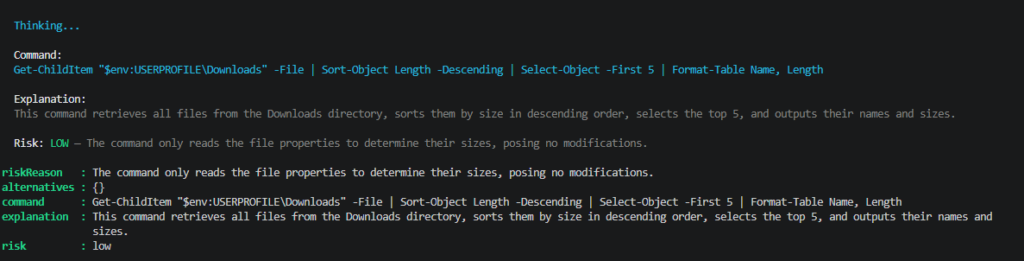
Invoke-AICommand -Prompt "Show the 5 largest files in my downloads directory"You will see that the AI agent gives you the command in order to do this:
Interactive session with auto-execute
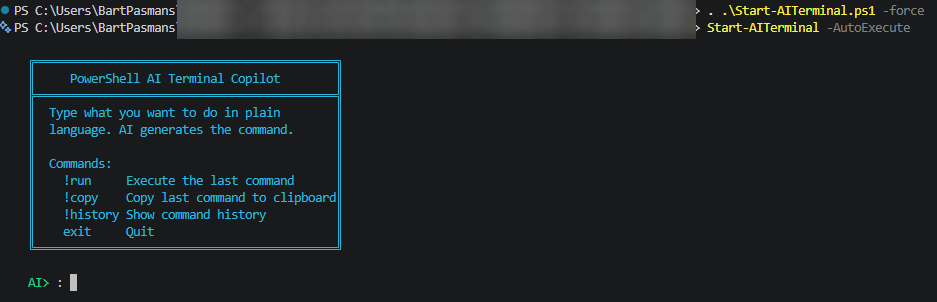
. .\Start-AITerminal.ps1

Start-AITerminal -AutoExecuteYou should be greeted by your AI assistant
Now ask it a question like ‘Whats my public IP?’
You will see what the agent came up with:
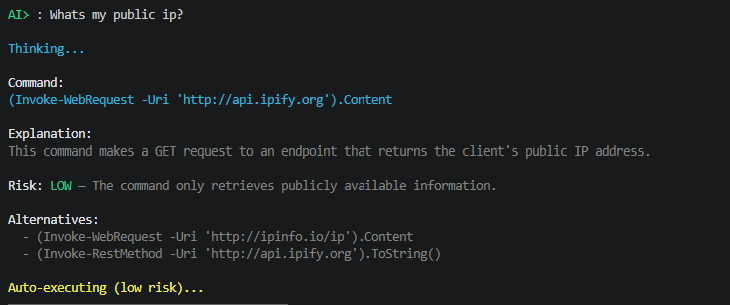
And you will get the result 😉 (I won’t be sharing my IP here)
Why Not Just Use Copilot CLI?
GitHub Copilot CLI is a polished product. But it routes through GitHub’s infrastructure, requires a subscription, and you can’t control which model it uses or how the prompt is structured. It’s a black box.
And, this is way more fun right? You can create your own assistant and immediately learn on how to set up things with Azure OpenAI, How cool is that?!
Security Notes
Invoke-Expression runs whatever the AI generates. That’s powerful and dangerous. The risk system helps, but it’s not a security boundary it’s a convenience layer. Always review the command before running it.
The API key is hardcoded. You know the drill. Environment variables or Key Vault for anything beyond personal use.
Don’t auto-execute in production environments. The -AutoExecute flag is great for dev and personal machines. On a production server, keep it off.
Wrapping Up
Microsoft tried this. They archived it. GitHub sells it. We built it in 80 lines.
The structured output is what makes the difference. Without the risk enum, this would be a fun demo. With it, it’s something you can actually leave running while you work. Low-risk commands just execute. High-risk commands get blocked. You stay in control, but you stop typing Get-AzVM -ResourceGroupName for the hundredth time.
The system prompt is the secret weapon here. Every weird edge case I hit bash commands sneaking in, unnecessary flags, multi-line scripts I fixed by adding one line to the system prompt. That’s the beauty of building it yourself. When the AI misbehaves, you don’t file a feature request. You fix the prompt.
On to the next one, have fun creating your very own AI assistant! 😁
Resources
• Azure OpenAI Structured Outputs
• Microsoft AI Shell (archived)