

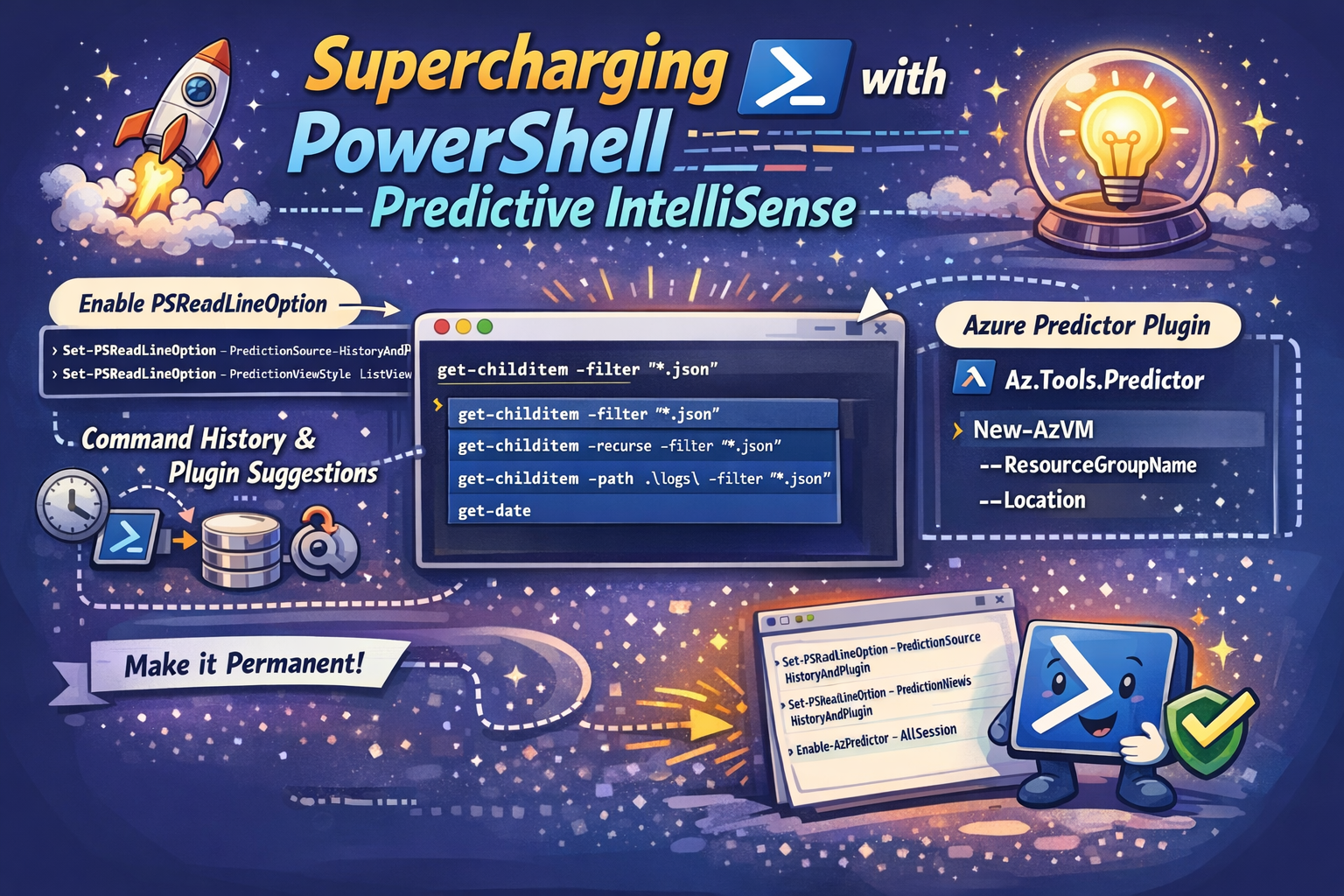
Welcome! After a lot of topics on AKS it was about time we would discuss something else.
In todays blog I’ll be diving into bringing predictions into your PowerShell so that you can really start to speed up.
Because, nobody wants to constantly repeat himself right?
Luckily PowerShell has some nice built-in features for that available in PowerShell 7.
Throughout this post, you’ll again see the 🎬 icon highlighting steps you should actively follow along with, as well as 💡 notes that provide helpful context and tips so you don’t get lost on the way.
Ready to make your life way more easier? Lets go!
PSReadLineOption
Todays hero is called ‘PSReadLineOption’ its a commandlet available in PowerShell 7 and helps you bringing your history commands into your shell. Saving you a lot of time, and keeping your hands calm😉
So, what does this bring me?
By default, PowerShell tab-completion is reactive: you type something, hit tab, and it looks for a file or a command.
Predictive IntelliSense is proactive. As you type, PowerShell looks ahead. By setting the source to HistoryAndPlugin, the engine cross-references two massive databases:
- History: Every successful command you’ve typed in the past.
- Plugin: External intelligence (like the Az.Tools.Predictor for Azure) that suggests commands based on common cloud patterns.
Getting started
First of all we need to enable PSReadLineOption. As mentioned this is a PowerShell 7 feature so make sure you execute the steps below in a PowerShell 7 session.
🎬 Follow the steps below to enable PSReadLineOption
- Open a PowerShell 7 Session
- Enter the command below
Set-PSReadLineOption -PredictionSource HistoryAndPlugin- Now enter the command below
Set-PSReadLineOption -PredictionViewStyle ListViewThe second command makes sure we get a list overview when we get the recommendations.
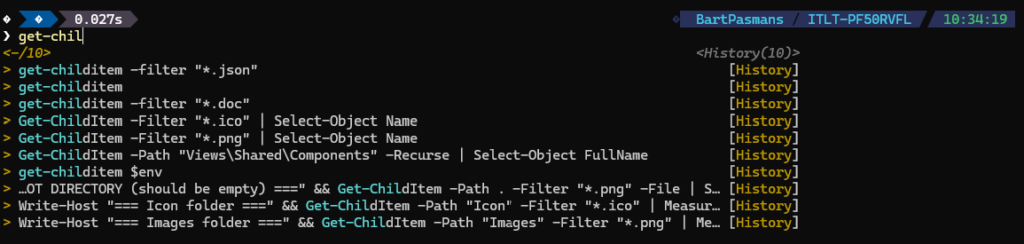
In the standard InlineView, you only see the top suggestion in ghostly grey text. In ListView, a small menu opens beneath your cursor. You can use the Arrow Keys to browse your previous variations of that command. It’s like having a searchable “Best Of” album of your own code.
- Now run a PowerShell command like the one below (or any of your preference)
get-childitem -filter "*.json"🚀 Now the power of this feature comes in!
- Start typing the same command as what you used before, see whats happening? You should see something like below
The Secret Ingredient: Predictor Plugins
While your local history is great, Plugins take it to the next level. Microsoft and the community have developed specific predictors that “teach” PowerShell new tricks.
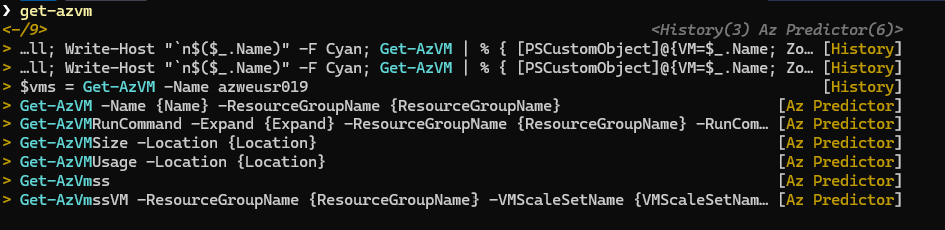
The most popular is the Azure Predictor. It knows that if you type New-AzVM, you’re probably going to need a -ResourceGroupName and a -Location.
🎬 Follow the steps below to install the Azure Predictor
- Run the command below
Install-Module -Name Az.Tools.Predictor- Now enable the predictor
Enable-AzPredictor -AllSession⚠️ Restart your shell because we need to make sure the new module gets loaded correctly. and repeat the commands again to enable predictionsource and view
- Now enter a command like below
get-azvmYou should see the predictions:
Making it permanent
Now you want to save those hard working hands from running things over and over right? So why would you run these commands again and again for each shell you are going to open? Indeed, that makes no sense at all!
🎬 Follow the steps below to make it permanent
- Open a PowerShell 7 session and run the command below
notepad $PROFILE- Add the command we just entered to the profile so it looks like below

- Save and close
The next time you open PowerShell everything is there for you 😉
Summary
This blog introduces Predictive IntelliSense in PowerShell 7 using PSReadLineOption, a feature that speeds up command-line work by suggesting commands as you type. Instead of relying only on reactive tab completion, PowerShell can proactively predict commands based on your command history and predictor plugins.
By enabling PSReadLineOption with HistoryAndPlugin as the prediction source and using ListView, users get a menu of suggested commands drawn from past usage and intelligent plugins. This makes it easier to reuse and refine previous commands without retyping them.
No more tired hands! And my motto ‘Don’t lift a finger, unless it’s to automate’ really helps with this
Happy scripting!
Helpful information. Lucky me I discovered your site by accident, and I’m stunned why this twist of fate didn’t happened in advance!
I bookmarked it.