

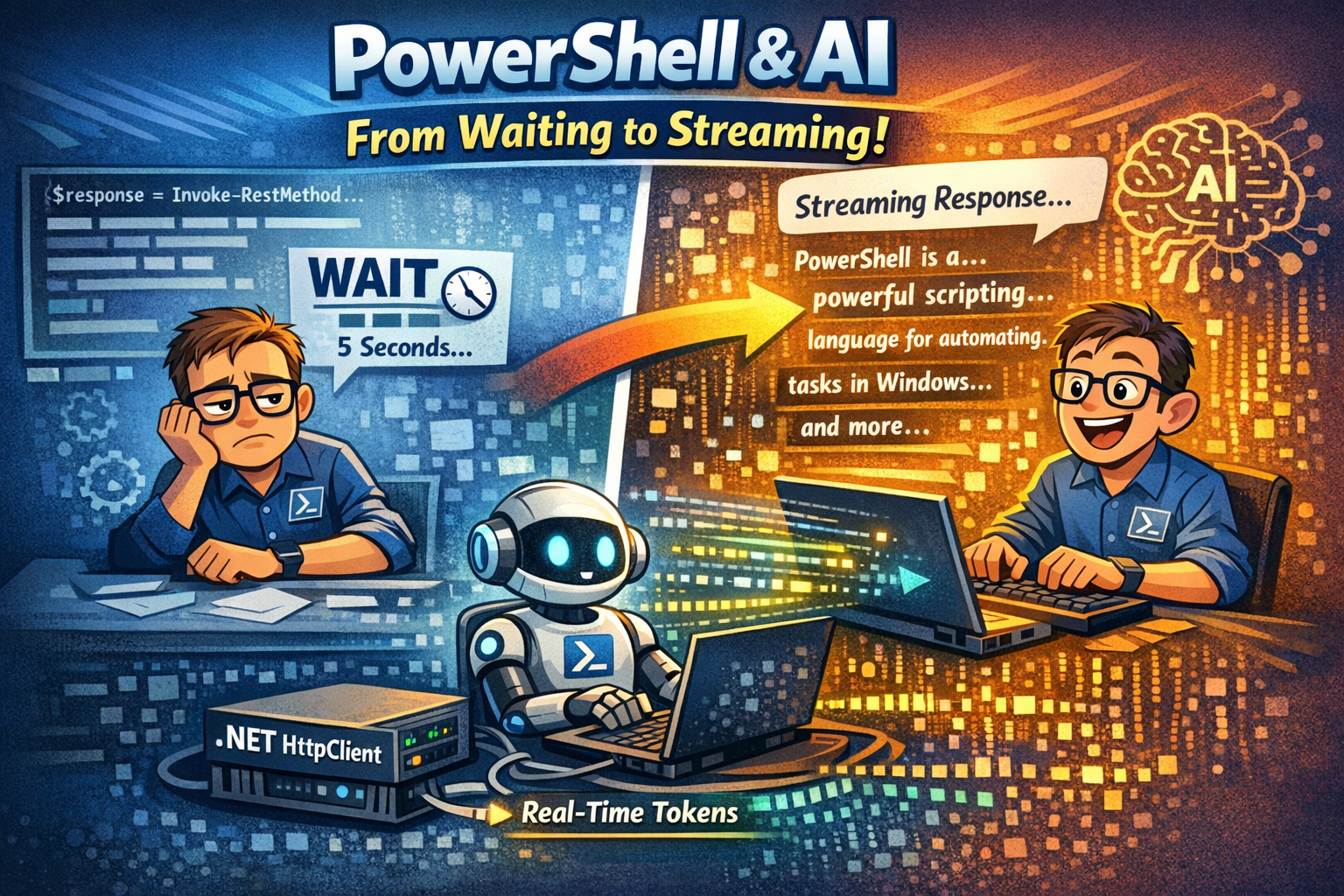
Many of you have already built your first PowerShell + AI scripts. You call the API, wait 5 seconds, and then, boom! the entire response appears all at once. It works. But let’s be honest: it feels a bit “static.”
Compare that to ChatGPT. Tokens appear one by one. It feels alive. It feels fast. Even when the full response takes the same time, streaming feels faster because you’re reading while it’s thinking. In this blog, I’m going to show you how to level up your PowerShell automation by using .NET libraries to stream AI responses in real-time.
As you could have seen in the previous posts we didn’t used streaming either, we just waited and it was there, well it’s time to change that!
This is not going to be a big post, so for those who don’t like too read that much, you’re in luck today! 😊 But I do think it’s a nice topic to touch and shouldn’t be leaved untouched! So today we’ll be short, but to the point and hopefully useful!
After this post, your scripts won’t just be functional; they’ll have that “pro” feel that users love!
During this post, you’ll see this icon 🎬 which indicates that action is required so you get the full benefit out of this post.
And I’ve introduced the 📒 which indicates that the subsequent part explains the technical details in the context of this post.
Why Streaming?
When you’re building tools for yourself or your team, user experience (UX) is key. In a standard “Request-Response” model, the script looks like it’s hanging while the LLM generates a long answer.
By using streaming, we reduce the “Time to First Token.” You see the first word almost immediately. This isn’t just about looking cool (though it definitely does); it’s about providing instant feedback so you know exactly what your script is doing the moment it starts doing it.
📒 The Tech Stack To make this work, we are moving away from the standard Invoke-RestMethod and tapping directly into the power of .NET. We’ll be using System.Net.Http.HttpClient combined with asynchronous streams. This allows PowerShell to process the data “chunks” as they arrive, rather than waiting for the whole package to be delivered.
Lets get started!
So, I assume you already have an OpenAI service configured here and have a deployment ready. If you haven’t or don’t know how to do this please check my previous blog post where I explain how this works.
So normally we would call the OpenAI service with something like this;
$response = Invoke-RestMethod @params
$response.choices[0].message.content Works fine, but as mentioned this stops everything and takes a while before we get a response. But here also the problem becomes quite clear.
Invoke-restmethod doesn’t support streaming! So we need to use something else! Luckily for us the integration between PowerShell and .NET helps us with this!
🎬 Follow the steps below to create our PowerShell streaming AI client
- Modify the variables of the script below and save it as ‘powershellstreamingai.ps1’
param(
    [string]$Message = "Explain what PowerShell is in 3 sentences"
)

$Endpoint = "https://xxxxxxxxxxxxxxxxxxxxxxxx.openai.azure.com"
$Deployment = "xxxxxxxxxxxxxxxxxxxxxxxx"
$ApiKey     = "xxxxxxxxxxxxxxxxxxxxxxxx"
$ApiVersion = "2024-02-15-preview"

$Url = "$Endpoint/openai/deployments/$Deployment/chat/completions?api-version=$ApiVersion"

$Body = @{
    messages   = @(@{ role = "user"; content = $Message })
    max_tokens = 500
    stream     = $true
} | ConvertTo-Json -Depth 5

$Client = [System.Net.Http.HttpClient]::new()
$Client.DefaultRequestHeaders.Add("api-key", $ApiKey)

$RequestContent = [System.Net.Http.StringContent]::new(
    $Body,
    [System.Text.Encoding]::UTF8,
    "application/json"
)

$Request = [System.Net.Http.HttpRequestMessage]::new([System.Net.Http.HttpMethod]::Post, $Url)
$Request.Content = $RequestContent

$Response = $Client.SendAsync(
    $Request,
    [System.Net.Http.HttpCompletionOption]::ResponseHeadersRead
).GetAwaiter().GetResult()

if (-not $Response.IsSuccessStatusCode) {
    $ErrorBody = $Response.Content.ReadAsStringAsync().GetAwaiter().GetResult()
    throw "API error $($Response.StatusCode): $ErrorBody"
}

$Stream = $Response.Content.ReadAsStreamAsync().GetAwaiter().GetResult()
$Reader = [System.IO.StreamReader]::new($Stream)

Write-Host "Response: " -ForegroundColor Cyan -NoNewline

while (-not $Reader.EndOfStream) {
    $Line = $Reader.ReadLine()

    if ($Line -match '^data: (.+)$') {
        $Data = $Matches[1]
        if ($Data -eq '[DONE]') { break }

        $Chunk = $Data | ConvertFrom-Json
        $Token = $Chunk.choices[0].delta.content

        if ($Token) {
            Write-Host $Token -NoNewline
        }
    }
}- Now run the script and see what happens (you’ll see that all lines come in one by one)
You should see the result below (or something, depends on how the model responds 😉)

📒 Under the Hood: How the Magic Works
Notice that we aren’t using Invoke-RestMethod. Why? Because Invoke-RestMethod is a “wait-for-all” command, it won’t give you anything until the entire JSON payload is finished.
By using the .NET HttpClient, we can tap into ReadAsStreamAsync(). This opens a “pipe” between your computer and OpenAI. As the AI generates a single word (a token), it pushes it through that pipe. Our while loop is constantly watching that pipe, grabbing the data the millisecond it appears, and using Write-Host -NoNewline to print it to your screen.
The ‘Data: ‘ Prefix
When you stream from an AI API, it uses a format called Server-Sent Events (SSE). Every line starts with data: . Our script simply strips that prefix, converts the remaining string from JSON, and pulls out the content property.
It’s efficient, it’s fast, and it makes your automation feel incredibly responsive! 🚀
Summary
In this post, we ditched the “wait-and-see” approach and upgraded our PowerShell scripts from static to cinematic! 🎬 You’ve learned why streaming is a game-changer for User Experience, cutting down that awkward silence while an LLM is thinking and replacing it with real-time, flowing responses.
We moved beyond the limitations of Invoke-RestMethod and tapped into the professional power of .NET’s HttpClient. By opening a direct stream to the OpenAI API, we now process data “tokens” the second they are generated. No more staring at a frozen terminal; your scripts now feel alive and incredibly responsive. 🚀
You now have the foundation to build AI-driven tools that don’t just work, they feel fast, professional, and smart. Now go ahead, take this code, and start making your automation look as good as it performs. Keep building and have fun with your new streaming powers! 😎