

So, in the last couple of posts we talked about security and PowerShell, and how, in the wrong hands, it’s not just automation: it can actually touch your system in serious ways.
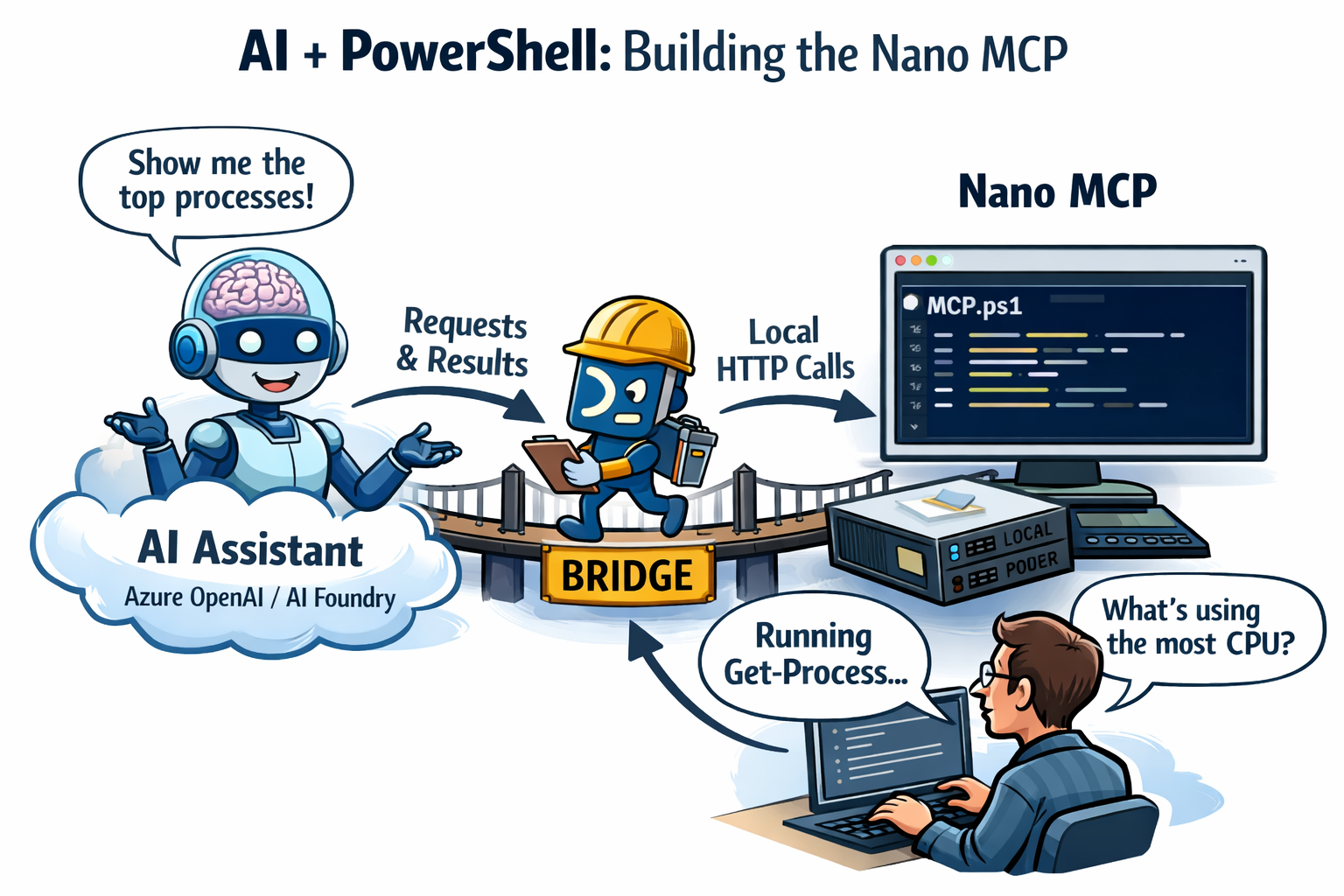
Today we’re flipping the perspective. Same PowerShell, but now we’re giving an AI assistant a reason to ask for it. Not by letting the model “log into” your PC (it can’t), but by wiring the cloud brain to a tiny local HTTP surface you control. Think of it as a nano-sized MCP-style idea: one module (Pode), one bridge, one script to chat, enough to show the pattern in a blog-sized demo, not a production platform.
We’ll use Azure OpenAI / AI Foundry with the Assistants API: the model proposes tool calls, something on your machine runs real Get-Process (or whatever you add), and the answer flows back into the conversation.
Throughout this post, look for the 🎬 icon for follow-along steps and 💡 for “why this works” context.
Ready to glue AI + PowerShell together without magic? Let’s build the nano MCP.
Setup an assistant
Go to the AI Foundry and create an assistant over there.
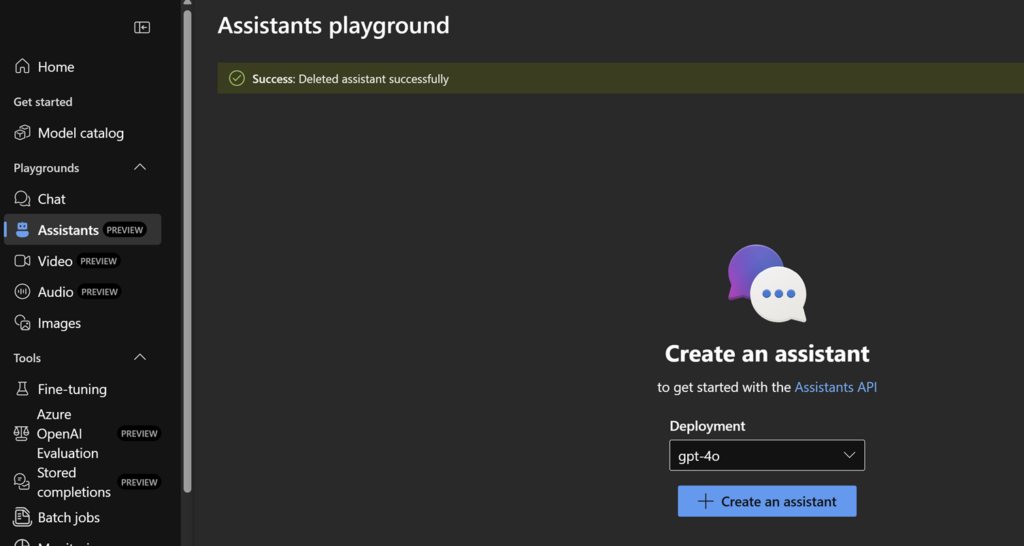
I’ll save the details, just follow the basics, we will do the exiting stuff on through the code 😉 don’t forget to store the assistant ID after you created the assistant!
Creating the nano MCP
Before we touch Azure or the assistant, we need a small, boring HTTP server on your own machine. Boring is good: it means we’re not opening a mystery tunnel or running random binaries, we’re just exposing one or more GET endpoints that return JSON.
That server is our “machine room.” The AI model in the cloud will never execute Get-Process on your PC. Something local has to do that. Pode gives us a tiny web layer so PowerShell can answer requests like: “Give me /tools/get_top_processes.”. Of course there are other ways, but by showing you how to do it with a mini service it hopefully makes more sense to build the bigger picture 😉
Prerequisites: Windows PowerShell or PowerShell 7, permission to install modules (you may need an elevated session for Install-Module depending on your policy).
🎬 Follow the steps below to install pode
- Run the command below to install pode if you don’t have this already
Install-module Pode
You should see afterwards that pode is installed

Now lets run a very small pode server which will accept a connection on our endpoint!
- Run the code below in a shell or save in a file called ‘mcp.ps1’
- Create a text file “assistant-thread.txt” in the same directory as the powershell files (for now the code just assumes its there, so don’t forget it 😉)
- Run the file in a separate session
Import-Module Pode

$ToolHandlers = @{
    get_top_processes = {
        $p = Get-Process |
            Sort-Object CPU -Descending |
            Select-Object -First 5 |
            Select-Object ProcessName, @{ N = 'CpuPercent'; E = { [math]::Round($_.CPU, 2) } }, Id
        Write-PodeJsonResponse -Value $p
    }
}

Start-PodeServer {
    Add-PodeEndpoint -Address 127.0.0.1 -Port 1337 -Protocol Http
    foreach ($name in @($ToolHandlers.Keys)) {
        Add-PodeRoute -Method Get -Path "/tools/$name" -ScriptBlock $ToolHandlers[$name]
    }
}Our AI assistant cannot directly connect to this right now so we need something to fill the gap. We’ll call that the ‘bridge’ for now. In the next paragraph, we’ll be creating the bridge which then connects as a mediator between us (the user) and the pode, sending and receiving the traffic and assisting you!
Creating the bridge
Your assistant lives in Azure OpenAI / AI Foundry, but your tools live on 127.0.0.1. There is no secret “phone line” between them unless you build it.
The bridge is a small PowerShell loop that does one job forever:
- Ask Azure: “On this thread, is there a run waiting for tool output?”
- If yes, read which function the model requested (e.g. get_top_processes).
- Call your local server: GET http://<your-tools-base>/tools/<functionName> and turn the response into JSON text.
- Post that JSON back to Azure (submit_tool_outputs) so the run can continue and the model can answer.
So the bridge is not “smarter” than that, it’s glue. The user doesn’t chat in this window; you’ll use Interact.ps1 for questions. Keep the bridge in its own session and leave it running while you demo.
You will edit a few values so they match your resource: API key, endpoint, and which thread to watch. The thread id can live in assistant-thread.txt (created/updated by Interact.ps1) so you don’t have to paste it into the bridge every time.
💡 Why poll in a loop? The Assistants API is REST: nothing “pushes” to your PC when a tool is needed. Polling is the minimal teaching version. In a real app you’d still implement the same steps, just with better scheduling, auth, and error handling.
🎬 Security note for the blog repo: Putting an API key inside bridge.ps1 is fine for a learning post; for anything shared or production, use a vault or environment variables and rotate keys that ever appeared in screenshots.
Lets get started!
- Modify the variable to match with that of your own environment
- Save the code as a file ‘bridge.ps1’ and run the file in a separate session
$ApiKey   = "xxxxxxxxxxxxxxxxxxxxxxxxxxxxxxxxxxxxxxxxxxxxxxxxxxxxxxxxxxxxxxx"
$Endpoint = "https://xxxxxxxxxxxxxxxxxxxxxxxxxxxx.openai.azure.com/openai"
$ThreadId = ""
$tf       = Join-Path $PSScriptRoot "assistant-thread.txt"
if ([string]::IsNullOrWhiteSpace($ThreadId) -and (Test-Path $tf)) { $ThreadId = (Get-Content $tf -Raw).Trim() }

$ToolsBase = if ($env:TOOLS_HTTP_BASE) { $env:TOOLS_HTTP_BASE.TrimEnd('/') }
elseif ($env:PODE_TOOLS_BASE) { $env:PODE_TOOLS_BASE.TrimEnd('/') }
else { "http://127.0.0.1:1337" }

if (-not $ApiKey -or -not $Endpoint -or -not $ThreadId) { throw "Set ApiKey, Endpoint, and ThreadId or assistant-thread.txt." }

$ver = "2024-05-01-preview"
$h   = @{ "api-key" = $ApiKey; "Content-Type" = "application/json"; "OpenAI-Beta" = "assistants=v2" }
$seen = [System.Collections.Generic.HashSet[string]]::new()

while ($true) {
    try {
        $runs = @((Invoke-RestMethod -Uri "$Endpoint/threads/$ThreadId/runs?api-version=$ver" -Headers $h).data) |
            Sort-Object -Property { [int64]$_.created_at } -Descending
    }
    catch {
        Start-Sleep -Seconds 5
        continue
    }

    $active = $runs | Where-Object { $_.status -eq "requires_action" } | Select-Object -First 1
    if (-not $active) {
        Start-Sleep -Seconds 2
        continue
    }

    $call = $active.required_action.submit_tool_outputs.tool_calls[0]
    $name = $call.function.name
    $cid  = $call.id
    if ($seen.Contains($cid)) {
        Start-Sleep -Seconds 2
        continue
    }

    try {
        $out = (Invoke-RestMethod -Uri "$ToolsBase/tools/$name") | ConvertTo-Json -Compress -Depth 10
        $post = @{ tool_outputs = @(@{ tool_call_id = $cid; output = $out }) } | ConvertTo-Json -Depth 5
        Invoke-RestMethod -Uri "$Endpoint/threads/$ThreadId/runs/$($active.id)/submit_tool_outputs?api-version=$ver" -Headers $h -Method Post -Body $post | Out-Null
        [void]$seen.Add($cid)
    }
    catch { }

    Start-Sleep -Seconds 2
}The interaction
So far you have a local tool server (Pode) and a bridge that shuttles tool results to Azure. What’s missing is the front door: a script that acts like you at the keyboard, creating or reopening a conversation (thread), dropping in a question, starting a run, waiting until Azure says the run is done, then printing the assistant’s text.
That’s Interact.ps1. It does not call Pode directly. The flow is:
- Interact adds your message and starts a run against your Assistant in Azure.
- The model may request get_top_processes. Azure puts the run in requires_action.
- Bridge (already running) sees that, GETs your local /tools/get_top_processes, and submits the JSON.
- The run finishes; Interact reads the new assistant message from the thread and prints it.
So “interaction” here means thread + message + run + wait + read reply, the same lifecycle you’d drive from code or a playground, just stripped down for the blog.
assistant-thread.txt stores the thread id so the next question continues the same chat (unless you use -New to start fresh, then restart the bridge so it polls the new thread).
💡 Why tool_choice in this demo? So the model is nudged to actually call the tool again instead of paraphrasing old numbers from the conversation history, a common “it looks like it worked but the data is stale” trap when you’re learning.
🎬 Before you run it: Pode and bridge should already be running in other sessions. Interact.ps1 is the third window you use when you want an answer.
🎬 Follow the steps below
- Save the code below, modify the variables and save as ‘interact.ps1’
- Run in a separate session the interact.ps1
param(
    [Parameter(Mandatory, Position = 0)]
    [string] $Question,
    [switch] $New
)

$ErrorActionPreference = 'Stop'
$v = '2024-05-01-preview'
$s = Join-Path $PSScriptRoot 'assistant-thread.txt'
$Endpoint = 'https://xxxxxxxxxxxxxxxxxxx.openai.azure.com/openai'
$AssistantId = 'asst_xxxxxxxxxxxxxxxxxxxxxxxxxxxxxxxxxxxxxxxx'

$k = ''
if (Test-Path (Join-Path $PSScriptRoot 'bridge.ps1')) {
    $m = Select-String -LiteralPath (Join-Path $PSScriptRoot 'bridge.ps1') -Pattern '^\$ApiKey\s*=\s*"(.+)"' | Select-Object -First 1
    if ($m) { $k = $m.Matches.Groups[1].Value }
}
if (-not $k) { $k = Read-Host 'API key' }

$h = @{ 'api-key' = $k; 'Content-Type' = 'application/json'; 'OpenAI-Beta' = 'assistants=v2' }

if ($New -or -not (Test-Path $s)) {
    $tid = (Invoke-RestMethod -Uri "$Endpoint/threads?api-version=$v" -Headers $h -Method Post -Body '{}').id
    Set-Content -Path $s -Value $tid -NoNewline -Encoding utf8
}
else {
    $tid = (Get-Content $s -Raw).Trim().Trim([char]0xFEFF)
}

$b = "$Endpoint/threads/$tid"
Invoke-RestMethod -Uri "$b/messages?api-version=$v" -Headers $h -Method Post -Body (@{ role = 'user'; content = $Question } | ConvertTo-Json) | Out-Null

$run = Invoke-RestMethod -Uri "$b/runs?api-version=$v" -Headers $h -Method Post -Body (@{
        assistant_id = $AssistantId
        tool_choice  = @{ type = 'function'; function = @{ name = 'get_top_processes' } }
    } | ConvertTo-Json -Depth 6)

$t0 = [int64]$run.created_at
$list = "$b/runs?api-version=$v"
$dead = (Get-Date).AddSeconds(180)
while ((Get-Date) -lt $dead) {
    $row = @((Invoke-RestMethod -Uri $list -Headers $h).data) | Where-Object { $_.id -eq $run.id } | Select-Object -First 1
    if (-not $row) { Start-Sleep -Seconds 1; continue }
    if ($row.status -eq 'completed') { break }
    if ($row.status -notin 'queued', 'in_progress', 'requires_action') { throw $row.status }
    Start-Sleep -Seconds 1
}
if ((Get-Date) -ge $dead) { throw 'Timeout (start MCP.ps1 + bridge.ps1).' }

$reply = @((Invoke-RestMethod -Uri "$b/messages?api-version=$v&order=desc&limit=50" -Headers $h).data) |
    Where-Object { $_.role -eq 'assistant' -and [int64]$_.created_at -gt $t0 } |
    Sort-Object -Property { [int64]$_.created_at } -Descending |
    Select-Object -First 1

if (-not $reply) { return }

foreach ($part in @($reply.content)) {
    if ($part.type -eq 'text' -and $part.text.value) {
        Write-Output $part.text.value
        return
    }
}
Testing
What we now have;
The assistant (in Azure / Foundry) is like a senior advisor on a video call.
They can talk, reason, and ask for data, but they cannot walk into your server room
and read the meters. They can only say: “Please get me the top processes.”
Your thread is the meeting minutes: every user question, every assistant answer, and every tool result is appended in order. The advisor reads those minutes to stay coherent.
Interact.ps1 is you at the keyboard: you type a question, it adds a line to the minutes (user message), starts a new “task” (a run) for the advisor, waits until that task finishes, then reads the latest advisor paragraph and prints it. You don’t talk to Pode directly; you talk to the API.
bridge.ps1 is the courier. The advisor’s task can enter a state that means: “I need someone on-site to execute function X and bring back paper.” That state is requires_action. The courier polls the API (“any packages to fetch?”), sees that state, runs to your machine (GET http://…/tools/get_top_processes), picks up the JSON “parcel”, and delivers it back to Azure (submit_tool_outputs). Without the courier, the advisor stays stuck with an empty clipboard.
MCP.ps1 (Pode) is the machine room on your PC. Only this process actually runs PowerShell (Get-Process, etc.) and returns JSON. The advisor never touches it; only HTTP on localhost (the courier) does.
So: advisor thinks and requests → courier fetches → machine room measures → courier returns → advisor summarizes.
Now it’s time to test everything!
🎬 In the session where we have the interact running now ask a question
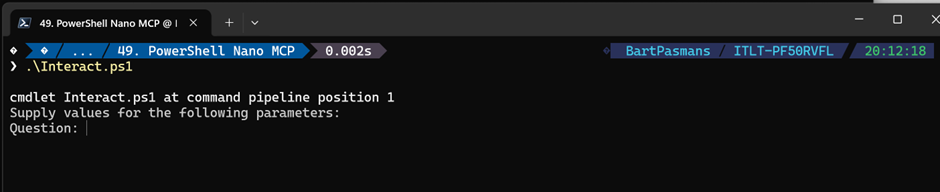
- Put in the question for showing the processes like below

Our interaction will now kick in and do what we configured
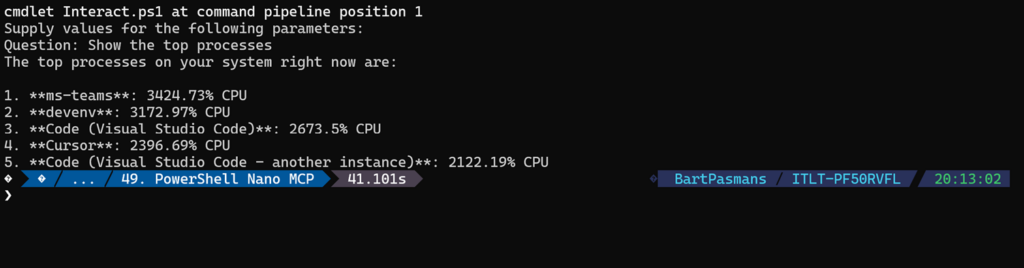
Cool right?! Now go play around to see how far you can extend this! 😉 Have fun!
Summary
📝 The Recap: From Zero to “Nano MCP”
We covered a lot today. Here’s what we actually built:
- The machine room (Pode): We ran a tiny local HTTP server that exposes GET /tools/<functionName>. Each key in $ToolHandlers is both the route and the name your assistant must use, PowerShell runs here, not in the cloud.
- The courier (bridge): We added an endless loop that watches an Assistants thread for requires_action. When the model asks for a tool, the bridge GETs your local endpoint, wraps the result as JSON, and submit_tool_outputs back to Azure. No courier → the run stalls forever.
- The front desk (Interact.ps1): We scripted the boring API dance, thread, user message, run, wait until completed, then print the latest assistant reply. That’s your “chat,” but it’s REST, not a magic socket into Pode.
- The reservation slip (assistant-thread.txt): We stored the thread id so Interact and the bridge stay on the same conversation. New thread (-New)? Restart the bridge so it polls the right id.
- The nudge (tool_choice): In the demo we force get_top_processes so the model fetches fresh data instead of reusing old numbers from the chat, classic beginner trap, deliberately avoided for the blog.
We did not implement the full MCP protocol (stdio, capability negotiation, etc.). We implemented the same idea: a controlled tool surface the model can request and your machine can fulfill.