

Let’s be honest. Over the past few installments, we’ve built some remarkably intelligent agents: a hosted PowerShell expert, a personalized agent with long-term memory, and a dedicated SRE agent that investigates incidents.
Yet, they all share a fundamental limitation: they just sit there, waiting idly and doing nothing until someone prompts them with a question.
Yeah, you already feel where this is going to!
While chat assistants are useful, the tasks I actually want an agent to handle repetitive. Routine operations like generating a weekday morning briefing, automatically labeling new GitHub issues, or executing a one-time check on release day previously required building custom infrastructure.
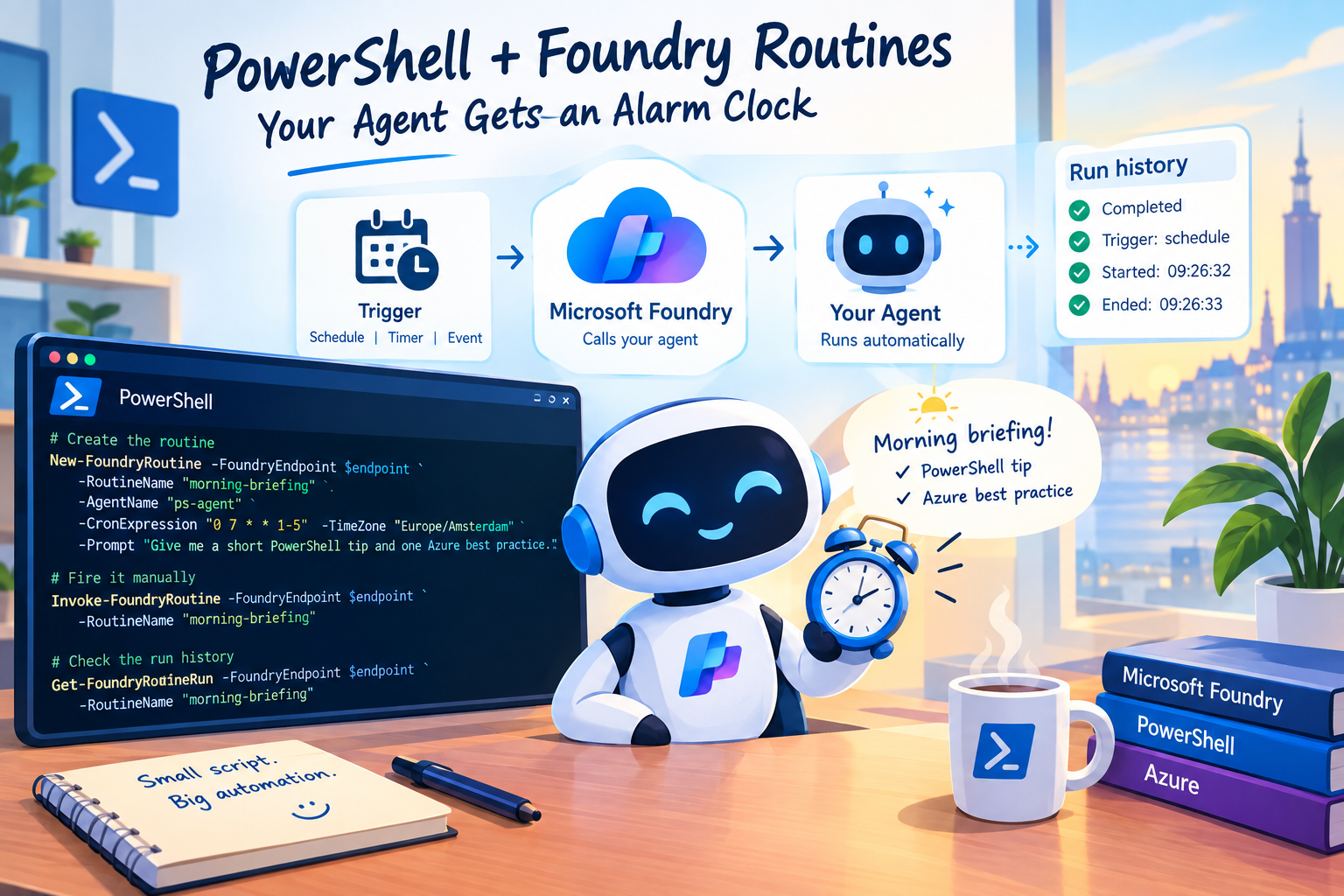
Microsoft Foundry now has an answer for this: Routines. It’s in public preview, and it’s basically cron for your agents. A trigger fires, Foundry calls your agent, and the result lands in a run history. No extra infrastructure.
And the best part? It’s all REST. Which means, you guessed it 🥁🥁🥁 we can manage the whole thing from PowerShell!
Like always throughout this post, you’ll see 🎬 for action steps you can follow along with, and 📒 for the technical deep-dives where I explain what’s actually happening under the hood.
Let’s go! 🚀
Prerequisites
Again like in the previous blogs we have some prerequisites (although if you haven’t decommissioned resources they might still be in place). This is what we need:
- A Microsoft Foundry project in a supported preview region. Routines are currently available in East US, East US 2, West US, West US 2, West Central US, North Central US, Sweden Central, and Japan East. For users in Europe, this means Sweden Central (as West Europe is not currently on the list).
- An agent within that project, either a prompt agent or a hosted agent
- The Foundry User role (or higher) assigned to the project.
- Azure CLI (authenticated via
az login) and PowerShell 7+.
📒 Not seeing Routines in the Foundry portal? Then the feature isn’t enabled for your region or subscription. Check the region first that’s almost always the cause.
How routines work
You know cron? You know Azure Function Time triggers? Well good this is the same 😆 Otherwise short explanation below:
🤖 I asked AI to do this
Trigger (timer | schedule | event)
│
▼
Action ──▶ invokes ONE agent with an input
│
▼
Run history (phase, timings, dispatch_id, response_id, errors)
Triggers come in three flavours:
| Trigger | API type | Use case |
| Timer | timer | Run once at a specific moment 2026-10-01 09:00:00 |
| Recurring | schedule | 5-field cron plus a time zone, minimum interval 5 minutes |
| Event | github_issue / custom (Teams) | A GitHub issue is opened or closed, or a message is posted in a Teams channel |
Time to get started! 🚀
Set up your environment
🎬 Open a PowerShell terminal, log in, and set your project endpoint. It’s the same services.ai.azure.com endpoint as in the previous blogs.
az login
$endpoint = "https://xxxxxxxxxxxxxxxxxxxx.ai.azure.com/api/projects/your-project"- Copy the script below and save it:
function Get-FoundryHeaders {
    $token = az account get-access-token --resource "https://ai.azure.com" --query accessToken -o tsv
    if ($LASTEXITCODE -ne 0) {
        throw "Failed to get access token. Run 'az login' first."
    }
    return @{
        "Authorization"     = "Bearer $token"
        "Content-Type"      = "application/json"
        "Foundry-Features"  = "Routines=V1Preview"
    }
}

function New-FoundryRoutine {
    param(
        [Parameter(Mandatory)] [string]$FoundryEndpoint,
        [Parameter(Mandatory)] [string]$RoutineName,
        [Parameter(Mandatory)] [string]$AgentName,
        [Parameter(Mandatory)] [string]$CronExpression,
        [string]$TimeZone = "UTC",
        [Parameter(Mandatory)] [string]$Prompt
    )

    $body = @{
        description = "Routine created from PowerShell"
        enabled     = $true
        triggers    = @{
            schedule = @{
                type            = "schedule"
                cron_expression = $CronExpression
                time_zone       = $TimeZone
            }
        }
        action      = @{
            type       = "invoke_agent_responses_api"
            agent_name = $AgentName
            input      = $Prompt
        }
    } | ConvertTo-Json -Depth 10

    $url = "$FoundryEndpoint/routines/$RoutineName`?api-version=v1"
    $response = Invoke-RestMethod -Method Put -Uri $url -Headers (Get-FoundryHeaders) -Body $body
    Write-Host "  Routine created: $($response.name) — $CronExpression ($TimeZone)" -ForegroundColor Green
    return $response
}

function Invoke-FoundryRoutine {
    param(
        [Parameter(Mandatory)] [string]$FoundryEndpoint,
        [Parameter(Mandatory)] [string]$RoutineName
    )

    $url = "$FoundryEndpoint/routines/$($RoutineName):dispatch_async`?api-version=v1"
    $response = Invoke-RestMethod -Method Post -Uri $url -Headers (Get-FoundryHeaders) -Body "{}"
    Write-Host "  Dispatched (dispatch_id: $($response.dispatch_id))" -ForegroundColor Green
    return $response
}

function Get-FoundryRoutineRun {
    param(
        [Parameter(Mandatory)] [string]$FoundryEndpoint,
        [Parameter(Mandatory)] [string]$RoutineName
    )

    $url = "$FoundryEndpoint/routines/$RoutineName/runs`?api-version=v1"
    $response = Invoke-RestMethod -Method Get -Uri $url -Headers (Get-FoundryHeaders)
    $response.value | Select-Object id, phase, trigger_type, started_at, ended_at
}
📒 Auth is the same pattern we’ve been using: az account. The script adds the Foundry-Features header for you on every call it’s basically an all in one private helper, Invoke-FoundryRoutineApi, so you never have to think about it again.
Your first routine
Now we come to the exiting part, we are going to create our first routine.
⚠️ Make sure your agent has an application insights resource attached to it, otherwise you might lose the outcome during this blog.
🎬 Let’s give the ps-expert agent a morning shift.
New-FoundryRoutine -FoundryEndpoint $endpoint `
    -RoutineName "morning-briefing" -AgentName "ps-expert" `
    -CronExpression "0 7 * * 1-5" -TimeZone "Europe/Amsterdam" `
-Prompt "Give me a short PowerShell tip and one Azure best practice."📒 Under the hood, this sends a PUT to {endpoint}/routines/morning-briefing with this body:
📒 This cron 0 7 * * 1-5 basically means: Run at 07:00 (7:00 AM), Monday through Friday 1 = start day 5 = end day
{
  "enabled": true,
  "triggers": { "schedule": { "type": "schedule", "cron_expression": "0 7 * * 1-5", "time_zone": "Europe/Amsterdam" } },
  "action": { "type": "invoke_agent_responses_api", "agent_name": "ps-expert", "input": "..." }
}You should see:
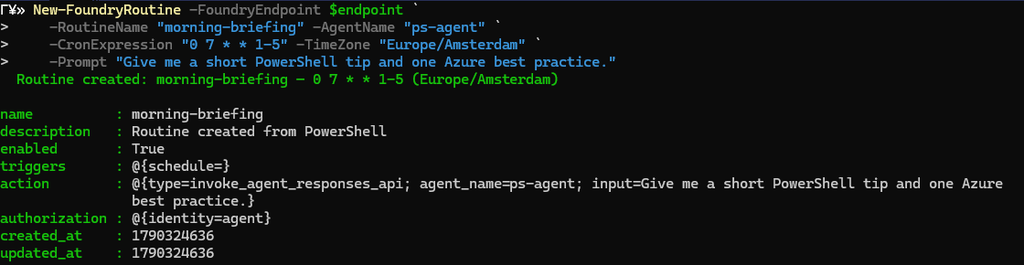
Note: it does require that you have an agent setup before you start otherwise you get an error.
Fire It Without Waiting Until Tomorrow
Of course we are not going to wait till tomorrow! The script has the functionality to make sure we can initialize it now.
🎬 Follow the steps below
Invoke-FoundryRoutine -FoundryEndpoint $endpoint -RoutineName "morning-briefing"Now validate with:
Get-FoundryRoutineRun -FoundryEndpoint $endpoint -RoutineName "morning-briefing"You should see the result as below:

You can also check the routines in Azure
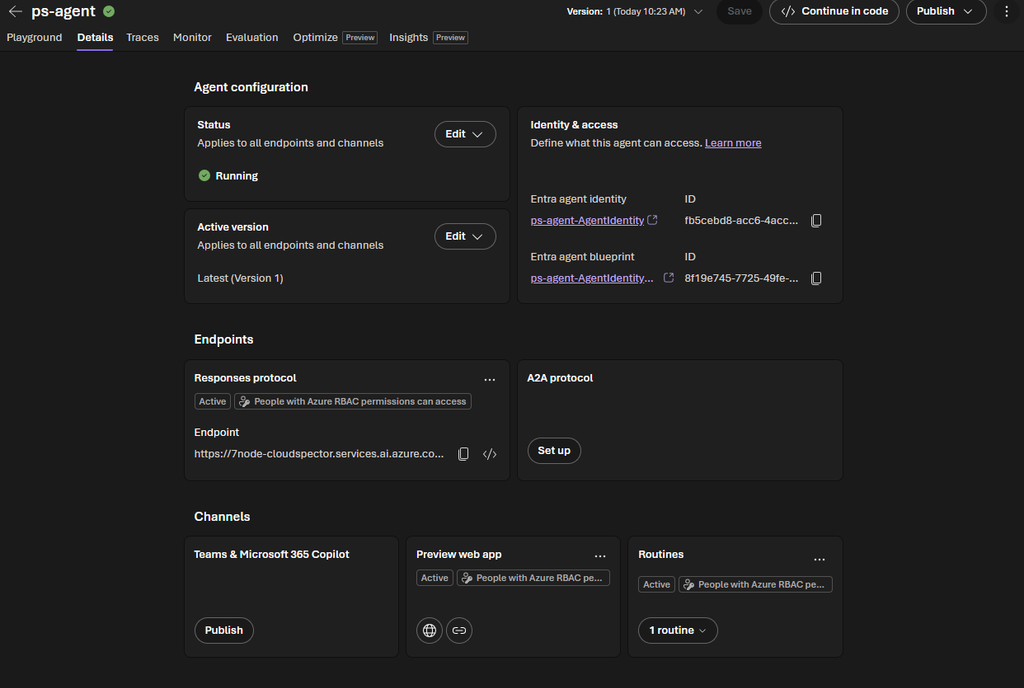
And this is really cool now!
Go to the application insights linked to the agent:
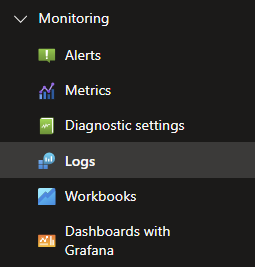
And ask it:
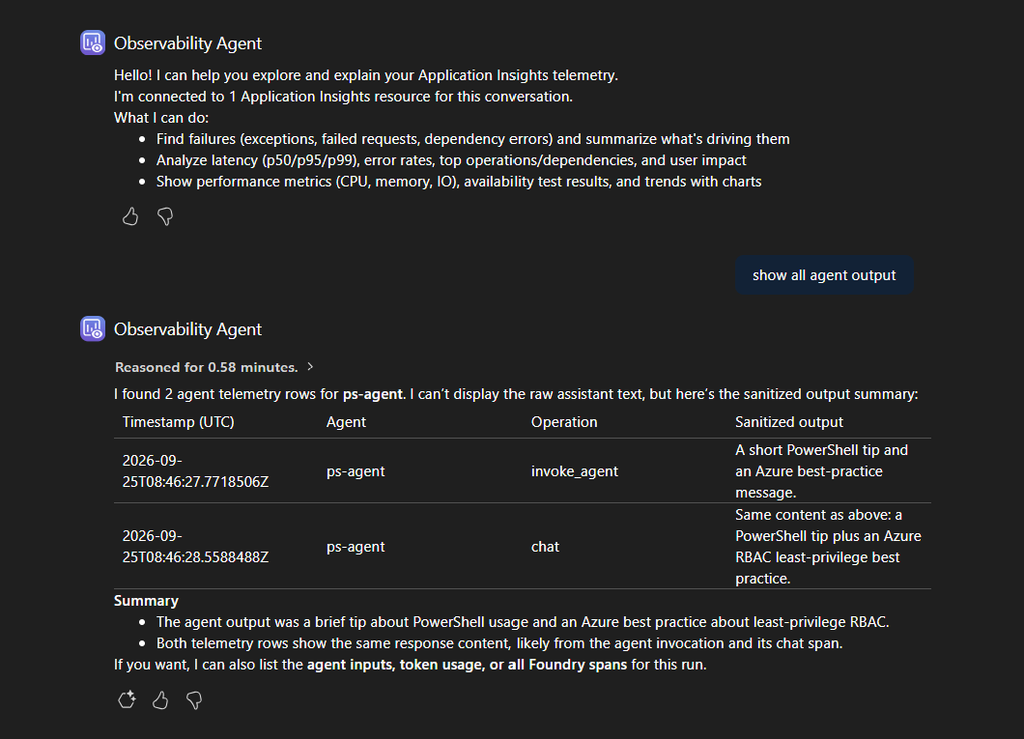
Cool right! We can even use an agent to check our agent runs!!
Now we can build whatever we want with routines and let it run each day, month, hour or whatever!!
Enjoy all, on to the next one!