

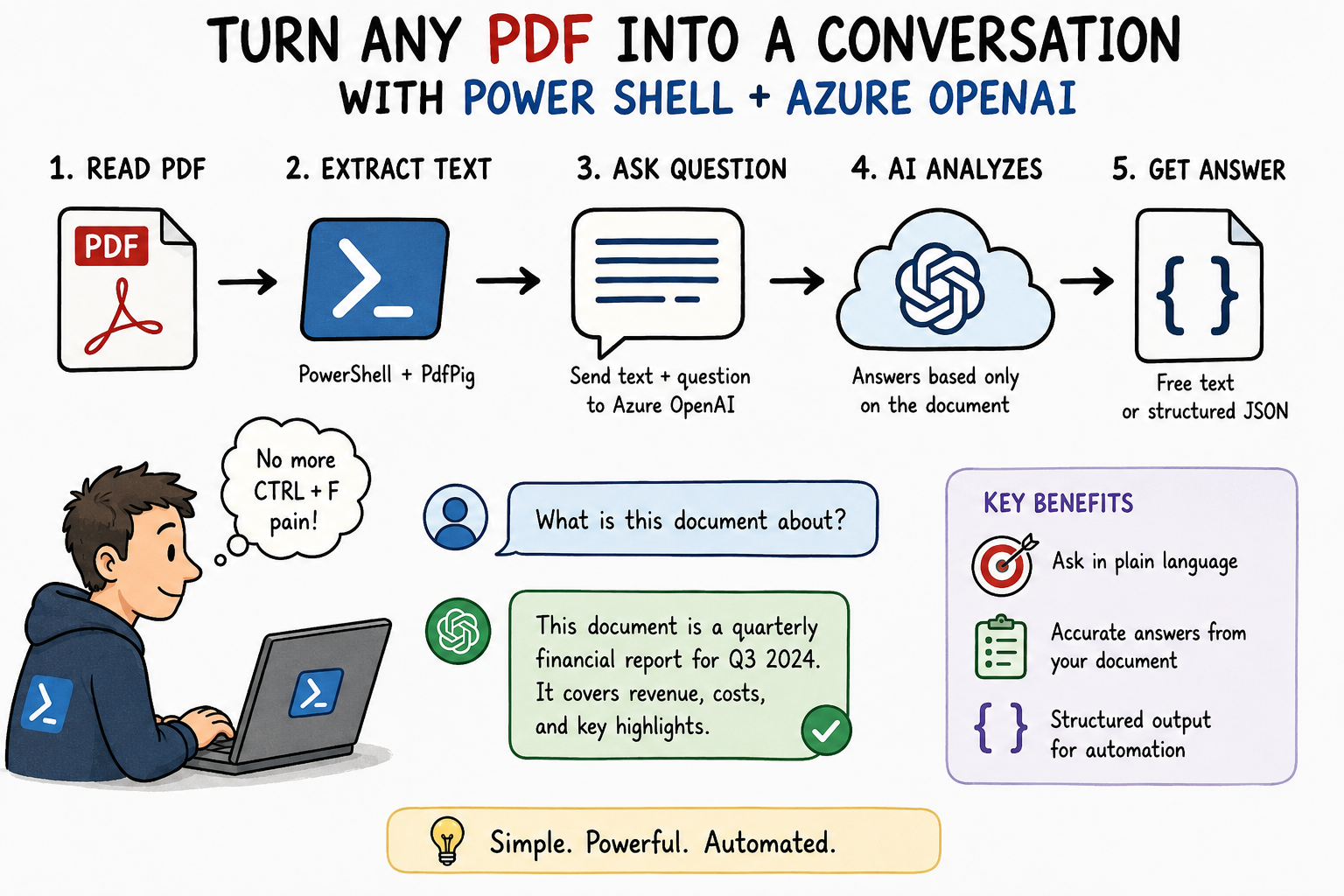
So recently I had to analyze a PDF, a PDF which contained over 300 pages. I don’t have to tell you how I felt about this one as you probably can imagine. But that’s not all, analyzing this PDF is an annual recuring activity! The pain, the suffering and CTRL + F wasn’t planning on helping on this one.
So instead of doing all this stuff manually, I was thinking like, “How would AI be able to assist on this” as I’m not planning on keep doing this over and over and over. After all, we want to automate things!
So that’s exactly what I’ll be showing you today. A PowerShell script that reads a PDF, feeds the content to Azure OpenAI (yes we won’t be using Document intelligence here, that’s for a later blog) and query it with plain language. Like we are chatting with the PDF document.
All the lessons learned from the previous blogs will be taken into account as well! No unstructured data, objects, functions etc.
Throughout this post, you’ll see 🎬 for action steps and 📒 for technical deep-dives.
Let’s get into it! 🚀
First step: Reading PDFs
So we are doing everything here with PowerShell but of course there are other ways around. (use a language to your own liking).
PDFs… Well we run into the first PowerShell obstacle over here as PowerShell doesn’t have PDF support so we need to make sure we can read them. (In the next upcoming blog I’ll show you how to use Document Intelligence to do this but for now we have to do with it 😉)
🎬 The first time you run the script, it downloads and installs PdfPig automatically. All you need is an internet connection for that first run.
- Here’s the setup function that handles the installation
function Install-PdfReader {
    $pkgDir = "$PSScriptRoot\packages"

    if (Test-Path "$pkgDir\*.dll") {
        return
    }

    Write-Host "  Installing PDF reader (one-time setup)..." -ForegroundColor Cyan

    [Net.ServicePointManager]::SecurityProtocol = [Net.SecurityProtocolType]::Tls12

    $nuget = "$pkgDir\nuget.exe"
    New-Item -ItemType Directory -Path $pkgDir -Force | Out-Null

    if (-not (Test-Path $nuget)) {
        Invoke-WebRequest -Uri "https://dist.nuget.org/win-x86-commandline/latest/nuget.exe" -OutFile $nuget
    }

    & $nuget install UglyToad.PdfPig -OutputDirectory $pkgDir -Source https://api.nuget.org/v3/index.json -Prerelease | Out-Null

    $dlls = Get-ChildItem $pkgDir -Recurse -Filter "*.dll" |
        Where-Object { $_.FullName -match "netstandard2\.0" }

    foreach ($dll in $dlls) {
        Copy-Item $dll.FullName -Destination $pkgDir -Force
    }

    Write-Host "  PDF reader installed." -ForegroundColor Green
}

function Read-PdfText {
    param(
        [Parameter(Mandatory)]
        [string]$Path
    )

    Install-PdfReader

    $pkgDir = "$PSScriptRoot\packages"

    $loaded = [System.AppDomain]::CurrentDomain.GetAssemblies() |
        Where-Object { $_.GetName().Name -eq "UglyToad.PdfPig" }

    if (-not $loaded) {
        $dlls = Get-ChildItem $pkgDir -Filter "*.dll" -File |
            Sort-Object Name

        foreach ($dll in $dlls) {
            try { Add-Type -Path $dll.FullName -ErrorAction SilentlyContinue } catch {}
        }
    }

    $doc = [UglyToad.PdfPig.PdfDocument]::Open($Path)
    $pages = $doc.GetPages()

    $result = @()
    $pageNum = 0

    foreach ($page in $pages) {
        $pageNum++
        $result += "--- Page $pageNum ---"
        $result += $page.Text
        $result += ""
    }

    $doc.Dispose()

    return ($result -join "`n")
}
- Run it by saving the script above and dot source it
📒 The script downloads nuget.exe (Microsoft’s package manager) and uses it to install PdfPig. NuGet packages are basically ZIP files with DLLs inside. We extract the .NET Standard 2.0 versions (which works with both PowerShell 5.1 and 7) and copy them to a flat directory for easy loading. This only runs once.
You should see the result below

And now we can actually extract text using PowerShell ass well (I’ve just used a dummy PDF file which you can find by simply googling it). Just use the Read-PdfText function from the code above so you can read the PDF.
Read-PdfTextSupply it with a path and you should see the PDF content like below (I used a Lorem Ipsum)
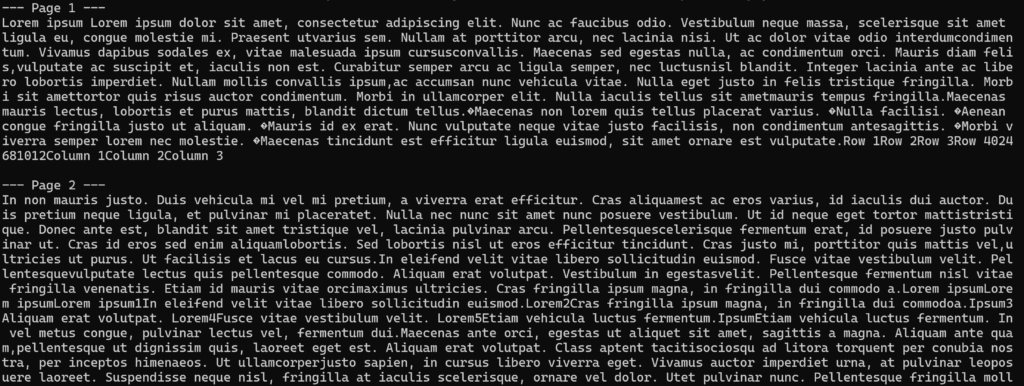
So we have solved the first problem, which is getting the PDF content in PowerShell. We can now continue with the next step which will be more exiting, it’s where we’ll be involving AI to start having interaction with the document.
Asking Questions
So we have the PDF content and from this chapter we’ll be introducing AI. As mentioned we’ll be not using document intelligence for this (although in production I would strongly advise to use this instead of the way we are doing here). But… we need to have something for the next blog so we’ll keep that one in the pipeline for now 😉
So we need to have a helper which is capable on sending the request to Azure OpenAI, and if you read my previous blogs you’ve seen that I like to create helper methods for this kind of scenario’s. So we’ll be doing exactly the same thing here, creating a helper!
🎬 Follow the steps below to create the helper for the interaction between the PDF and the user
- Create a file like ‘Invoke-PdfQuery.ps1’ and provide it with the content below (Don’t forget to modify the variables for your own deployment)
. "$PSScriptRoot\Read-PdfText.ps1"

function Invoke-PdfQuery {
    param(
        [Parameter(Mandatory)]
        [string]$PdfPath,

        [Parameter(Mandatory)]
        [string]$Question,

        [hashtable]$Schema
    )

    $Endpoint   = 'https://xxxxxxxxxxxxxxx.openai.azure.com/'
    $Deployment = 'xxxxxxxxxxxxxxx'
    $ApiKey     = 'xxxxxxxxxxxxxxx'

    Write-Host ""
    Write-Host "  Reading PDF..." -ForegroundColor Cyan
    $pdfText = Read-PdfText -Path $PdfPath
    Write-Host "  Extracted $($pdfText.Length) characters from PDF" -ForegroundColor DarkGray

    Write-Host "  Querying AI..." -ForegroundColor Cyan

    $body = @{
        messages = @(
            @{
                role    = "system"
                content = @"
You are a document analysis assistant.
You receive the full text content of a PDF document.
Answer questions accurately based ONLY on the information in the document.
If the answer is not in the document, say so explicitly.
Do not make up information.
"@
            }
            @{
                role    = "user"
                content = "Here is the document content:`n`n$pdfText`n`nQuestion: $Question"
            }
        )
        max_tokens = 2000
    }

    if ($Schema) {
        $body.response_format = @{
            type        = "json_schema"
            json_schema = @{
                name   = "pdf_analysis"
                strict = $true
                schema = $Schema
            }
        }
    }

    $json    = $body | ConvertTo-Json -Depth 20
    $headers = @{
        "api-key"      = $ApiKey
        "Content-Type" = "application/json"
    }
    $url = "$Endpoint/openai/deployments/$Deployment/chat/completions?api-version=2024-10-21"

    $response = Invoke-RestMethod -Method Post -Uri $url -Headers $headers -Body $json

    $answer = $response.choices[0].message.content

    if ($Schema) {
        return $answer | ConvertFrom-Json
    }

    return $answer
}
📒 The system prompt is strict on purpose. “Answer based ONLY on the information in the document.” Without this, the AI happily blends its training data with the PDF content. That’s fine for a chatbot. It’s not fine when you’re analyzing a contract.
The -Schema parameter is optional. Without it, you get free-text answers. With it, you get structured objects. Quick questions get quick answers, analytical queries get structured data.
And ConvertTo-Json -Depth 20 again. Yes, every single time. The default depth of 2 will silently eat your schema. 😅
As you can see we’ll be providing a schema again as we want to work with structured output. So we’ll be doing exactly the same thing here. In the next paragraph we’ll be making that schema as we are the ones who are and want to be in constant control.
Structure, structure and more structure
This is where it gets powerful. Free-text answers are nice for quick questions, but what if you want to process results in your pipeline? What if you want to compare data across multiple PDFs? You need objects, not sentences.
Remember from my first blogs? Objects are key, always have been, always will!
🎬 Follow the steps below for creating the schema
- Create a file like ‘PdfQuerySchema.ps1’ and give it the content below
$summarySchema = @{
    type       = "object"
    properties = @{
        title      = @{ type = "string" }
        summary    = @{ type = "string" }
        keyPoints  = @{ type = "array"; items = @{ type = "string" } }
        pageCount  = @{ type = "integer" }
        language   = @{ type = "string" }
        category   = @{
            type = "string"
            enum = @("report","invoice","contract","manual","letter","article","other")
        }
    }
    required = @("title","summary","keyPoints","pageCount","language","category")
    additionalProperties = $false
}📒 The enum on category forces the AI to classify the document into one of seven types. No creative answers, just pick one. The confidence enum in the extract schema is my favorite: the AI has to commit whether the answer is high, medium, or low confidence. If it has to guess, it says so.
Ready? Next section we’ll be putting everything together!
Putting it all together
So we should have all files ready now, you should have the files mentioned below;
| File | What it does |
| Read-PdfText.ps1 | Reads a PDF file and extracts all text content |
| Invoke-PdfQuery.ps1 | Sends the text to Azure OpenAI with your question |
| PdfQuerySchema.ps1 | Example schemas for structured responses |
Now it’s time for some fun, let’s get testing!
🎬 Follow the steps below for testing everything
- Test 1 “Quick Question – Free Text”
. .\Invoke-PdfQuery.ps1

Invoke-PdfQuery -PdfPath ".............dummy.pdf" -Question "Whats this document about?"
- Test 2 “Page descriptor”
Invoke-PdfQuery -PdfPath ".............dummy.pdf" -Question "Whats the content on the first page?"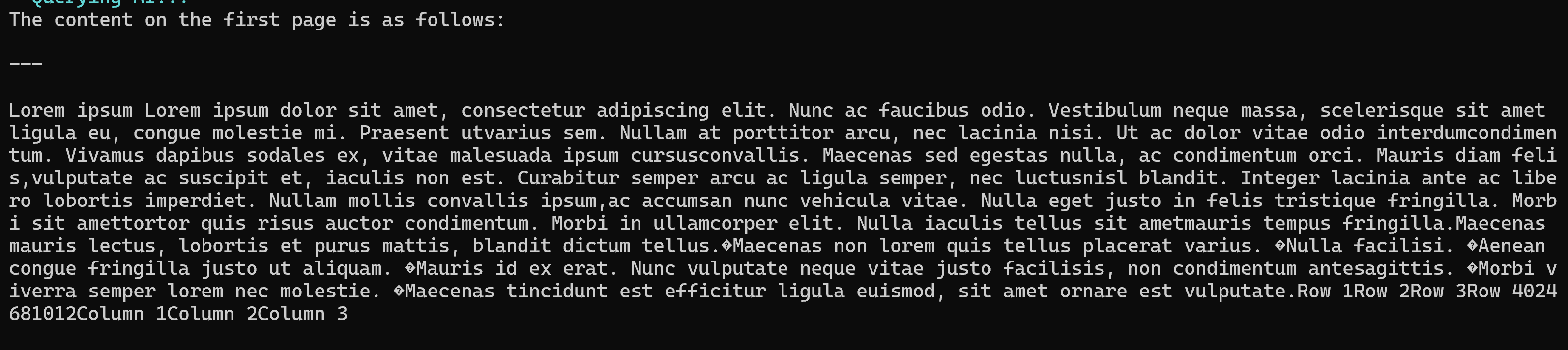
- Test 3 “Schema”
. .\PdfQuerySchema.ps1
Invoke-PdfQuery -PdfPath ".............dummy.pdf" -Question "Whats the content on the first page?" -Schema $summarySchema
As you can see this is way nicer, we have everything in our schema this way!
📒I need to be honest about something. This approach works great for PDFs up to roughly 30-40 pages. After that, you’re going to hit the model’s context window limit.
📒Our PowerShell library extracts the content as plain text so headings, images etc. are gone. So for analyzing graphs or other illustrations this approach will not fit (yet) there are better ways for doing this. We’ll discuss this in one of the upcoming blogs.
For large documents, you can query specific pages, chunk and summarize sections, or build a proper RAG setup with vector databases. But for most day-to-day work, invoices, short reports, contracts under 30 pages, this approach just works.
💡 For most day-to-day work, this approach just works. Don’t over-engineer it.
Security Note
⚠️ Your PDF content gets sent to Azure OpenAI. Make sure you’re comfortable with that before feeding it sensitive documents. Azure OpenAI runs in your own tenant and Microsoft states that your data is not used to train models, but check your organization’s policies.
⚠️ The API key in the script is hardcoded. For production use, store it in a Key Vault or use environment variables. For personal scripting and experimentation, hardcoded is fine. Just don’t commit it to a public repo. 😉
Wrapping Up
Three scripts. That’s all it takes to turn any PDF into something you can actually talk to.
Read-PdfText handles the boring part, cracking open the PDF binary format and pulling out the text. Invoke-PdfQuery handles the smart part, sending that text to Azure OpenAI with your question. And PdfQuerySchema handles the structured part, forcing the AI to give you clean objects instead of prose.
The structured output is what makes this practical beyond just asking questions. When the AI returns confidence: “low”, you know not to blindly trust it. When it returns category: “invoice”, you can route it to the right folder. When it returns keyPoints as an array, you can pipe it into your next script.
It’s not magic. It’s just PowerShell doing what PowerShell does best, making things work together that weren’t designed to work together. A PDF library from NuGet, an AI model on Azure, and a few functions to glue them. That’s the script. 😊