

I have a confession. I wrote blog “Testing your code” about Pester. I explained why tests matter, how to write them, how to structure them. Very convincing stuff. And then I proceeded to write 50+ more blogs where approximately zero of the scripts had proper test coverage.
Auch!
I know. You know. We all know. Writing tests is important. We all agree. And then we don’t do it, because writing tests is boring. You already know what the function does after all, you just built it! Sitting down to write test cases feels like writing documentation for something you’ll never forget. Until you do forget, and something breaks. (This happens to me as well)
So here’s the deal. We’re going to make AI write the tests for us. You give it a PowerShell script, it reads the functions, analyzes the parameters, figures out the edge cases, and generates a complete Pester test file. One command, full test coverage. No more excuses.
Like always throughout this post, you’ll see 🎬markers for action steps you can follow along with, and 📒 markers for the technical deep-dives where I explain what’s actually happening under the hood.
What We’re Building
Two modes. First: point at a script, get a .Tests.ps1 file back.
. .\Invoke-AITestGenerator.ps1

Invoke-AITestGenerator -ScriptPath ".\ExampleFunction.ps1"Second: analysis mode. Before generating tests, get a structured breakdown of what’s in the script and what needs testing.
Invoke-AITestGenerator -ScriptPath ".\ExampleFunction.ps1" -AnalyzeWhy AI Is Actually Good at This
📒 Writing tests is a task with very clear patterns. Every function needs the same categories of tests: does it work with valid input? Does it fail correctly with invalid input? Does it handle edge cases? That’s a pattern recognition problem. And pattern recognition is exactly what LLMs are good at.
The AI reads your function signature, sees [Parameter(Mandatory)] on a parameter, and knows it needs a test that calls the function without that parameter and expects a throw. It sees [ValidateSet(“MD5”, “SHA256”)] and generates a test with an invalid value. It sees ValueFromPipeline and generates a pipeline test. Systematic work, exactly what you should automate!
The Example Script
🎬 Create ExampleFunction.ps1 with three functions and give it some basic functionality worth testing
- ConvertTo-Slug (text transformation with pipeline)
- Get-FileChecksum (file system with ValidateSet)
- Merge-Hashtable (recursive logic with -Deep switch).
📒 Three functions, three different patterns. ConvertTo-Slug is a pure text transformation with pipeline support and regex. Get-FileChecksum has file system dependencies that need mocking and uses ValidateSet. Merge-Hashtable has recursive logic with the -Deep switch. Each one exercises different test generation strategies
In the case you need inspiration you can also use my example script shown below
function ConvertTo-Slug {
    param(
        [Parameter(Mandatory, ValueFromPipeline)]
        [string]$Text,

        [int]$MaxLength = 80,

        [string]$Separator = "-"
    )

    $slug = $Text.ToLower().Trim()
    $slug = $slug -replace '[àáâãäå]', 'a'
    $slug = $slug -replace '[èéêë]', 'e'
    $slug = $slug -replace '[ìíîï]', 'i'
    $slug = $slug -replace '[òóôõö]', 'o'
    $slug = $slug -replace '[ùúûü]', 'u'
    $slug = $slug -replace '[^a-z0-9\s-]', ''
    $slug = $slug -replace '\s+', $Separator
    $slug = $slug -replace "$Separator+", $Separator
    $slug = $slug.Trim($Separator)

    if ($slug.Length -gt $MaxLength) {
        $slug = $slug.Substring(0, $MaxLength).TrimEnd($Separator)
    }

    return $slug
}

function Get-FileChecksum {
    param(
        [Parameter(Mandatory)]
        [string]$Path,

        [ValidateSet("MD5", "SHA1", "SHA256", "SHA384", "SHA512")]
        [string]$Algorithm = "SHA256"
    )

    if (-not (Test-Path $Path)) {
        throw "File not found: $Path"
    }

    if ((Get-Item $Path).PSIsContainer) {
        throw "Path is a directory, not a file: $Path"
    }

    $hash = Get-FileHash -Path $Path -Algorithm $Algorithm
    return [PSCustomObject]@{
        FileName  = Split-Path $Path -Leaf
        Algorithm = $Algorithm
        Hash      = $hash.Hash
        Path      = (Resolve-Path $Path).Path
    }
}

function Merge-Hashtable {
    param(
        [Parameter(Mandatory)]
        [hashtable]$Base,

        [Parameter(Mandatory)]
        [hashtable]$Override,

        [switch]$Deep
    )

    $result = @{}

    foreach ($key in $Base.Keys) {
        $result[$key] = $Base[$key]
    }

    foreach ($key in $Override.Keys) {
        if ($Deep -and $result.ContainsKey($key) -and
            $result[$key] -is [hashtable] -and
            $Override[$key] -is [hashtable]) {
            $result[$key] = Merge-Hashtable -Base $result[$key] -Override $Override[$key] -Deep
        }
        else {
            $result[$key] = $Override[$key]
        }
    }

    return $result
}The Generator
The script has two modes. The default mode generates a complete Pester test file. The -Analyze switch does a structured analysis first, useful when you want to understand what the AI plans to test before it writes the code.
📒 The system prompt for test generation is where the quality comes from. Key constraints: Pester v5 syntax only, Before all for dot-sourcing, no comments in test code, realistic test data (not “foo bar”), and Mock for external dependencies. Every quality issue was fixed by adding one constraint to the prompt.
The analysis mode uses structured output, same json_schema + strict: true approach from blog #54. The schema forces the AI to return each function with parameters, categorized test cases (happy-path, edge-case, error-handling, parameter-validation, pipeline), and a complexity assessment.
Analysis Mode
🎬 Save as Invoke-AITestGenerator.ps1, modify the variables and Run the analysis to see what the AI plans to test:
$Endpoint   = 'https://xxxxxxxxxxxxxxxxxxxxxxxxxxxxxxxxxx.azure.com/'
$Deployment = 'xxxxxxxxxxxxxxxxxxxxxxxxxxxxxxxxxx'
$ApiKey     = 'xxxxxxxxxxxxxxxxxxxxxxxxxxxxxxxxxx'

function Invoke-AITestGenerator {
    param(
        [Parameter(Mandatory)]
        [string]$ScriptPath,

        [string]$OutputPath,

        [switch]$Analyze
    )


    if (-not (Test-Path $ScriptPath)) {
        throw "Script not found: $ScriptPath"
    }

    $scriptContent = Get-Content $ScriptPath -Raw
    $scriptName = Split-Path $ScriptPath -Leaf

    if (-not $OutputPath) {
        $OutputPath = $ScriptPath -replace '\.ps1$', '.Tests.ps1'
    }

    if ($Analyze) {
        return Invoke-TestAnalysis -ScriptContent $scriptContent -ScriptName $scriptName
    }

    Write-Host ""
    Write-Host "  Generating Pester tests for: $scriptName" -ForegroundColor Cyan
    Write-Host "  Reading script... $([math]::Round($scriptContent.Length / 1KB, 1)) KB" -ForegroundColor DarkGray

    $body = @{
        messages = @(
            @{
                role    = "system"
                content = @"
You are a PowerShell Pester test generator.
You receive a PowerShell script and generate comprehensive Pester v6 tests for it.

Rules:
- Use Pester v6 syntax (Describe, Context, It, Should, BeforeAll, BeforeEach, AfterAll).
- Start with a BeforeAll block that dot-sources the script under test.
- Group tests by function using Describe blocks.
- Use Context blocks for different scenarios (valid input, invalid input, edge cases, pipeline input).
- Test parameter validation (mandatory parameters, ValidateSet, type constraints).
- Test error handling (throw conditions, error messages).
- Test return types and return values.
- Test edge cases (empty strings, null, boundary values, special characters).
- Test pipeline input where ValueFromPipeline is used.
- Use Mock for external dependencies (file system, network calls, external cmdlets).
- Do NOT test private implementation details — test the public behavior.
- Do NOT add comments to the test code.
- Make test names descriptive: "Should return lowercase slug for mixed case input".
- Use realistic test data, not "test123" or "foo bar".
"@
            }
            @{
                role    = "user"
                content = "Generate Pester v6 tests for this PowerShell script:`n`n$scriptContent"
            }
        )
        max_tokens = 4000
    }

    $json    = $body | ConvertTo-Json -Depth 20
    $headers = @{
        "api-key"      = $ApiKey
        "Content-Type" = "application/json; charset=utf-8"
    }
    $url = "$Endpoint/openai/deployments/$Deployment/chat/completions?api-version=2024-10-21"

    Write-Host "  Generating tests..." -ForegroundColor Cyan

    $jsonBytes = [System.Text.Encoding]::UTF8.GetBytes($json)

    try {
        $response = Invoke-RestMethod -Method Post -Uri $url -Headers $headers -Body $jsonBytes
    }
    catch {
        $errBody = $_.ErrorDetails.Message
        Write-Host "  API Error: $errBody" -ForegroundColor Red
        throw
    }
    $answer = $response.choices[0].message.content

    $testCode = $answer -replace '(?s)^.*?```powershell\s*', '' -replace '(?s)```.*$', ''

    if ([string]::IsNullOrWhiteSpace($testCode)) {
        $testCode = $answer
    }

    $testCode = $testCode.Trim()

    Set-Content -Path $OutputPath -Value $testCode -Encoding UTF8

    $testCount = ($testCode | Select-String -Pattern '^\s+It ' -AllMatches).Matches.Count
    $describeCount = ($testCode | Select-String -Pattern '^\s*Describe ' -AllMatches).Matches.Count

    Write-Host ""
    Write-Host "  Tests generated!" -ForegroundColor Green
    Write-Host "  Output:    $OutputPath" -ForegroundColor White
    Write-Host "  Describes: $describeCount" -ForegroundColor DarkGray
    Write-Host "  Tests:     $testCount" -ForegroundColor DarkGray
    Write-Host ""
    Write-Host "  Run with:" -ForegroundColor White
    Write-Host "  Invoke-Pester -Path '$OutputPath' -Output Detailed" -ForegroundColor Cyan
    Write-Host ""

    return [PSCustomObject]@{
        ScriptPath   = $ScriptPath
        TestPath     = $OutputPath
        DescribeCount = $describeCount
        TestCount    = $testCount
    }
}

function Invoke-TestAnalysis {
    param(
        [string]$ScriptContent,
        [string]$ScriptName
    )


    $schema = @{
        type       = "object"
        properties = @{
            functions = @{
                type  = "array"
                items = @{
                    type       = "object"
                    properties = @{
                        name       = @{ type = "string" }
                        parameters = @{
                            type  = "array"
                            items = @{
                                type       = "object"
                                properties = @{
                                    name       = @{ type = "string" }
                                    type       = @{ type = "string" }
                                    mandatory  = @{ type = "boolean" }
                                    hasDefault = @{ type = "boolean" }
                                }
                                required             = @("name", "type", "mandatory", "hasDefault")
                                additionalProperties = $false
                            }
                        }
                        testCases  = @{
                            type  = "array"
                            items = @{
                                type       = "object"
                                properties = @{
                                    scenario    = @{ type = "string" }
                                    description = @{ type = "string" }
                                    category    = @{
                                        type = "string"
                                        enum = @("happy-path", "edge-case", "error-handling", "parameter-validation", "pipeline")
                                    }
                                }
                                required             = @("scenario", "description", "category")
                                additionalProperties = $false
                            }
                        }
                        complexity = @{
                            type = "string"
                            enum = @("low", "medium", "high")
                        }
                    }
                    required             = @("name", "parameters", "testCases", "complexity")
                    additionalProperties = $false
                }
            }
            totalTests     = @{ type = "integer" }
            coverageNotes  = @{ type = "string" }
        }
        required             = @("functions", "totalTests", "coverageNotes")
        additionalProperties = $false
    }

    Write-Host ""
    Write-Host "  Analyzing: $ScriptName" -ForegroundColor Cyan

    $body = @{
        messages = @(
            @{
                role    = "system"
                content = @"
You are a PowerShell test planning assistant.
You receive a PowerShell script and analyze it to identify all functions, their parameters, and the test cases needed for comprehensive coverage.

For each function:
- List all parameters with their types, whether they're mandatory, and whether they have defaults.
- Identify test cases across categories: happy-path, edge-case, error-handling, parameter-validation, and pipeline.
- Assess complexity (low = pure function with no dependencies, medium = some branching or external calls, high = complex logic or many dependencies).

For coverageNotes: describe what CANNOT be easily tested and why (e.g., external API calls, file system dependencies that need mocking).
"@
            }
            @{
                role    = "user"
                content = "Analyze this PowerShell script for test planning:`n`n$ScriptContent"
            }
        )
        max_tokens      = 2000
        response_format = @{
            type        = "json_schema"
            json_schema = @{
                name   = "test_analysis"
                strict = $true
                schema = $schema
            }
        }
    }

    $json    = $body | ConvertTo-Json -Depth 20
    $headers = @{
        "api-key"      = $ApiKey
        "Content-Type" = "application/json; charset=utf-8"
    }
    $url = "$Endpoint/openai/deployments/$Deployment/chat/completions?api-version=2024-10-21"

    Write-Host "  Analyzing functions and test coverage..." -ForegroundColor Cyan

    $jsonBytes = [System.Text.Encoding]::UTF8.GetBytes($json)

    try {
        $response = Invoke-RestMethod -Method Post -Uri $url -Headers $headers -Body $jsonBytes
    }
    catch {
        $errBody = $_.ErrorDetails.Message
        Write-Host "  API Error: $errBody" -ForegroundColor Red
        throw
    }
    $result = $response.choices[0].message.content | ConvertFrom-Json

    Write-Host ""
    Write-Host "  Analysis complete!" -ForegroundColor Green
    Write-Host ""

    foreach ($fn in $result.functions) {
        $complexityColor = switch ($fn.complexity) {
            "low"    { "Green" }
            "medium" { "Yellow" }
            "high"   { "Red" }
        }

        Write-Host "  Function: $($fn.name)" -ForegroundColor White
        Write-Host "  Complexity: " -NoNewline
        Write-Host $fn.complexity.ToUpper() -ForegroundColor $complexityColor
        Write-Host "  Parameters:" -ForegroundColor DarkGray
        foreach ($p in $fn.parameters) {
            $mandatory = if ($p.mandatory) { " [mandatory]" } else { "" }
            $default = if ($p.hasDefault) { " [has default]" } else { "" }
            Write-Host "    - $($p.name) ($($p.type))$mandatory$default" -ForegroundColor DarkGray
        }
        Write-Host "  Test cases: $($fn.testCases.Count)" -ForegroundColor DarkGray
        foreach ($tc in $fn.testCases) {
            $catColor = switch ($tc.category) {
                "happy-path"           { "Green" }
                "edge-case"            { "Yellow" }
                "error-handling"       { "Red" }
                "parameter-validation" { "Cyan" }
                "pipeline"             { "Magenta" }
            }
            Write-Host "    [$($tc.category)] " -NoNewline -ForegroundColor $catColor
            Write-Host $tc.description -ForegroundColor DarkGray
        }
        Write-Host ""
    }

    Write-Host "  Total test cases: $($result.totalTests)" -ForegroundColor White
    Write-Host "  Coverage notes: $($result.coverageNotes)" -ForegroundColor DarkGray
    Write-Host ""

    return $result
}
. .\Invoke-AITestGenerator.ps1And run the actual generator
$analysis = Invoke-AITestGenerator -ScriptPath ".\ExampleFunction.ps1" -AnalyzeYou should see that the script is analyzed and that tests are generated:
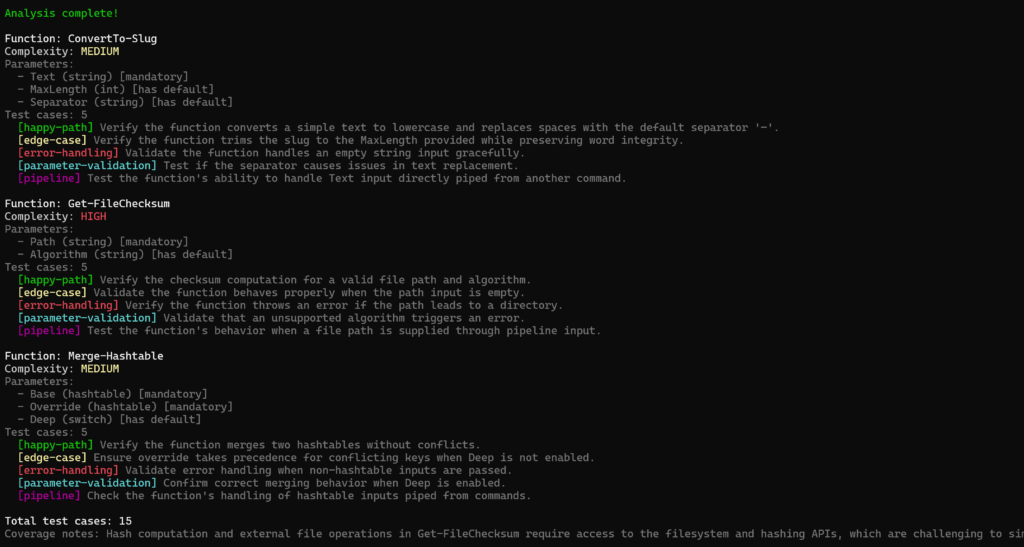
The output shows each function with its parameters, complexity, and planned test cases. Color-coded by category: green for happy-path, yellow for edge cases, red for error handling, cyan for parameter validation, magenta for pipeline tests.
📒 The analysis is useful in two scenarios. First, when you want to review the test plan before generating code. Second, when you want the structured data for a test coverage dashboard or tracking.
Generating Tests
🎬 Generate the actual test file:
Invoke-AITestGenerator -ScriptPath ".\ExampleFunction.ps1"You should see the result below;
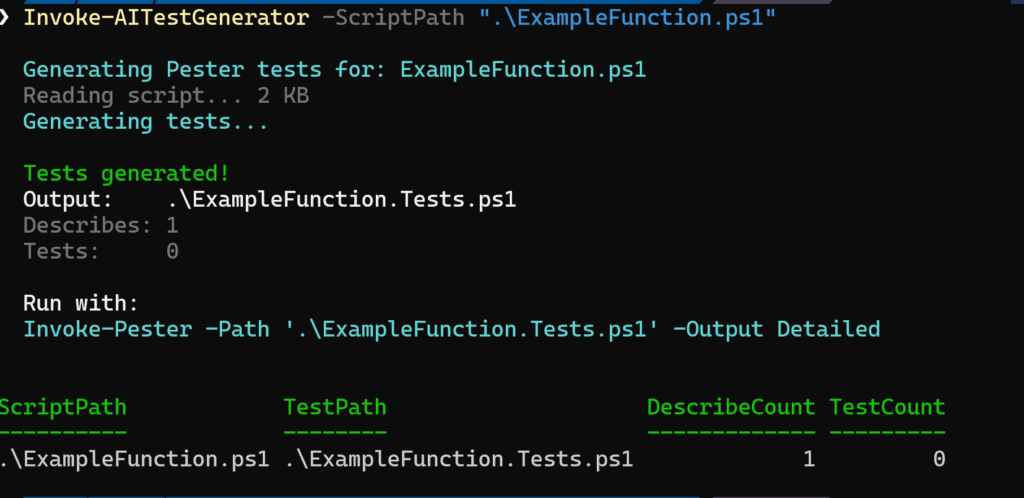
If you look at the test which is then generated it should look something like below
BeforeAll {
    . "$PSScriptRoot\ExampleFunction.ps1"
}

Describe 'ConvertTo-Slug' {
    Context 'When called with valid input' {
        It 'Should return lowercase slug for mixed case input' {
            ConvertTo-Slug -Text "Hello World" | Should -Be "hello-world"
        }

        It 'Should replace accented characters with non-accented equivalents' {
            $text = "Caf$([char]0xE9) $([char]0xE1)$([char]0xE9)$([char]0xED)$([char]0xF3)$([char]0xFA)"
            ConvertTo-Slug -Text $text | Should -Be "cafe-aeiou"
        }

        It 'Should handle spaces and special characters correctly' {
            ConvertTo-Slug -Text "Hello,   World!" | Should -Be "hello-world"
        }
    }

    Context 'When specifying a max length' {
        It 'Should truncate the slug if length exceeds MaxLength' {
            $result = ConvertTo-Slug -Text "Hello World This Is A Very Long Title" -MaxLength 10
            $result.Length | Should -BeLessOrEqual 10
        }

        It 'Should not end with separator after truncation' {
            $result = ConvertTo-Slug -Text "One Two Three Four Five Six" -MaxLength 9
            $result | Should -Not -Match '-$'
        }
    }

    Context 'When specifying a custom separator' {
        It 'Should use the custom separator instead of the default' {
            ConvertTo-Slug -Text "Hello World" -Separator "_" | Should -Be "hello_world"
        }
    }

    Context 'With pipeline input' {
        It 'Should process pipeline input correctly' {
            'Hello World' | ConvertTo-Slug | Should -Be "hello-world"
        }
    }

    Context 'Edge cases' {
        It 'Should trim separators from the start and end of the slug' {
            ConvertTo-Slug -Text "--Hello--World--" | Should -Be "hello-world"
        }

        It 'Should handle multiple consecutive spaces' {
            ConvertTo-Slug -Text "Hello    World" | Should -Be "hello-world"
        }
    }
}

Describe 'Get-FileChecksum' {
    Context 'When called with valid inputs' {
        BeforeEach {
            Mock Test-Path { $true }
            Mock Get-Item { [PSCustomObject]@{ PSIsContainer = $false } }
            Mock Resolve-Path { [PSCustomObject]@{ Path = "C:\Files\Report.txt" } }
            Mock Get-FileHash { [PSCustomObject]@{ Hash = "A1B2C3D4E5F6" } }
        }

        It 'Should return a checksum object with expected properties' {
            $result = Get-FileChecksum -Path "C:\Files\Report.txt"
            $result | Should -Not -Be $null
            $result.FileName | Should -Be "Report.txt"
            $result.Hash | Should -Be "A1B2C3D4E5F6"
        }

        It 'Should use the default SHA256 algorithm' {
            $result = Get-FileChecksum -Path "C:\Files\Report.txt"
            $result.Algorithm | Should -Be "SHA256"
        }
    }

    Context 'When specifying a different algorithm' {
        BeforeEach {
            Mock Test-Path { $true }
            Mock Get-Item { [PSCustomObject]@{ PSIsContainer = $false } }
            Mock Resolve-Path { [PSCustomObject]@{ Path = "C:\Files\Report.txt" } }
            Mock Get-FileHash { [PSCustomObject]@{ Hash = "DEADBEEF" } }
        }

        It 'Should support MD5' {
            $result = Get-FileChecksum -Path "C:\Files\Report.txt" -Algorithm "MD5"
            $result | Should -Not -Be $null
            Should -Invoke Get-FileHash -ParameterFilter { $Algorithm -eq "MD5" }
        }
    }

    Context 'Error handling' {
        It 'Should throw if file does not exist' {
            Mock Test-Path { $false }
            { Get-FileChecksum -Path "C:\Files\NonExistent.txt" } | Should -Throw "*File not found*"
        }

        It 'Should throw if path is a directory' {
            Mock Test-Path { $true }
            Mock Get-Item { [PSCustomObject]@{ PSIsContainer = $true } }
            { Get-FileChecksum -Path "C:\Files" } | Should -Throw "*directory*"
        }
    }
}

Describe 'Merge-Hashtable' {
    Context 'When merging two hashtables' {
        It 'Should override existing keys with values from the override hashtable' {
            $base = @{ Name = "John"; Age = 30 }
            $override = @{ Age = 25 }
            $result = Merge-Hashtable -Base $base -Override $override
            $result.Name | Should -Be "John"
            $result.Age | Should -Be 25
        }

        It 'Should include all keys from both hashtables' {
            $base = @{ Name = "John"; Age = 30 }
            $override = @{ Location = "NY" }
            $result = Merge-Hashtable -Base $base -Override $override
            $result.Name | Should -Be "John"
            $result.Age | Should -Be 30
            $result.Location | Should -Be "NY"
        }

        It 'Should not modify the original hashtables' {
            $base = @{ Name = "John" }
            $override = @{ Age = 30 }
            $result = Merge-Hashtable -Base $base -Override $override
            $base.Keys.Count | Should -Be 1
            $override.Keys.Count | Should -Be 1
        }
    }

    Context 'When performing deep merge' {
        It 'Should merge nested hashtables with -Deep switch' {
            $base = @{ Info = @{ Name = "John"; City = "LA" } }
            $override = @{ Info = @{ City = "NY" } }
            $result = Merge-Hashtable -Base $base -Override $override -Deep
            $result.Info.Name | Should -Be "John"
            $result.Info.City | Should -Be "NY"
        }

        It 'Should replace nested hashtables without -Deep switch' {
            $base = @{ Info = @{ Name = "John"; City = "LA" } }
            $override = @{ Info = @{ City = "NY" } }
            $result = Merge-Hashtable -Base $base -Override $override
            $result.Info.Name | Should -BeNullOrEmpty
            $result.Info.City | Should -Be "NY"
        }
    }
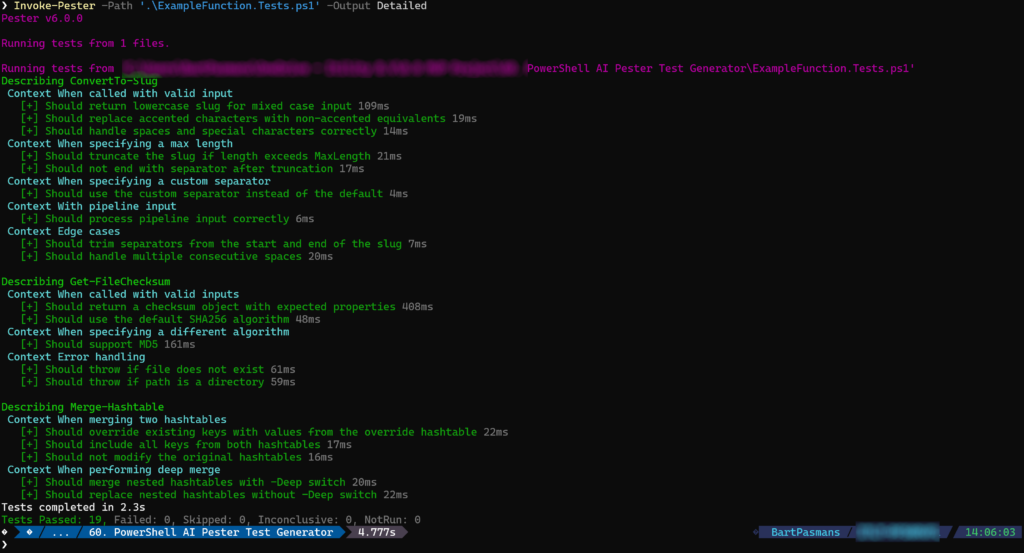
}🎬 Run the generated tests:
⚠️ Make sure Pester with the version v6 (thats whats in the prompt to the agent 😉) is available on your system before you continue. And run everything with PowerShell 7!
Invoke-Pester -Path '.\ExampleFunction.Tests.ps1' -Output DetailedYou should see the outcome of our test;
Tips and Gotchas
Review before committing. AI-generated tests are a draft, not a final product. Check expected values, verify mocking, and make sure edge cases make sense.
The system prompt is everything. If the AI generates v4 syntax, or uses unrealistic test data, or forgets to mock update the system prompt. Every quality issue was fixed by adding one constraint.
-Analyze first for complex scripts. If your script has 10+ functions, run the analysis first. It gives you a map of what the AI plans to test.
Pester must be installed. The generated tests require Pester v6: Install-Module Pester -Force -SkipPublisherCheck
Wrapping Up
Blog #6 was about why you should write tests. Blog #60 is about why you don’t have to write them yourself anymore.
The test generator doesn’t replace understanding your code. You still need to review what comes out, fix the occasional wrong expected value, and add tests for domain-specific edge cases. But it takes you from zero to 80% in thirty seconds. The boring, systematic part is over, the AI handles that.
And the analysis mode is the highlight. Being able to ask “what should I test in this script?” and getting back a categorized, color-coded test plan with complexity ratings, that’s not just useful for generating tests. It’s useful for understanding your own code.
Resources
• Azure OpenAI Structured Outputs